URDF Files and Reference Materials
Lerbot's official URDF file
URDF Studio
ROS2 Simulation Control (you can implement it yourself)
https://github.com/holmsslk/so-arm-moveit-hardware
LeRobot's official graphical interface
https://github.com/huggingface/leLab
LeLab is a web application that integrates LeRobot's entire workflow—calibration, teleoperation, recording, training, and playback—into a single browser interface. Just connect the robot arm, open the app, and you can start operating. No tedious command-line operations and no keyboard input are required.
🤗 LeRobot's native web entry point, designed to let new users complete the entire process from "unboxing" to "training their first policy" in just a few minutes.
🤗 Install and run everything with just one command.
Control the follower arm with a phone
https://huggingface.co/docs/lerobot/main/en/phone_teleop
Cloud robotics development: implementing Lerobot simulation and data flow between ROS 2 devices and Isaac Sim on AWS
Set servo IDs and center calibration in the browser
https://bambot.org/feetech.js?lang=zh
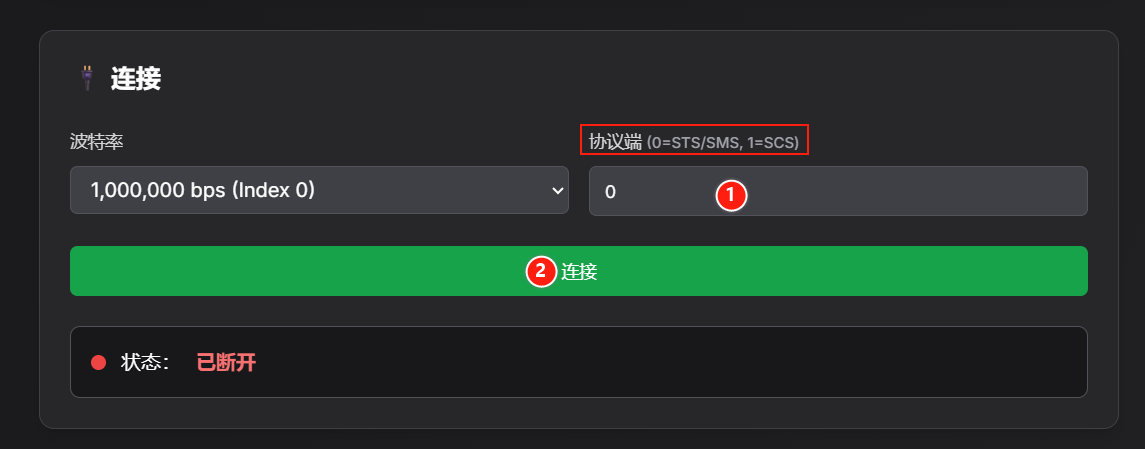
- Enter 0 or 1 depending on the servo model, and click "Connect"
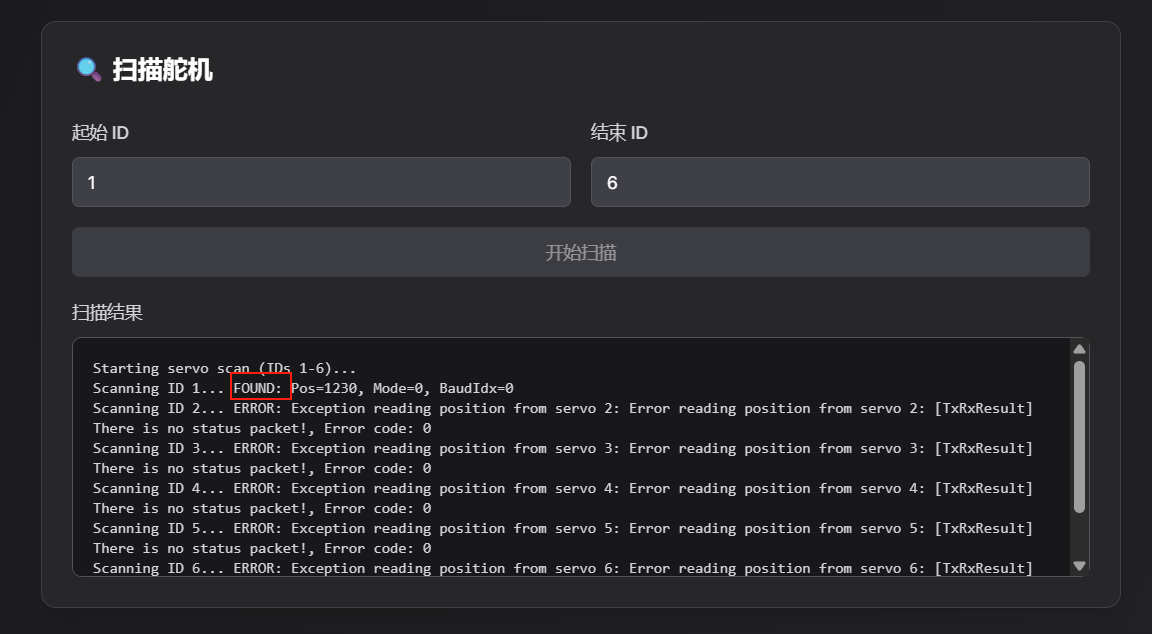
- Scan servos with IDs 1~6. You can confirm the corresponding servo ID from the FOUND result in the scan output. For example, in the figure, servo ID 1 was scanned
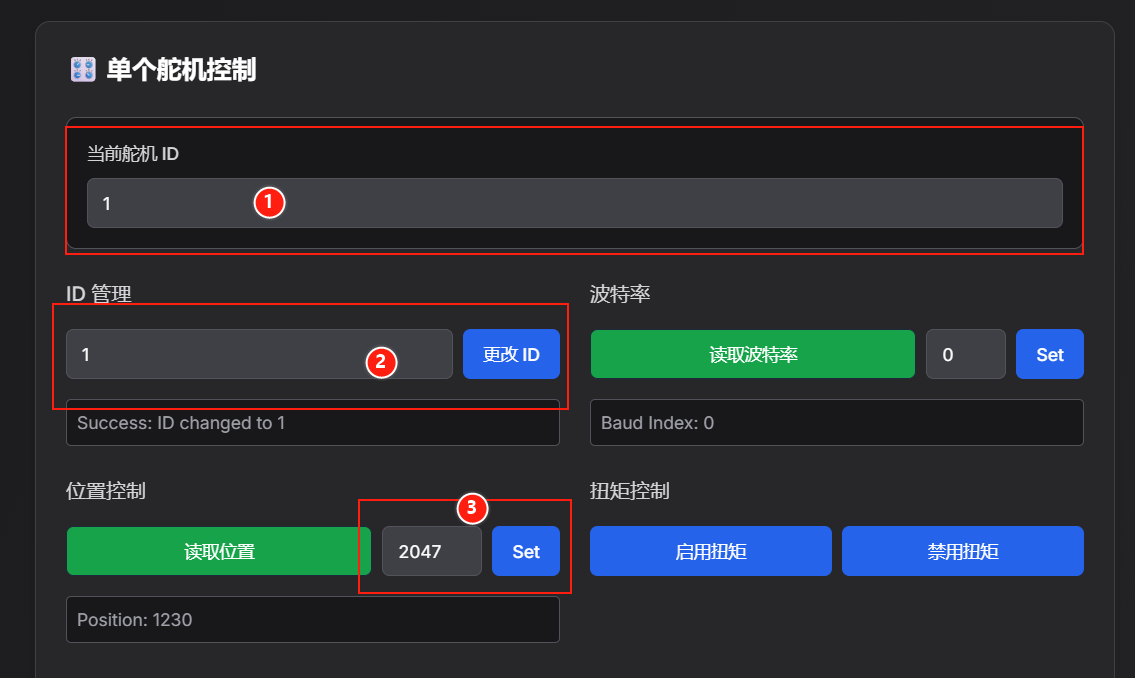
- ID setting and center calibration
① The current servo ID input is the scanned servo ID
② Enter a number in "ID Management" and click "Change ID" to set the ID
③ Center calibration (the center of the STS3215 servo is 2047, and the center of the SCS0009 servo is 511)
STS servo: enter 2047 in "Position Control" and click "Set"
SCS servo: enter 511 in "Position Control" and click "Set"