

Arduino: Location Parsing
1. Learning Objectives
In this lesson, we will mainly learn to use Arduino and a GPS module to implement the position information parsing and printing function.
2. Preparation
The GPS module uses UART and USB communication. Here, the Arduino UNO's UART port is used to read information. Connect the module's TX to the Arduino UNO board's D0 pin. Connect VCC and GND to 5V and GND respectively.
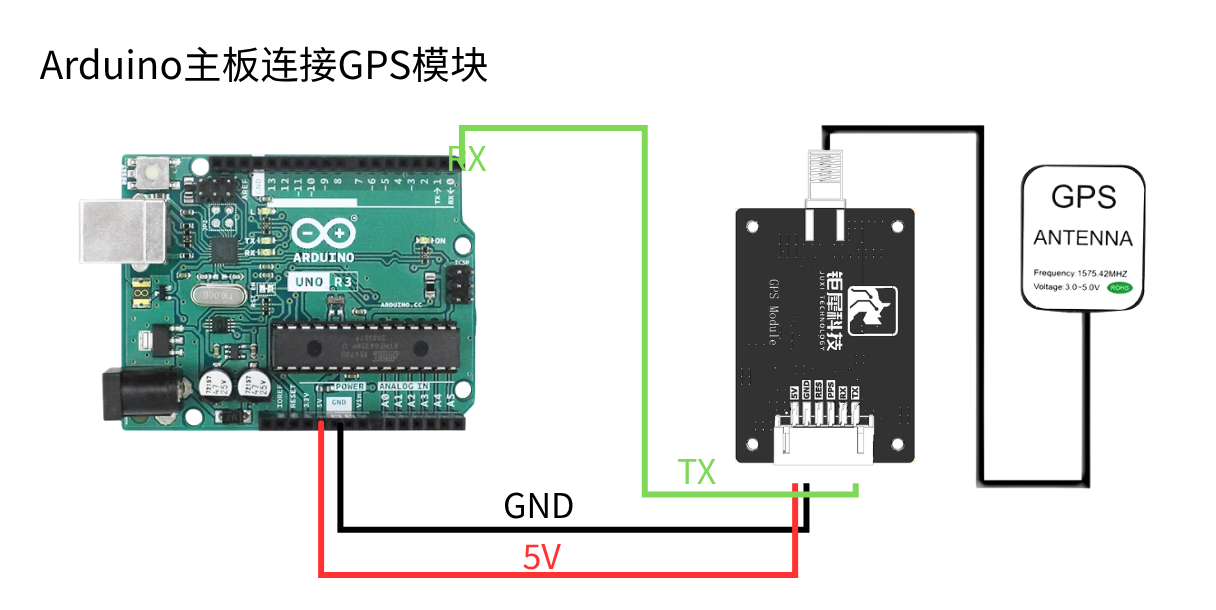
3. Program
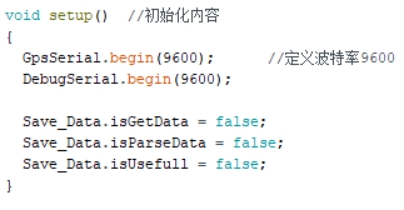
Initialize the serial port.
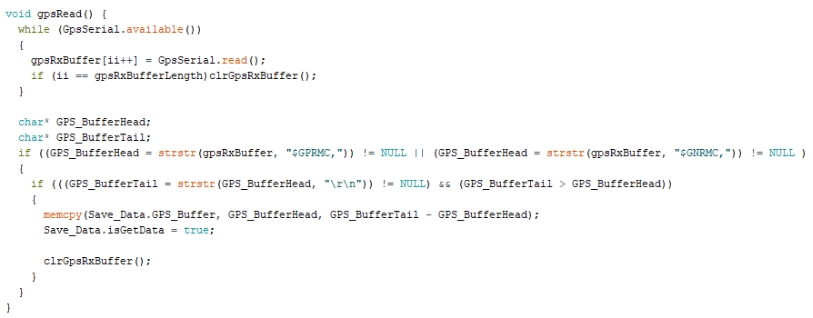
Read the serial port data.
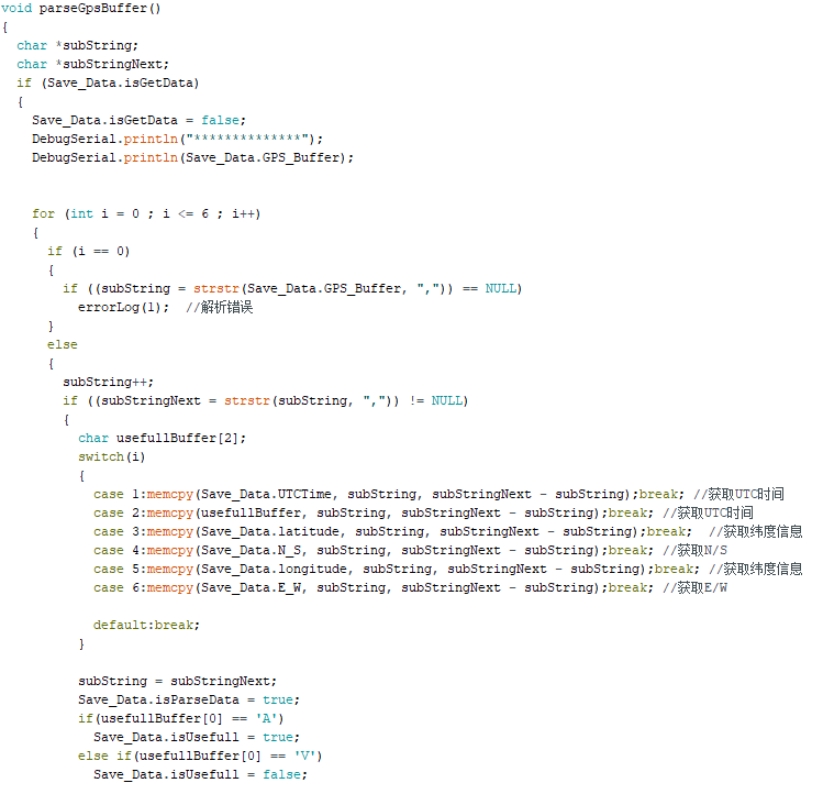
Parse the serial port data.
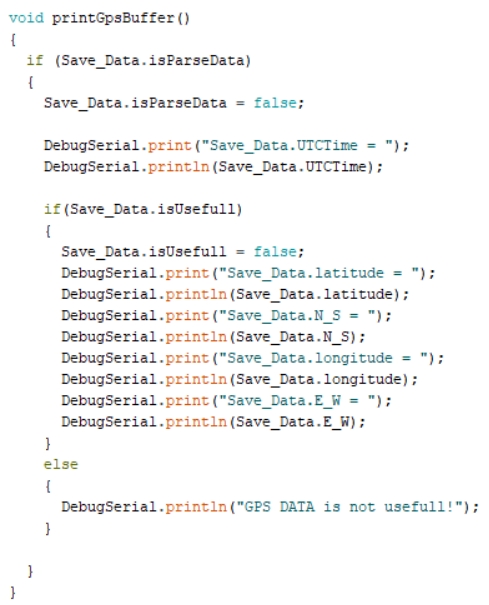
Print the parsed position information.
4. Compile and Download the Program
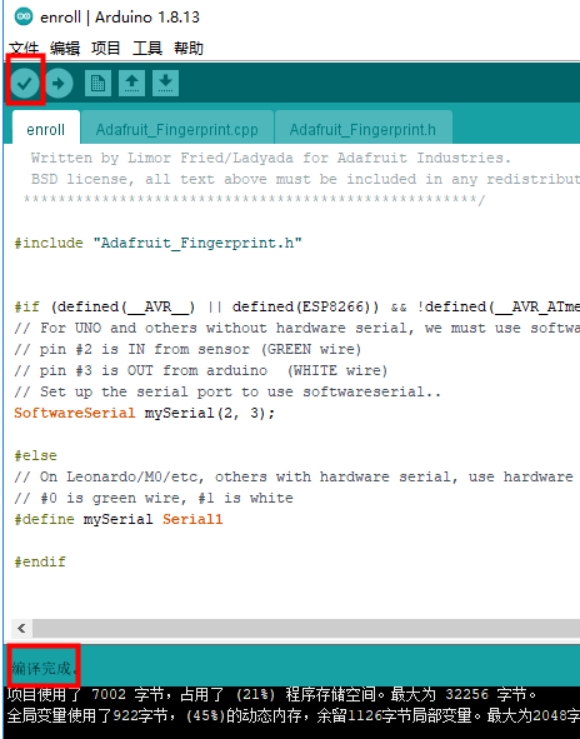
4.1 We need to open the file with the Arduino IDE software, then click the "√" in the menu bar to compile the program, and wait for the text "Compilation successful" to appear in the lower-left corner.
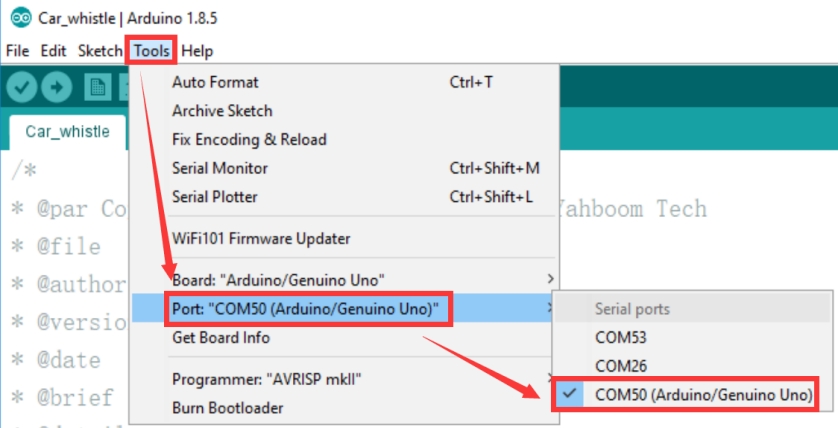
4.2 In the Arduino IDE menu bar, we need to select [Tools] --- [Port] --- and select the port number just shown in Device Manager, as shown in the figure below.
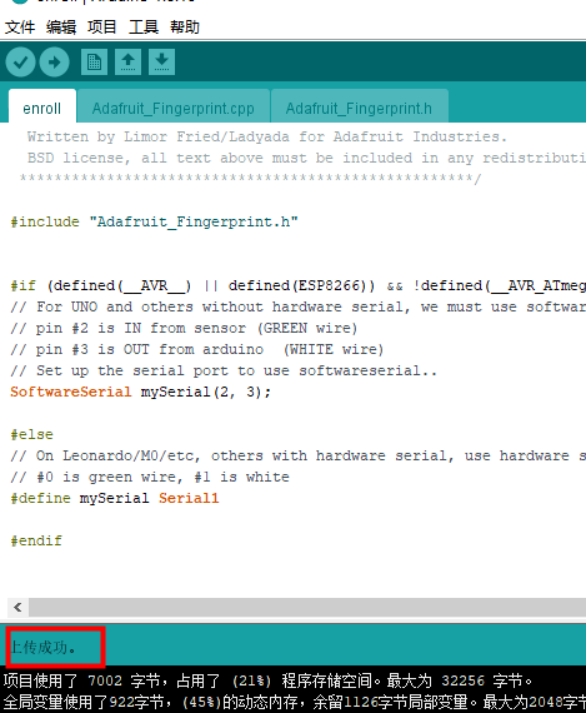
4.3 After the selection is complete, click the "→" in the menu bar to upload the code to the UNO board. When the text "Upload complete" appears in the lower-left corner, it means the program has been successfully uploaded to the UNO board, as shown in the figure below.
5. Experimental Results
After the module is powered on, it takes about 32s to start up. After that, the serial print status LED on the module will keep blinking, and data can be received normally.
After the program is downloaded and running, open the serial monitor window, open the serial software, set the baud rate to 9600, and the serial port will print the parsed real-time position information in a loop.
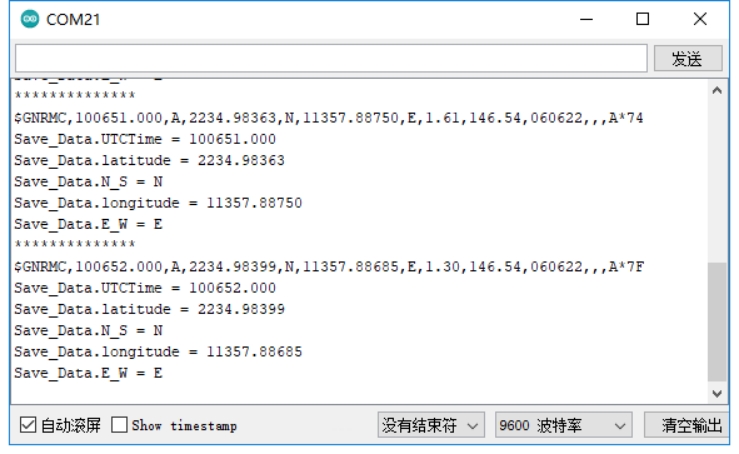
Note: the module antenna needs to be outdoors; otherwise, the GPS signal may not be found.