

RDK Series
1. Connect the device
This tutorial takes the mirroring of the? version of the RDK X5 motherboard as an example.
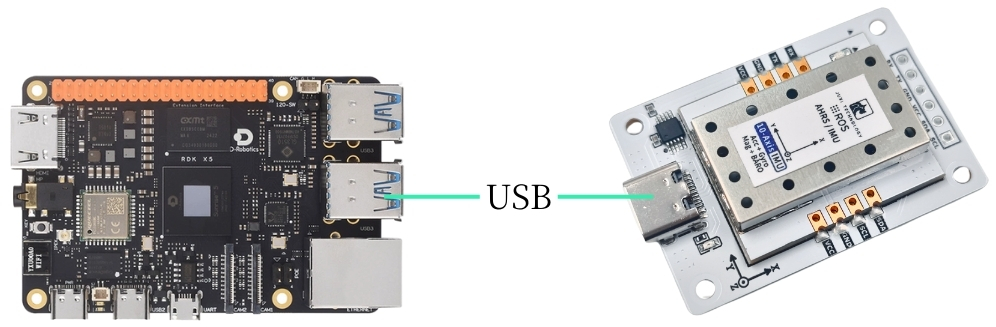
Connect the IMU attitude sensor to the USB port of the main controller via a Type-C cable.
2. Check device status
View device ID
lsusbView Device Number
ls -l /dev/ttyU*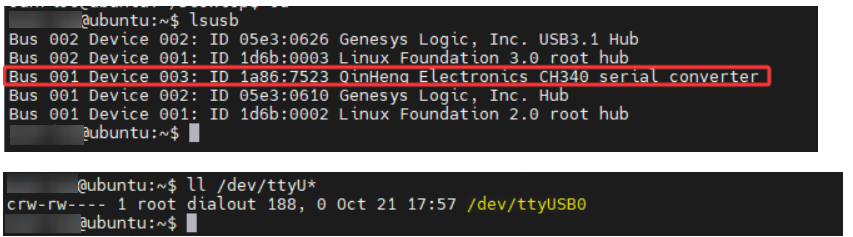
Set Port Mapping
# To prevent the port from changing after unplugging, set up port mapping
sudo gedit /etc/udev/rules.d/99-serial-imu.rules

# If the message that the gedit command is not found appears, install it first
sudo apt install gedit

# Fill in the mapping content
KERNEL=="ttyUSB*", ATTRS{idVendor}=="1a86", ATTRS{idProduct}=="7523", MODE:="0777", SYMLINK+="imu-serial"

# Parameter description:
`--mode`: Communication mode: `serial` (serial port) or `i2c`
`--port`: Serial port name (e.g., `/dev/ttyUSB0`) or I2C port number (e.g., `7`)
`--rate`: Data printing frequency (Hz), default 10Hz
`--debug`: Enable debug mode, show detailed information

# Save and exit, then run the command to apply the rules
sudo udevadm trigger
sudo service udev reload
sudo service udev restart

# Verify
ll /dev/imu-serial

# Output example:
lrwxrwxrwx 1 root root 7 1月 22 10:00 /dev/imu-serial -> ttyUSB0
3. Install the driver library
3.1 Install the Python libraries required for the code
sudo apt update
sudo apt install -y python3-serial
sudo apt install -y python3-smbus2
3.2 Transfer Files
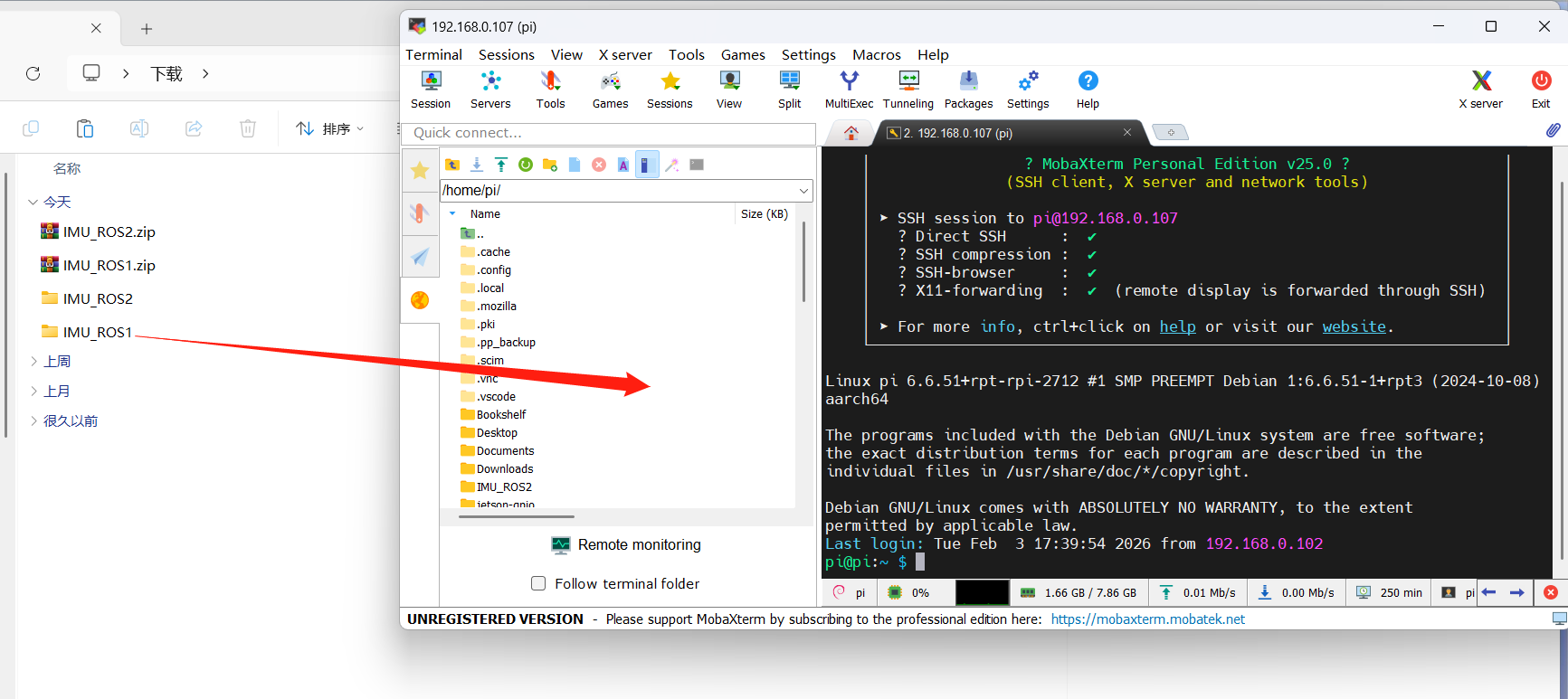
IMU_ROS2.zip Friends who are not yet familiar with using MobaXterm to transfer files, please refer to the following webpage for detailed installation and operation methods of MobaXterm:文件远程传输
Drag the extracted files onto RDK X5 via MobaXterm software.
4. View IMU data
**Enter the ~/IMU_Library directory and run the IMU_Serial_Library.py file **
cd ~/IMU_ROS2/IMU_Library

# Run the IMU data printing file
python3 -m IMU_Library.IMU_Serial_Library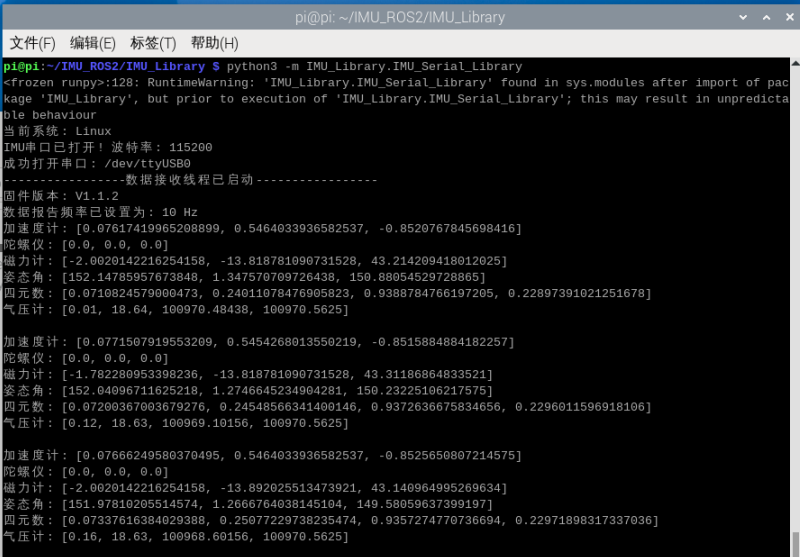
Note: The above is the data reading for a 10-axis IMU. The 6-axis has no Magnetometer and Barometer data, and the 9-axis has no Barometer data.
5. IMU Calibration
**Enter the ~/IMU_Library directory and run the imu_calibration_tool.py file **
cd ~/IMU_Library

# Run the IMU calibration code file -- serial communication calibration
# Run all calibrations (full, magnetometer, temperature)
python3 -m IMU_Library.imu_calibration_tool --mode serial --port /dev/imu-serial

# Full calibration only
python3 -m IMU_Library.imu_calibration_tool --mode serial --port /dev/imu-serial --calibrate imu

# Magnetometer only
python3 -m IMU_Library.imu_calibration_tool --mode serial --port /dev/imu-serial --calibrate mag

# Temperature only
python3 -m IMU_Library.imu_calibration_tool --mode serial --port /dev/imu-serial --calibrate temp
6. Precautions
If the device ID can be found but the device number cannot, you can refer to the following command to install the ch34x driver
sudo apt remove brltty
git clone https://github.com/clhchan/CH341SER.git
cd CH341SER
make -j6
sudo make install
sudo modprobe ch34x