ROS1 Application
System configuration: Ubuntu 20.04
ROS1 version: noetic
ROS1 environment setup
- Set up the ROS1 installation source
PowerShell
sudo sh -c '. /etc/lsb-release && echo "deb http://mirrors.tuna.tsinghua.edu.cn/ros/ubuntu/ `lsb_release -cs` main" > /etc/apt/sources.list.d/ros-latest.list'- Set up the Key
PowerShell
sudo apt-key adv --keyserver 'hkp://keyserver.ubuntu.com:80' --recv-key C1CF6E31E6BADE8868B172B4F42ED6FBAB17C654Plain
sudo apt update- Install ROS1 (official download)
PowerShell
sudo apt install ros-noetic-desktop-fullInstall ROS1 with proxy acceleration wget http://fishros.com/install -O fishros && . fishros
- Configure environment variables
Plain
echo "source /opt/ros/noetic/setup.bash" >> ~/.bashrcPowerShell
source ~/.bashrcConnect the device to the VM
- Check the device
PowerShell
ll /dev/ttyUSB*- Create the port mapping
PowerShell
sudo gedit /etc/udev/rules.d/99-serial-imu.rules- Fill in the mapping file contents
PowerShell
KERNEL=="ttyUSB*", ATTRS{idVendor}=="1a86", ATTRS{idProduct}=="7523", MODE:="0777", SYMLINK+="imu-serial"- Save and exit, then run the commands to apply the rules
PowerShell
sudo udevadm triggerPlain
sudo service udev reloadPlain
sudo service udev restart- Verify
PowerShell
ll /dev/imu-serialBash
sudo usermod -aG dialout ashImport the prepared archive
Available in the same Feishu directory: IMU_ROS1.zip
After extraction, transfer it to the VM with a file transfer tool
Install the IMU_Library library
PowerShell
cd IMU_ROS1
# After downloading and extracting the IMU_ROS1 archive, enter the IMU_Library directory and run the following commands
cd IMU_Library
# Install the library and its dependencies
pip install -e .
# Or install with setup.py
python setup.py install
Install Python libraries
PowerShell
sudo pip3 install pyserial
sudo pip3 install smbus2
If rendering issues occur, run the following commands
PowerShell
sudo apt-get install ros-noetic-imu-filter-madgwick
sudo apt-get install ros-noetic-rviz-imu-plugin
Build the ROS1 project
- Open a new terminal in /home and create a ros1 workspace
PowerShell
mkdir imu_ros1
cd imu_ros1
mkdir src
cd src/
catkin_init_workspace- Copy the transferred IMU_ROS1 folder into ~/imu_ros1/src/
PowerShell
# Copy the IMU_ROS1 folder into the newly created src directory
cp -r ~/IMU_ROS1 ~/imu_ros1/src
cd ~/imu_ros1
catkin_make- Add the workspace ~/imu_ros1 to the environment variables
PowerShell
# Edit ~/.bashrc
sudo gedit ~/.bashrc

# Write the following command at the end
source ~/imu_ros1/devel/setup.bash

source ~/.bashrc
Start the ROS1 nodes
- Open a terminal and enter roscore to start the node
PowerShell
# Start roscore
roscore

# Open a new terminal, set up the environment, and start the node
source ~/imu_ros1/devel/setup.bash- Grant executable permission to the Python scripts (important)
Enter the scripts directory where the scripts reside, and run chmod +x to grant executable permission (+x = add execute):
PowerShell
# Enter the directory containing imu_driver.py (use your actual path)
cd ~/imu_ros1/src/IMU_ROS1/scripts/

# Grant execute permission (only needs to be done once, takes effect permanently)
chmod +x imu_driver.py
chmod +x mag_visualizer.py
Return to the imu_ros1 folder and run imu_driver.py
Plain
cd ~/imu_ros1Plain
rosrun IMU_ROS1 imu_driver.pyIMU data output
- Open a new terminal and list the imu topics
PowerShell
# List all currently published topics
rostopic list- Print topic data
PowerShell
# Print IMU raw data
rostopic echo /imu/data_raw

# Print magnetometer data
rostopic echo /imu/mag
RViz visualization
- Run the command to start rviz
PowerShell
roslaunch IMU_ROS1 imu_display.launchFAQ
- If the node fails to start, try the following commands
PowerShell
# Run in the ~/imu_ros1 directory
source devel/setup.bash

# Port number issue
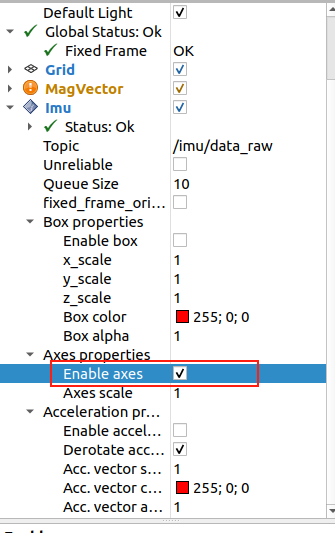
sudo chmod 666 /dev/imu-serial- If the three axes appear too small in RViz, re-check Enable axes