

Step 2: Serial Port Check (macOS)
View the ports
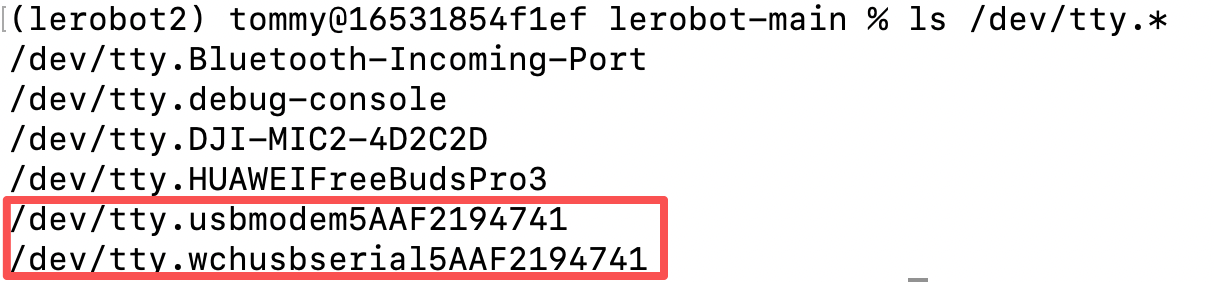
ls /dev/tty.*The result is similar to the figure below; either of the two ports can be used
Grant permissions to the port
Grant all users read/write permission for these serial devices
chmod 666 /dev/tty.*Record my ports
Follower:
/dev/tty.usbmodem5AAF2193061
/dev/tty.wchusbserial5AAF2193061
Leader:
/dev/tty.usbmodem5AAF2194741
/dev/tty.wchusbserial5AAF2194741
Why are there two ports on Mac?
The servo control board we use is recognized simultaneously as two different types of serial drivers in Mac, so two ports are shown:
One is the system's default generic serial driver (
/dev/tty.usbmodemxxxx)The other is a dedicated serial driver provided by the chip vendor (for example, "wch" here corresponds to the CH340/CH341 chip from Nanjing Qinheng) (
/dev/tty.wchusbserialxxxx)
This is normal behavior. The two ports actually correspond to the same hardware device, and either one can be chosen for connection and communication (for example, just choose one of the ports in the robot arm control software).
If a later operation reports an error on one port, try switching to the other port.