

PC GUI App
📋 Features
This is a graphical heart rate & SpO2 monitoring host application supporting the following features:
- ✅ Serial port selection - Automatically scans available serial ports
- ✅ Baud rate selection - Supports 9600/19200/38400/57600/115200
- ✅ Connect/Disconnect - One-click connect/disconnect of the module
- ✅ Start/Stop collection - Controls the sensor LED on/off
- ✅ Start/Stop monitoring - Displays data in real time
- ✅ Real-time data display - SpO2, heart rate, temperature
🔌 Hardware Connection
| Heart Rate & SpO2 Module | USB-to-TTL Module |
|---|---|
| VCC | 5V (important! do not connect 3.3V) |
| GND | GND |
| TX | RX (cross-connect) |
| RX | TX (cross-connect) |
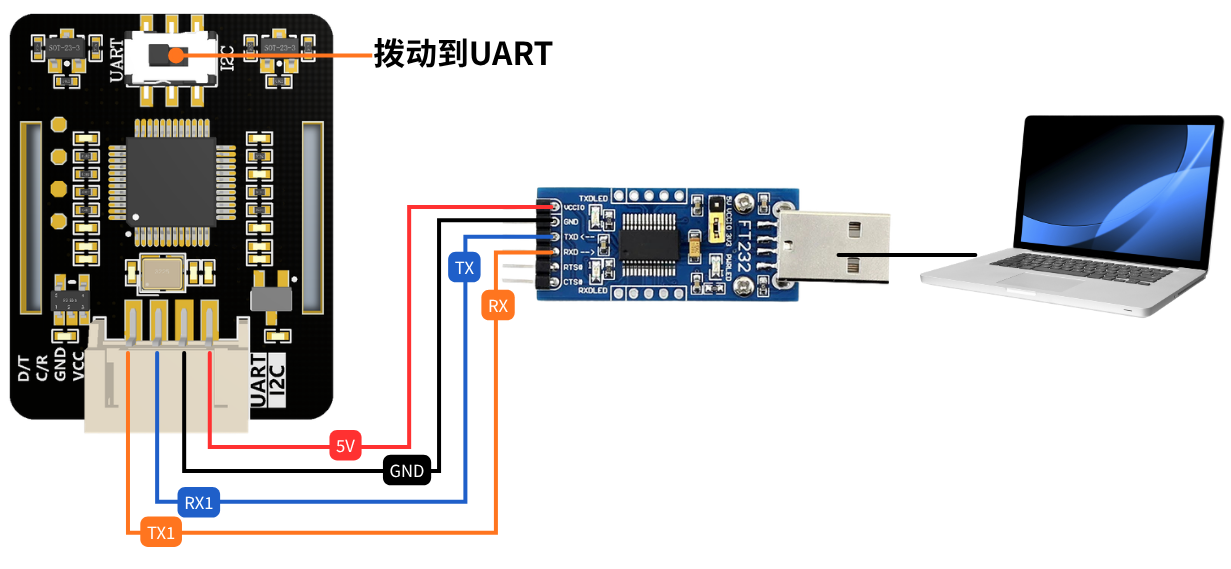
⚠️ Note: slide the module switch to UART; TX and RX must be cross-connected!
🚀 Running the Program
Option 1: Run the Python Script Directly
- Install the dependency library:
bash
pip install pyserial- Run the program:
bash
cd D:\JUXI_HeartRate_SPO2\python\windowsbash
python HeartRateOximeter.py📖 Usage Steps
Step 1: Connect the Hardware
- Connect the sensor and the USB-to-TTL adapter according to the wiring table above
text
VCC->VCC
GND->GND
RX->TX
TX->RX- Plug the USB-to-TTL adapter into a USB port on the computer
Step 2: Open the Program
Run HeartRateOximeter.exe
Step 3: Serial Port Settings
- Select the correct serial port number (e.g., COM3)
- Select baud rate 9600 (default)
- Click the [Connect] button
Step 4: Start Collection
- After a successful connection, click [Start Collection]
- ✅ The sensor LED will light up
Step 5: Start Monitoring
- Place your finger on the sensor
- Click [Start Monitoring]
- View the real-time data
📊 Interface Overview
text
┌─────────────────────────────────────────┐
│           串口设置                       │
│  串口:  [COM3  ↓]  [刷新]               │
│  波特率:[9600  ↓]  [连接]               │
├─────────────────────────────────────────┤
│           模块控制                       │
│  [启动采集]  [开始监测]                 │
├─────────────────────────────────────────┤
│           实时数据                       │
│  血氧 (SPO2):       98 %                │
│  心率 (Heart Rate): 75 Times/min        │
│  温度 (Temperature): 36.6 °C            │
│  状态:  正在监测...                     │
├─────────────────────────────────────────┤
│           使用提示                       │
│  1. 接线:VCC->5V, GND->GND, RX->TX, TX->RX          │
│  2. 点击连接后再启动采集                               │
│  3. 启动采集后传感器LED会亮起                           │
└─────────────────────────────────────────┘
📋 Data Interpretation
| Data | Normal range | Description |
|---|---|---|
| Blood Oxygen (SPO2) | 95% - 100% | Below 90%, consult a doctor |
| Heart rate | 60 - 100 Times/min | Normal adult range |
| Temperature | 25 - 35 °C | Module onboard temperature, not body temperature |
Note: Just after startup or when the finger is not placed properly, the data may show -1; this is normal.
❓ FAQ
Q1: What should I do if no serial port is found?
A:
- Check whether the USB-to-TTL driver is installed correctly
- Unplug and replug the USB cable
- Click the [Refresh] button to rescan
Q2: What should I do if the connection fails?
A:
- Confirm the serial port selection is correct
- Confirm the serial port is not occupied by another program (such as a serial assistant or Arduino IDE)
- Check whether the USB-to-TTL adapter works properly
Q3: The LED does not light up after clicking Start Collection?
A:
- Check whether VCC is connected to 5V (not 3.3V)
- Check whether TX/RX are cross-connected
- Confirm the sensor module itself is not damaged
Q4: The data keeps showing -1?
A:
- Confirm that [Start Collection] has been clicked
- Place your finger correctly on the sensor, completely covering the LED area
- Keep your finger steady and wait a few seconds
- Check whether the wiring is loose
Q5: The program is unresponsive?
A:
- First click [Stop Monitoring]
- Then click [Stop Collection]
- Finally click [Disconnect]
- Restart the program
⚠️ Precautions
- Wiring order: Connect the sensor first, then plug in USB
- Disconnect order: Stop monitoring first, then stop collection, and finally disconnect
- Power requirements: The sensor must be powered at 5V; 3.3V may not work properly
- Finger placement: During measurement, your finger must completely cover the optical area; do not press hard
- Environmental requirements: Avoid direct strong light on the sensor
📞 Technical Support
If you have problems, please check:
- Whether the hardware wiring is correct (especially TX/RX cross-connection)
- Whether the power supply is 5V
- Whether the USB-to-TTL driver is normal
- Whether the serial port is occupied by another program