

PC · Running Python
Contents
- Hardware preparation
- Hardware connection
- Software environment setup
- Running the example program
- FAQ
Hardware Preparation
Required Materials
| Material | Description |
|---|---|
| JUXI_HeartRate_SPO2 sensor | Heart rate & SpO2 module |
| USB-to-TTL module | CH340 / CP2102 / FT232, etc. |
| Jumper wires | 4 (female-to-female) |
| Windows computer | Win7/Win10/Win11 |
Hardware Connection
Wiring
| Sensor pin | USB-to-TTL pin | Description |
|---|---|---|
| VCC | 3.3V or 5V | Power positive |
| GND | GND | Power negative |
| TX | RX | Sensor transmit → module receive |
| RX | TX | Sensor receive → module transmit |
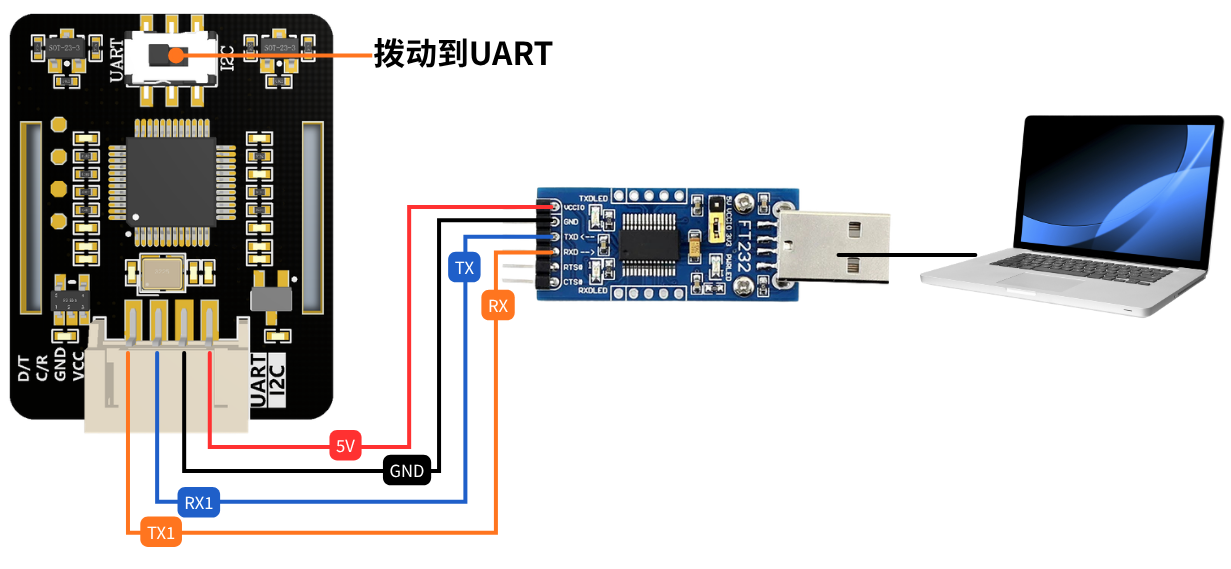
⚠️ Important notes:
- Slide the module switch to UART!!!
- TX and RX must be cross-connected!
- The sensor supports 3.3V and 5V; do not connect the wrong voltage
- Connect all wires first, then plug the USB into the computer
Wiring Diagram
text
传感器        USB转TTL模块
┌──────┐      ┌──────────┐
│ VCC  │──────│ 3.3V/5V  │
│ GND  │──────│ GND      │
│ TX   │──────│ RX       │  ← 交叉连接
│ RX   │──────│ TX       │  ← 交叉连接
└──────┘      └──────────┘
Software Environment Setup
Installing the Driver
Install the corresponding driver according to your USB-to-TTL chip model:
- CH340: https://sparks.gogo.co.nz/ch340.html
- CP2102: https://www.silabs.com/developers/usb-to-uart-bridge-vcp-drivers
- FT232: https://ftdichip.com/drivers/vcp-drivers/
After installation is complete, plug in the USB-to-TTL module.
Checking the COM Port
Method 1: Device Manager
- Press
Win + Xand select "Device Manager" - Expand "Ports (COM & LPT)"
- Find the COM port number corresponding to your USB-to-TTL adapter (e.g., COM3)
Method 2: Automatic Detection
When running the example program, all available serial ports are listed automatically.
Installing Python Dependencies
Open Command Prompt (CMD) or PowerShell and run:
bash
pip install pyserialRunning the Example Program
Download the archive JUXI_HeartRate_SPO2.zip and extract it
File Location
text
JUXI_HeartRate_SPO2/python/windows/
├── gain_heartbeat_SPO2.py  ← 主程序(直接运行这个)
├── JUXI_HeartRate_SPO2_Windows.py
├── JUXI_RTU_Windows.py
└── README_CN.md        ← 本文件
└── README.md
Run Steps
- Confirm the hardware connection is correct
- VCC → 3.3V/5V
- GND → GND
- TX → RX (crossed)
- RX → TX (crossed)
- Plug the USB into the computer
- Run the program
bash
cd D:\JUXI_HeartRate_SPO2\python\windowsbash
python gain_heartbeat_SPO2.py- Follow the prompts
- The program lists all available serial ports
- Enter your COM port number (e.g., COM3)
- The program automatically detects the sensor and starts measuring
Expected Output
python
==================================================
JUXI Blood Oxygen Sensor - Windows Test
==================================================
Available serial ports:
  COM3

Please enter the COM port number (e.g., COM3):

Connecting to COM3 at 9600 baud...
Initializing sensor...
Sensor initialized successfully!

Starting data collection...
Sensor LED should be ON now!

Place your finger on the sensor...

SPO2 (血氧): 97 %
Heart Rate (心率): 82 BPM
Temperature (温度): 26.5 °C
SPO2 (血氧): 98 %
Heart Rate (心率): 78 BPM
Temperature (温度): 26.6 °C
...
Press Ctrl + C to stop the program.
Program Features
Main API
bash
# 创建传感器对象
sensor = BloodOxygenSensor("COM3", 9600)

# 初始化传感器
sensor.begin()

# 开始采集(LED亮起)
sensor.sensor_start_collect()

# 读取心率血氧
sensor.get_heartbeat_SPO2()
print(f"SPO2: {sensor.SPO2}%")
print(f"Heart Rate: {sensor.heartbeat} BPM")

# 读取温度
temp = sensor.get_temperature_c()

# 停止采集(LED熄灭)
sensor.sensor_end_collect()

# 关闭串口
sensor.close()
FAQ
Q1: What should I do if the COM port cannot be found?
A:
- Check whether the USB-to-TTL adapter is plugged in properly
- Reinstall the driver
- Try another USB port
- Check Device Manager for any "Unknown device"
Q2: What should I do if sensor initialization fails?
A:
- Check the wiring:
- Whether VCC and GND are connected correctly
- Whether TX and RX are cross-connected (the most common problem)
- Confirm the baud rate is 9600
- Check whether the USB-to-TTL module works properly
- Unplug and replug the USB
Q3: What should I do if the data keeps showing -1?
A:
- Confirm your finger is placed correctly on the sensor (completely covering the LED area)
- Keep your finger steady and do not move
- Wait a few seconds for the data to stabilize
- Check whether the sensor LED is on
Q4: The LED is off but communication works?
A:
- It may be an LED hardware problem, but the sensor functions normally
- As long as the data is normal, the LED being off can be ignored
Q5: What should I do if the serial port is occupied?
A:
- Close other serial software (serial assistant, Arduino IDE, etc.)
- Check whether another Python program is running
- Unplug and replug the USB
Q6: What should I do if the data is inaccurate?
A:
- Make sure your finger completely covers the sensor's optical area
- Stay quiet during measurement; do not talk or move
- Wait more than 30 seconds for the data to stabilize
- Take multiple measurements and average the results
Technical Specifications
| Parameter | Specification |
|---|---|
| Communication | UART (TTL level) |
| Baud rate | 9600 bps (default) |
| Data format | 8N1 (8 data bits, no parity, 1 stop bit) |
| Supply voltage | 3.3V / 5V |
| SPO2 measurement range | 35% - 100% |
| Heart rate measurement range | 30 - 250 BPM |
| Modbus device address | 0x20 |
Modbus Registers
| Register address | Function | Description |
|---|---|---|
| 0x02 | Device ID | Read: returns 0x0020 |
| 0x06-0x09 | Heart rate & SpO2 data | Read: SPO2 + heart rate |
| 0x0A | Temperature | Read: onboard temperature |
| 0x10 | Collection control | Write: 0x0001=start, 0x0002=stop |