

RDK: Serial Port Communication
Introduction
This repository provides Python example code for communication between the RDK X5 (Raspberry Pi) platform and the AI voice interaction module, supporting two communication methods: I2C and UART.
Speech recognition module: supports offline speech recognition and outputs the command ID after recognition
Playback functions: supports passive playback, function word playback and command word playback
Communication protocol: I2C address 0x2A, UART baud rate 115200
Programming language: Python 3
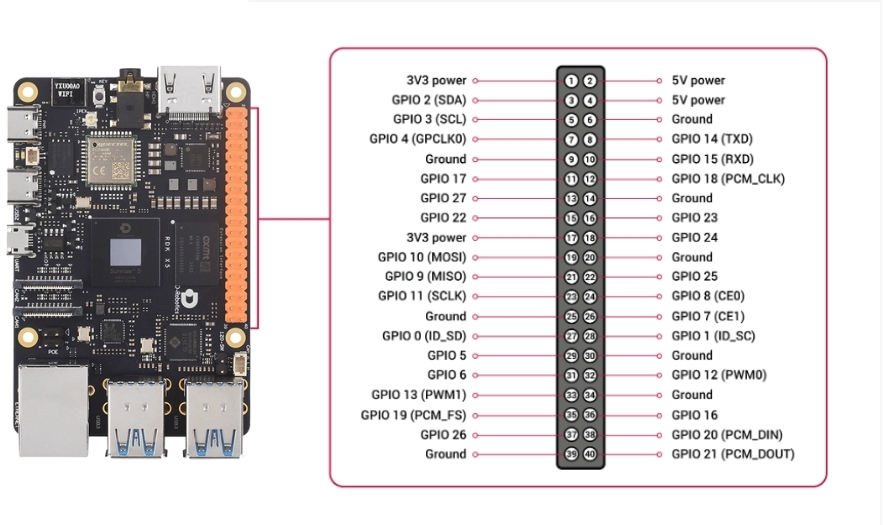
Hardware Connection
General Connection
Important: make sure all devices share a common ground!
UART Version Connection
Note: the /dev/ttyAMA0 serial device is used by default
Type-C Data Cable Connection (UART Alternative)
If a USB-TTL adapter module is used:
Note: in this case the serial device is usually /dev/ttyUSB0
Environment Setup
System Requirements
RDK X5
Ubuntu / Debian system
Python 3.7+
Install Dependency Packages
# Update packages
sudo apt update
sudo apt upgrade -y

# Install Python libraries
sudo apt install -y python3-pip

# Install pyserial
pip3 install pyserial
Enable the Serial Port Interface
# Open the configuration tool
sudo raspi-config

# Select Interface Options → Serial
Select: No (shell) → Yes (hardware serial port)
# Reboot to take effect
sudo reboot
Using the UART Version
Check the Code Files
cd UART_Voice
ls -la
# You should see uart_voice.py
Configure the Serial Port Device
Edit the uart_voice.py file and modify the serial port device:
# UART direct connection (default)
SERIAL_PORT = '/dev/ttyAMA0'

# Or use a USB-TTL adapter
SERIAL_PORT = '/dev/ttyUSB0'

# Baud rate
BAUD_RATE = 115200
Run the Program
Grant Execute Permission
chmod +x uart_voice.py
# Run (sudo privileges required to access the serial port)
sudo python3 uart_voice.py
Running Test
After a normal startup it will display:
Speech Serial Opened! Baudrate=115200Say a command word to the voice module and the corresponding ID will be displayed:
Speech Serial Opened! Baudrate=115200
ID:1
ID:4
ID:10
Stop the Program
Press Ctrl + C to stop the program
Troubleshooting
Q1: The serial device cannot be found
A: Check:
Check whether the serial port is enabled (raspi-config)
Check whether the device name is correct
UART direct connection:
/dev/ttyAMA0USB-TTL:
/dev/ttyUSB0or/dev/ttyUSB1
Check whether the hardware connection is correct
Check whether the serial port is occupied by another program
# View available serial ports
ls /dev/tty* | grep tty
Q2: The command ID only shows 0 or does not appear
A: Normal behavior:
0 = no valid command recognized
the ID is output only when a valid command word is spoken
wake the module first, then say the command
Q3: Recognition accuracy is not high
A: Optimization suggestions:
Keep the environment quiet and the background noise low
Keep a moderate distance from the microphone (10-50cm)
Speak at a moderate rate and articulate clearly
Q4: Abnormal serial port communication
A: Check:
Whether TX/RX are cross-connected (module TX → RPi RX)
Whether the baud rate is 115200
Whether the grounds are common
Whether the serial port is occupied by another process
# Check serial port usage
sudo lsof /dev/ttyAMA0
Technical Support
If there are problems, please check:
Whether the hardware wiring is correct (a common ground is very important!)
Whether the serial port baud rate is 115200
Whether there is sufficient permission to access the hardware interface
Common Debugging Commands
ls -l /dev/ttyAMA0   # View the serial port device
groups                # Check user group permissions