

IMX219 on Raspberry Pi
1. First, use the "ls" command to check whether the vchiq device node exists: enter ls /dev
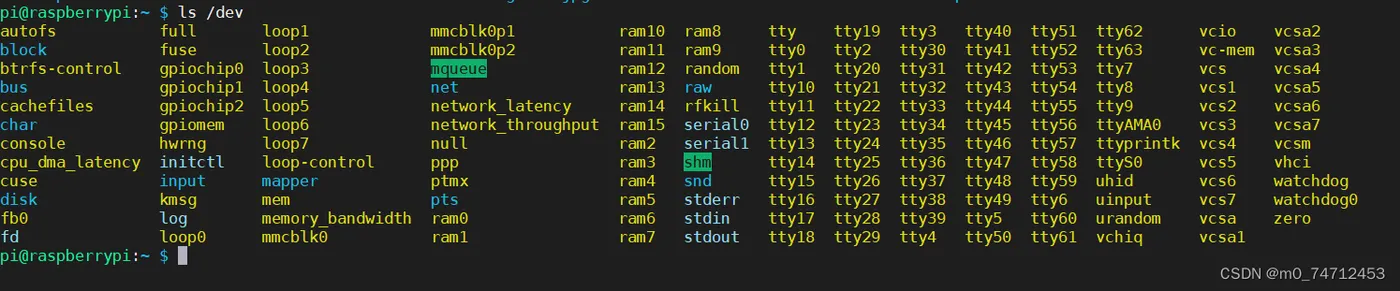
If it does not exist, there may be a problem with the kernel or the device hardware; you can try reflashing the system or replacing the hardware.
2. Run the "sudo raspi-config" command to enable the Raspberry Pi CSI camera
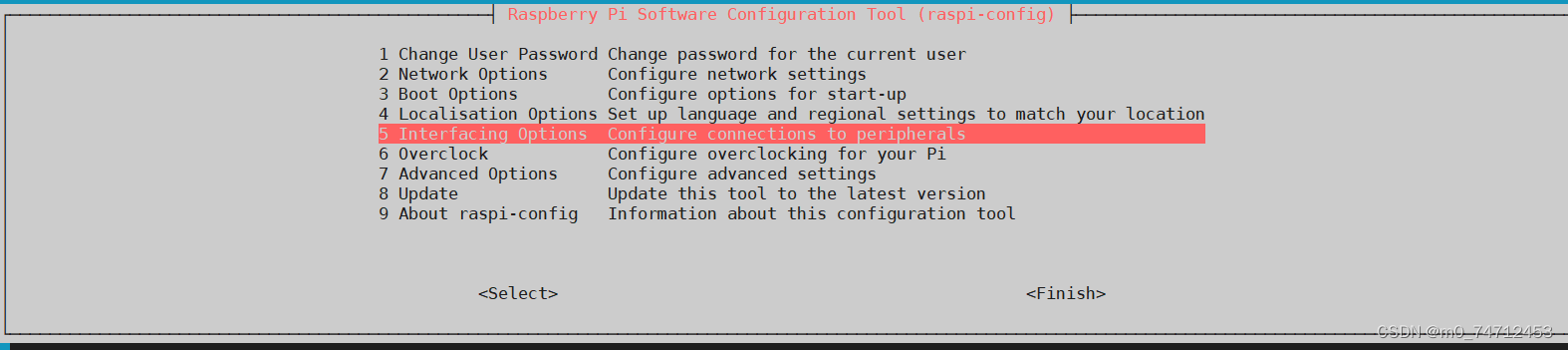

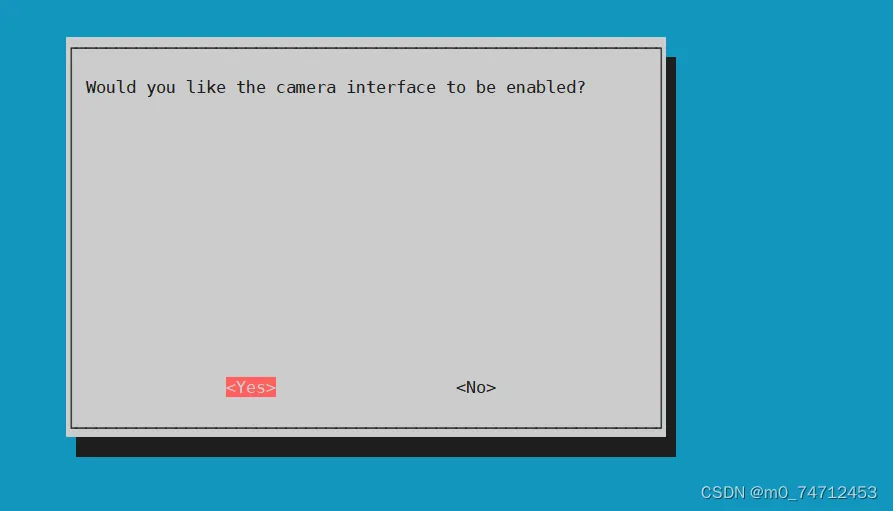
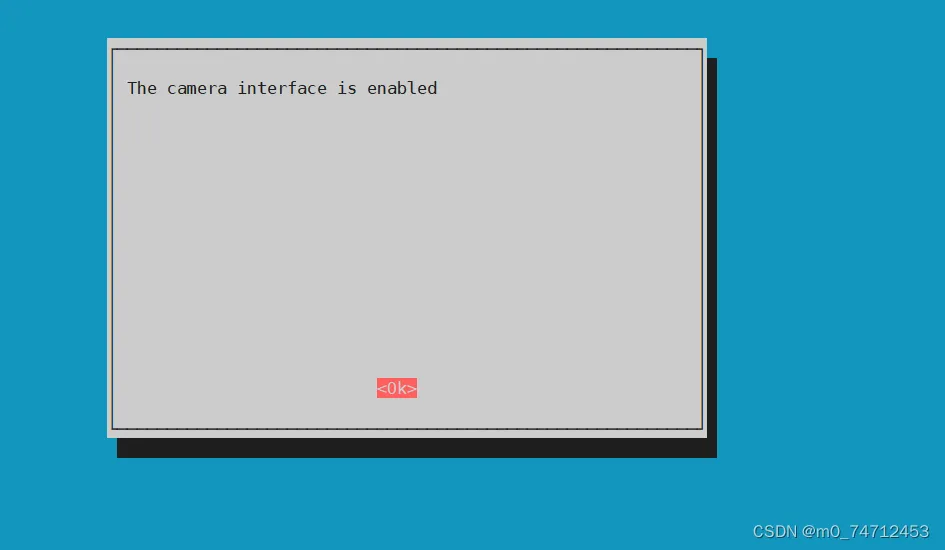
Then exit and enter the command sudo reboot to restart the Raspberry Pi
3. Enter "vcgencmd get_camera" to check whether the current camera and enablement are available
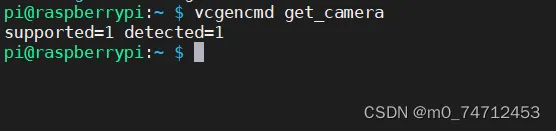
If detected=0, it means the camera module is not connected properly; check the hardware again. detected=1 means the CSI camera is connected normally. supported=1 means the camera has been enabled and can be used. supported=0 means the CSI camera has not been enabled and you need to enable the camera module.
3. Take Photos Using the rapistill Command
Enter "raspistill -o image.jpg" to successfully take a photo and save it; at this point the camera will light up red. For more parameters, use raspistill --help

Transfer the image.jpg image to the Windows desktop and open it, and you can see the effect of the photo taken