

09 MuJoCo simulation and the live twin
MuJoCo is used two ways in this project, both with hardware/v1/robot_v1.xml (the same-source model of the real robot):
- Local simulation: with no robot attached, loop the four lying poses and their get-ups on the computer to validate the reference sequences and watch the motion;
- Live twin: the real robot streams its attitude over WiFi and the MuJoCo window mirrors the real motion in real time (a digital twin).
The window works the same in both cases: left-drag rotates the view, right-drag pans and the wheel zooms. Before first use, create and activate the .venv as on page 02 and install the tool dependencies in it (pip install -r tools/requirements.txt, see page 02).
9.1 Local simulation window
In the SR-Support folder (.venv activated):
python tools/play_getup_executor.py --xml hardware/v1/robot_v1.xmlThe window is titled MuJoCo : sr_support_v1 (figure 9-1). The robot is placed in the four lying poses in turn (roll_pos → roll_neg → pitch_pos → pitch_neg); each time the executor runs the reference sequence with exactly the firmware parameters until the robot stands, then the next pose is set. The loop repeats until you close the window. The terminal prints the pose and the result:
--- cycle 1 pose 1/4 requested=roll_pos actual=roll_pos up=(+0.00,+1.00,-0.00)
    executor ok=True up=+1.00 servo=[0.0, -0.0] steps=113
ok=True means the pose stood up in simulation. On ok=False, check the reference sequence and any parameters you changed against page 06.
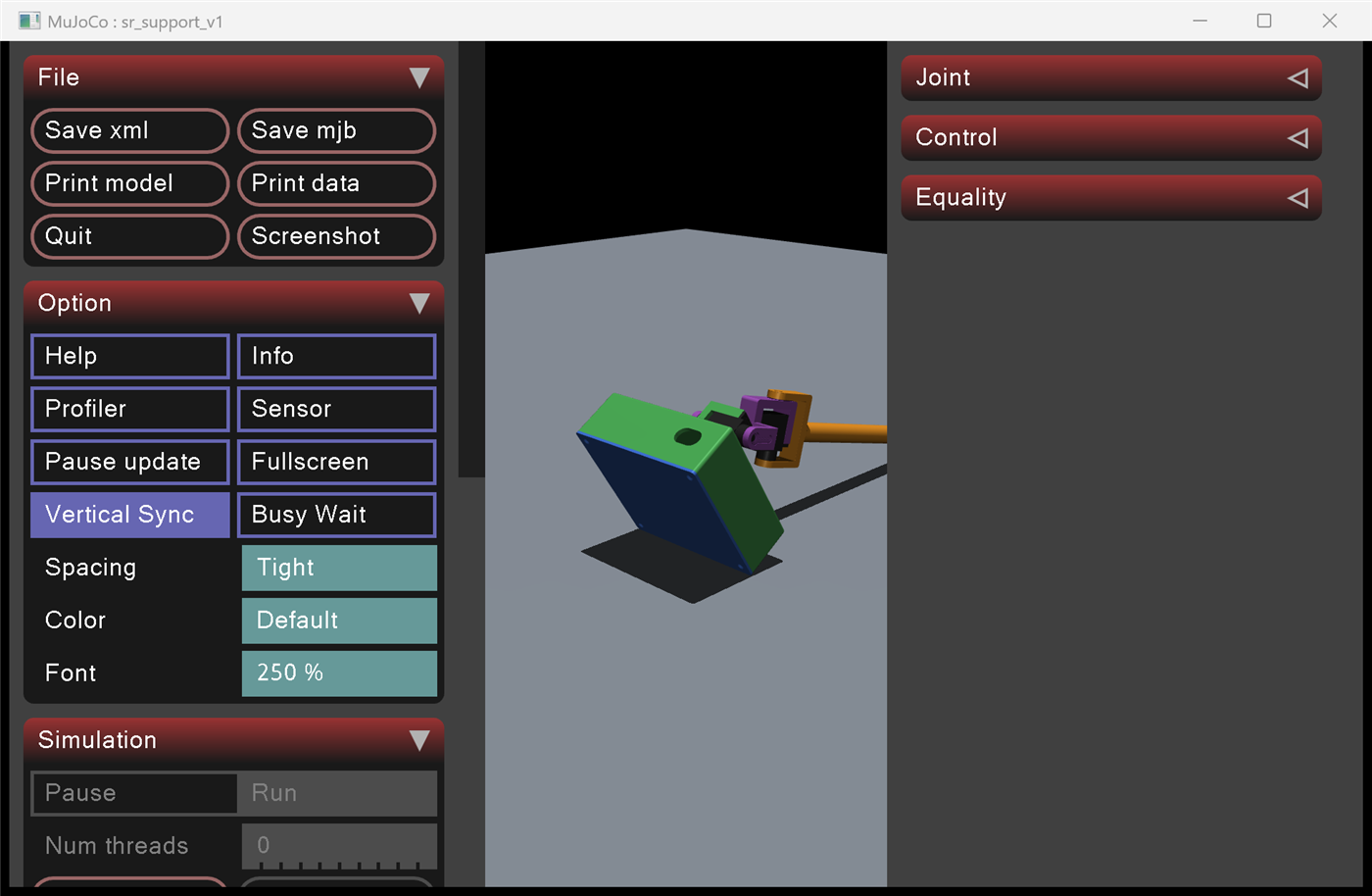
Figure 9-1: one frame of the four-pose loop - the executor getting up from a lying pose.
Known model difference: with the 1x mass model
roll_negprintsok=Falsein simulation (the model arm mass/friction differs from the real robot, see page 11 11.4); this does not affect the real firmware.
9.2 Live twin over WiFi
Prerequisite: the robot has joined the home network as on page 08 and the computer is on the same network. The status page shows the robot's address as Robot IP; copy it into the command below.
- On the status page press
Twin ON(same as seriald); - In the
SR-Supportfolder with.venvactivated, run (replace the address with theRobot IPfrom the status page):
python tools/live_twin.py --tcp <Robot IP>:3333The model mirrors the real attitude live (50 Hz quaternion stream) and keeps the body on the floor; the arm is held at its floor-contact angle like the stalled servo, so it never penetrates the floor.
- Computer on the robot's own hotspot instead: the address is always
192.168.4.1,python tools/live_twin.py --tcp 192.168.4.1:3333; - Wired alternative:
python tools/live_twin.py --port COM27(the tool sendsdto enable the stream automatically); - Offline replay:
python tools/live_twin.py --replay logs/hw_fast_xxx.txt; - The twin is read-only apart from toggling the stream: it never sends control commands.
9.3 Telemetry logging
python tools/tcp_log.pySaves the telemetry stream to logs/wifi_<time>.txt for offline replay (--replay) and failure analysis. On the hotspot it defaults to 192.168.4.1:3333; on the home network pass the Robot IP from the status page:
python tools/tcp_log.py <Robot IP> 33339.4 Simulation and training reference
training/b_line/ ships the executor, the reference sequences and the simulation environment - value-for-value identical to the firmware - for replay, validation and parameter tuning; the model files are described on page 11 11.1.