

Web Host Console Tutorial
This tutorial explains how to use the browser-based JX IMU Studio to connect to, monitor and calibrate the JuxiTech high-precision IMU module. The web console requires no installation: it connects through the Web Serial API, and can be deployed to GitHub Pages.
The web console supports desktop Chrome / Edge only. Browsers cannot access I2C, so I2C users should continue to use the system driver or the desktop tools. The interface can be switched between Chinese and English.
1. Open the console
Online:
https://juxi-technology.github.io/ICM42670P-High-Precision-IMU-Module/
Local preview (optional, requires Python):
python -m http.server 5173 --directory <web directory>Then open http://localhost:5173. Web Serial requires a secure context (HTTPS or localhost); opening index.html via file:// may disable serial access.
2. Requirements
- Desktop Chrome / Edge (89 or newer recommended)
- USB-to-serial driver (CH340, CP210x, etc.)
- Device powered on, baud rate 115200
- Firefox, Safari and mobile browsers do not support Web Serial
- No Python, Qt or client software installation required
3. Connect the device
- Open the page; the source is fixed to Serial.
- Click Choose serial device… and select the IMU port in the browser dialog (for example
USB-SERIAL CH340). - Click Connect. The status changes to Connected and shows the firmware version, detected axes and data rate.
- The console detects 6 / 9 / 10-axis hardware automatically and reflects the fusion algorithm; 10-axis devices use the 9-axis algorithm.
- Click Disconnect when finished. If the device is unplugged, the page detects it and disconnects automatically.
The browser asks for permission to access the serial port on first use. If the list is empty, install the USB-to-serial driver first.
4. Interface overview
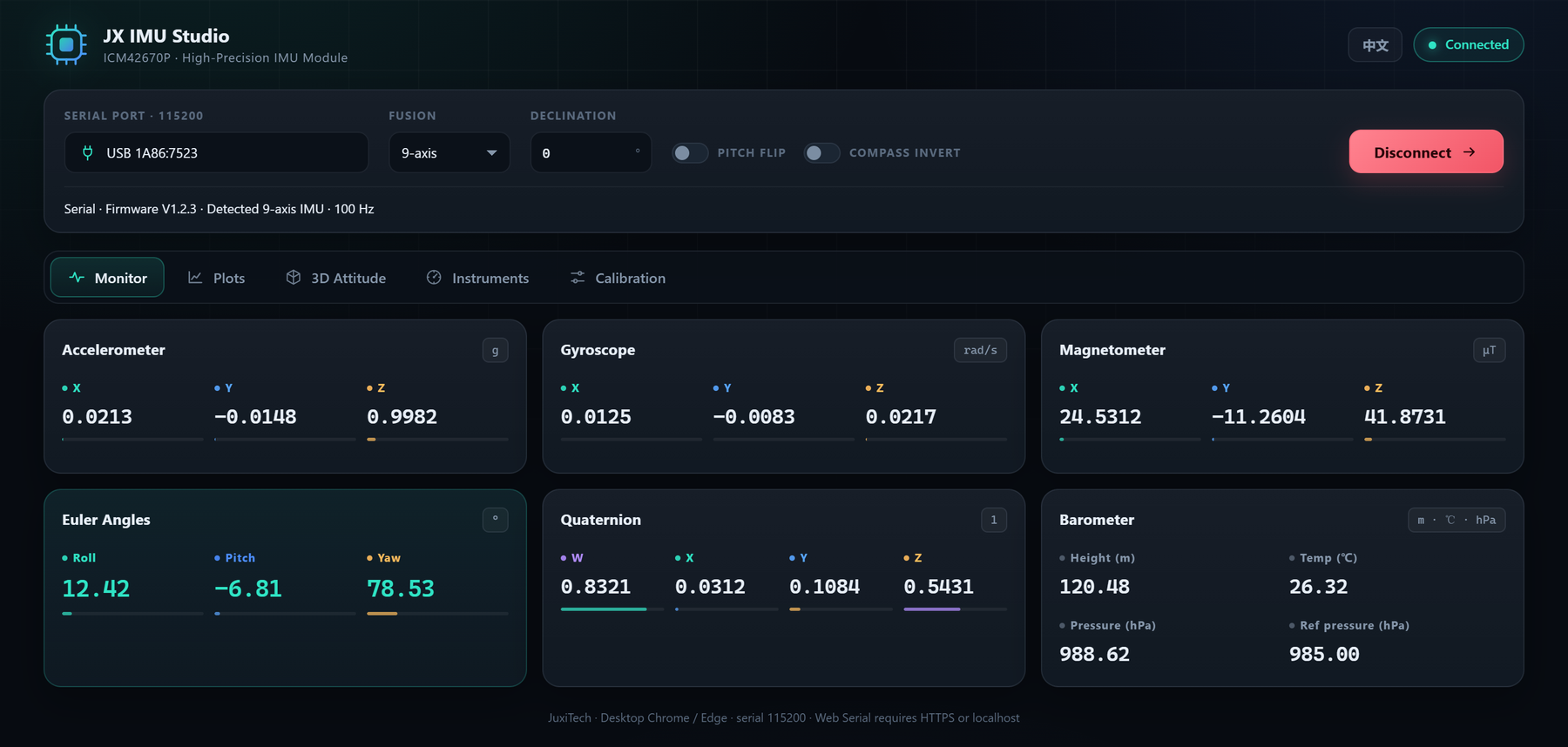
The top connection bar contains the serial port, fusion algorithm, magnetic declination, pitch flip, compass invert and the connect button. Below it are five tabs:
| Tab | Function |
|---|---|
| Monitor | Accelerometer, gyroscope, magnetometer, Euler angles, quaternion, barometer |
| Plots | Four rolling chart groups with pause and clear |
| 3D Attitude | 3D cube, axis arrows, compass, zero calibration |
| Instruments | Rotating compass card and artificial horizon |
| Calibration | IMU, magnetometer, temperature calibration and reset |
The EN / 中文 button in the top-right corner switches the interface language.
5. Monitor
Six cards show live values:
- Accelerometer: unit g, ±16 g full scale; about +1 g on Z when level and still.
- Gyroscope: unit rad/s, ±2000 °/s full scale; near zero when still.
- Magnetometer: unit μT, ±800 μT full scale; Earth's field is about 25–65 μT.
- Euler angles: Roll / Pitch / Yaw in degrees; Yaw ranges from 0 to 360°.
- Quaternion: W / X / Y / Z, unit norm.
- Barometer: height (m), temperature (℃), pressure (hPa) and reference pressure (hPa) on 10-axis devices.
The colored meter below each value shows its ratio to the full scale.
6. Plots
- Switch groups at the top: Accelerometer (g) / Gyroscope (rad/s) / Magnetometer (μT) / Euler Angles (°).
- Each group has three curves for X/Y/Z or Roll/Pitch/Yaw with fixed colors.
- Each curve keeps the latest 300 samples, at about 100 Hz.
- Pause freezes the chart; Clear resets the buffers. Switching groups does not clear other groups.
- The legend shows the latest value of each channel.
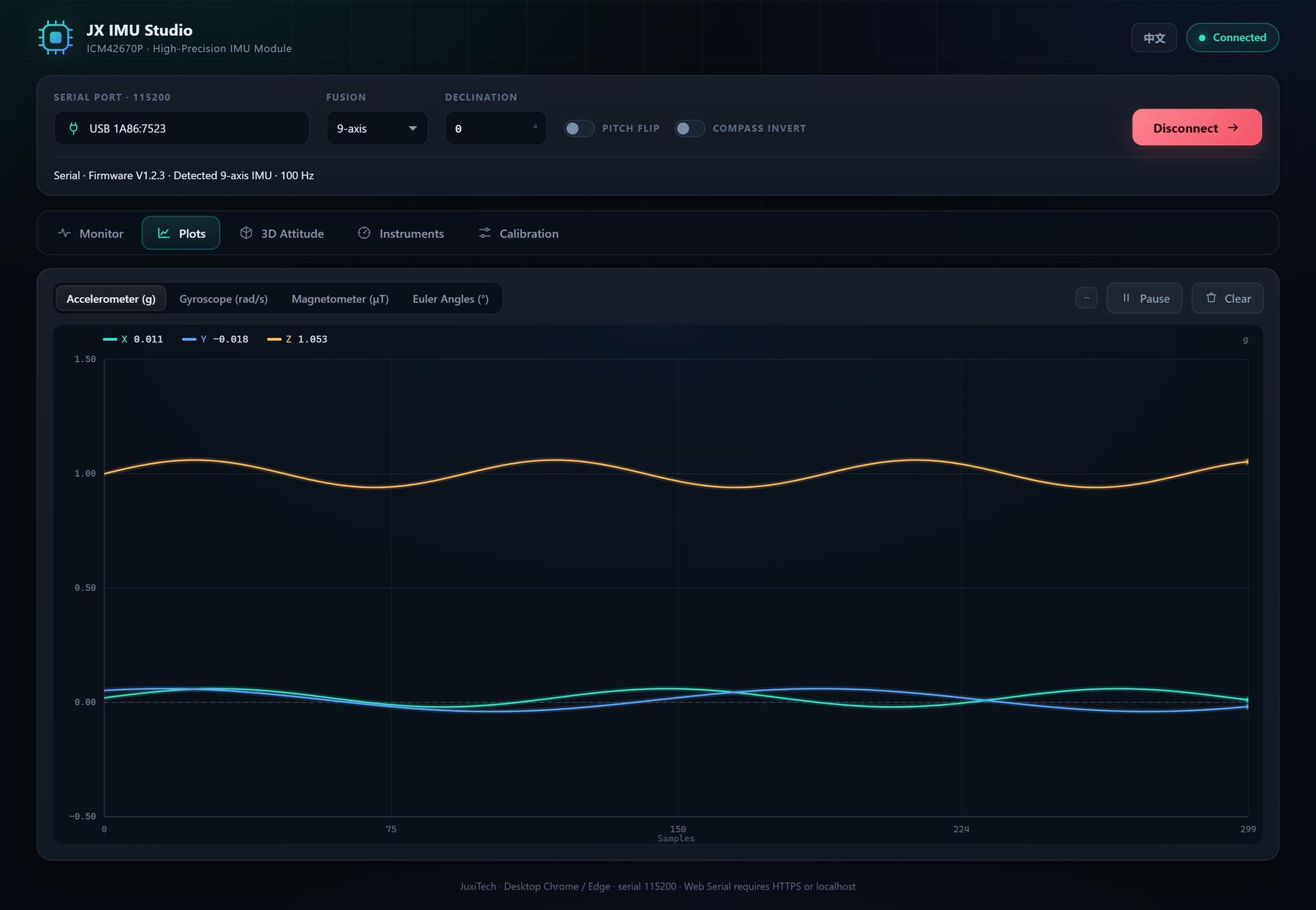
The Euler-angle plot shows a vertical jump when Yaw wraps from 360° back to 0°; this is angle wrapping, not a data error.
7. 3D attitude
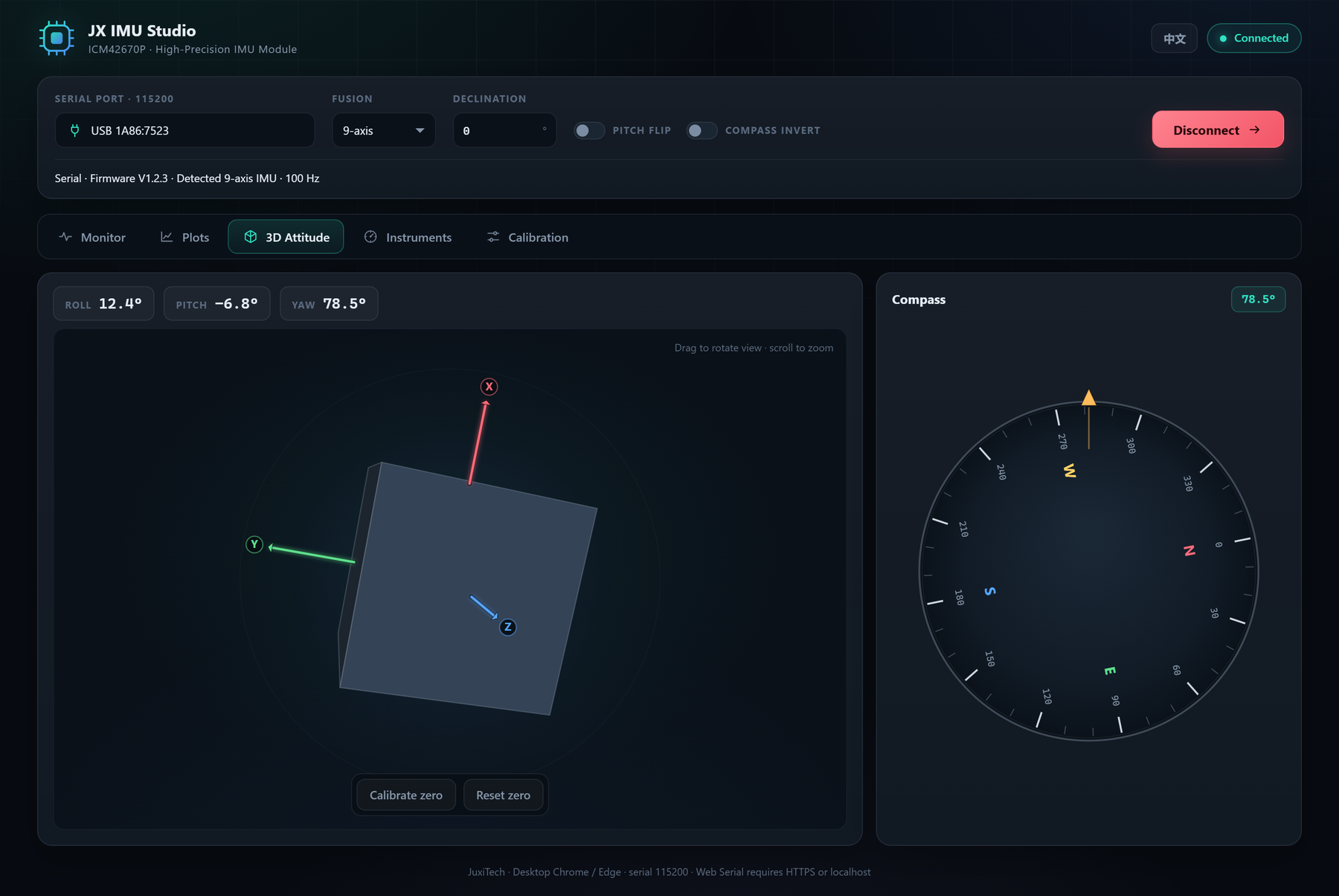
- The cube rotates in real time with Roll / Pitch / Yaw.
- Drag with the left mouse button to rotate the view; scroll to zoom.
- The X / Y / Z axes are red / green / blue arrows, always drawn above the cube for readability.
- The compass on the right is a rotating card: the ticks and N/E/S/W turn with the device, while the gold nose marker at the top represents the device heading.
- Calibrate zero sets the current attitude as the zero reference; it only affects the 3D view and is not written to the device.
- Reset zero clears the zero offset.
8. Instruments
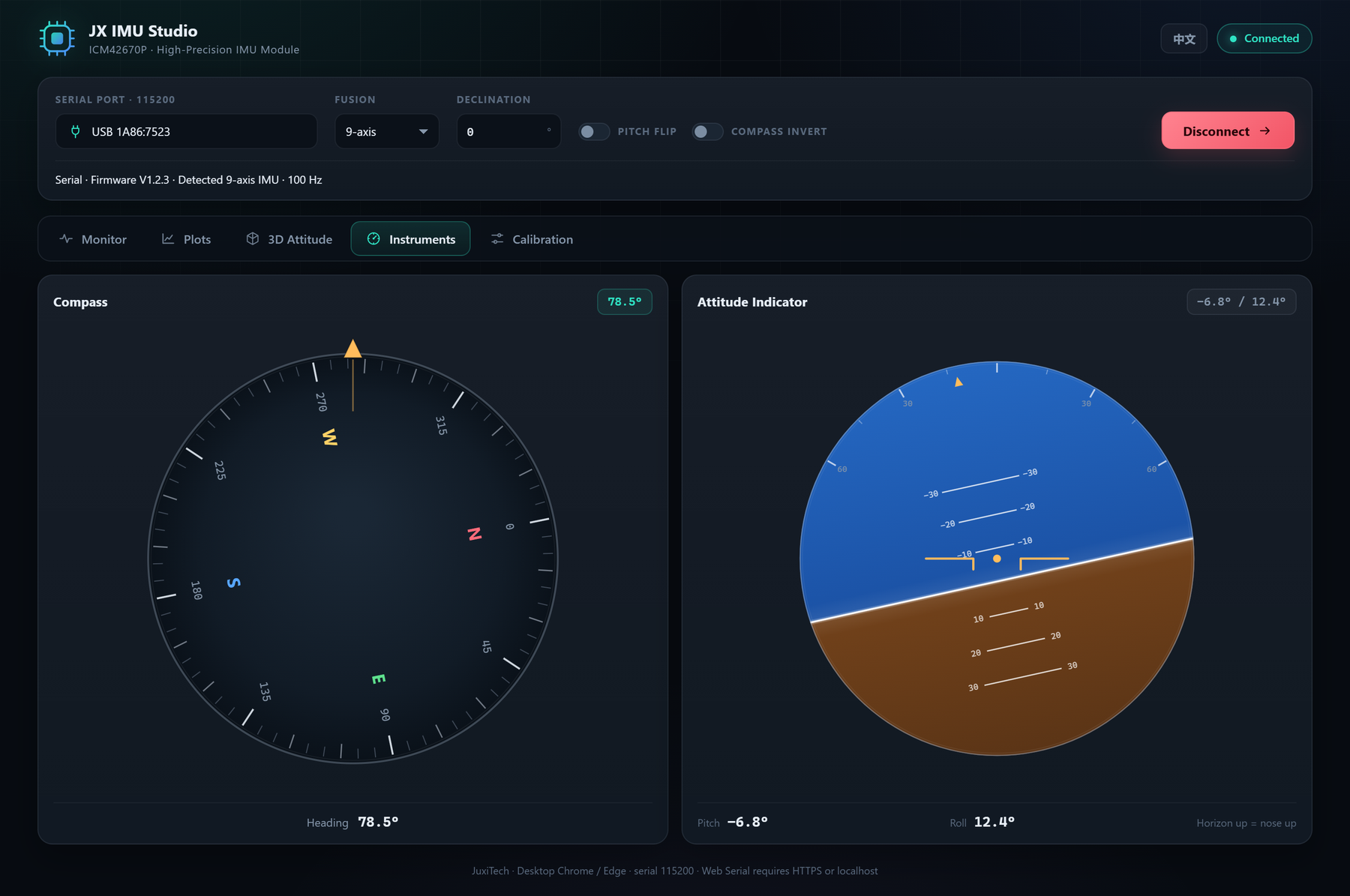
- Compass: the card rotates with the heading while the gold nose marker stays fixed at the top; the heading value is shown above and below the dial.
- Attitude indicator: the sky/ground horizon moves with Pitch and rotates with Roll. Horizon above the center means nose-up, below means nose-down.
- If N follows the device instead of pointing north, enable Compass invert in the connection bar.
- If nose-up is displayed as nose-down, enable Pitch flip (Roll and Pitch are both inverted).
9. Sensor calibration
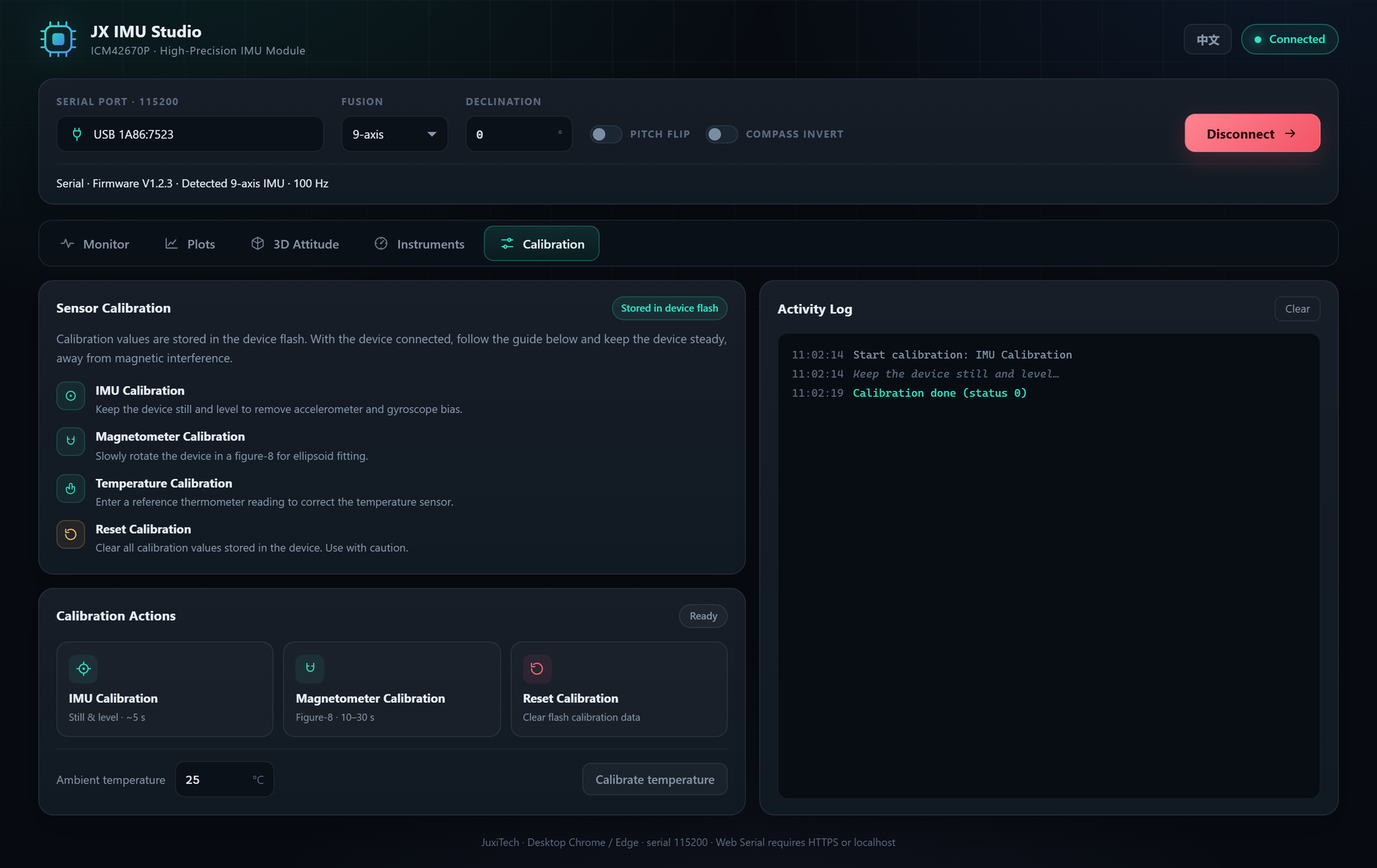
The calibration page offers four operations; the activity log shows the status code returned by the device:
- IMU calibration: place the device still and level, then click and keep it still for a few seconds to calibrate accelerometer and gyroscope bias.
- Magnetometer calibration: click and slowly rotate the device in a figure-8, covering all orientations for about 10–30 seconds; keep away from phones, motors and ferromagnetic objects.
- Temperature calibration: enter the current ambient temperature (−50 ℃ to 50 ℃) and click Calibrate temperature.
- Reset calibration: clears all calibration values stored in the device flash. Use with caution; recalibrate afterwards.
Buttons are disabled while a calibration is running and the status shows Calibrating…. When finished, the log shows Calibration done (status 0) or the returned status. If the wait times out, the page shows a warning; check the connection and retry.
10. Direction corrections
- Declination: heading compensation in the range ±180°. Enter a negative value if the compass reads west of true north, positive if east; in eastern China it is about −4° to −10°. It can also correct mounting-angle offsets.
- Pitch flip: inverts Roll and Pitch together, useful when the device coordinate system is opposite to the software convention.
- Compass invert: reverses only the compass rotation, without affecting the 3D attitude or numeric values.
All three are in the connection bar and take effect immediately; no reconnection is needed.
11. Troubleshooting
Q1: No device appears after clicking Choose serial device. Check the USB cable and power, install the CH340/CP210x driver, and try another USB port or cable.
Q2: Connected but no data. Confirm the baud rate is 115200 and the port is not used by another application; unplug and reconnect the device.
Q3: The browser says Web Serial is not supported. Use desktop Chrome / Edge over HTTPS or localhost. Firefox, Safari and mobile browsers are not supported.
Q4: The device is unplugged while connected. The page returns to the disconnected state and shows a notice; plug it back in and click Connect again.
Q5: Yaw drifts slowly. A 6-axis device has no magnetometer heading reference, so Yaw drift is normal. For 9/10-axis devices, run IMU calibration and magnetometer calibration first and keep away from magnetic interference.
Q6: The compass has a fixed offset from true north. Adjust Declination: negative for west, positive for east. If the rotation direction is reversed, enable Compass invert.
Q7: The 3D view or indicator shows nose-up/down inverted. Enable Pitch flip; Roll and Pitch are both inverted.
12. Data and privacy
The web console is a purely static page with no backend server. Serial data is parsed and displayed only in your browser and is never uploaded. The page loads no third-party scripts or analytics. Closing the page discards the data.