SO-ARM101 Assembly
Note: If you have a pre-assembled robotic arm, skip this tutorial.
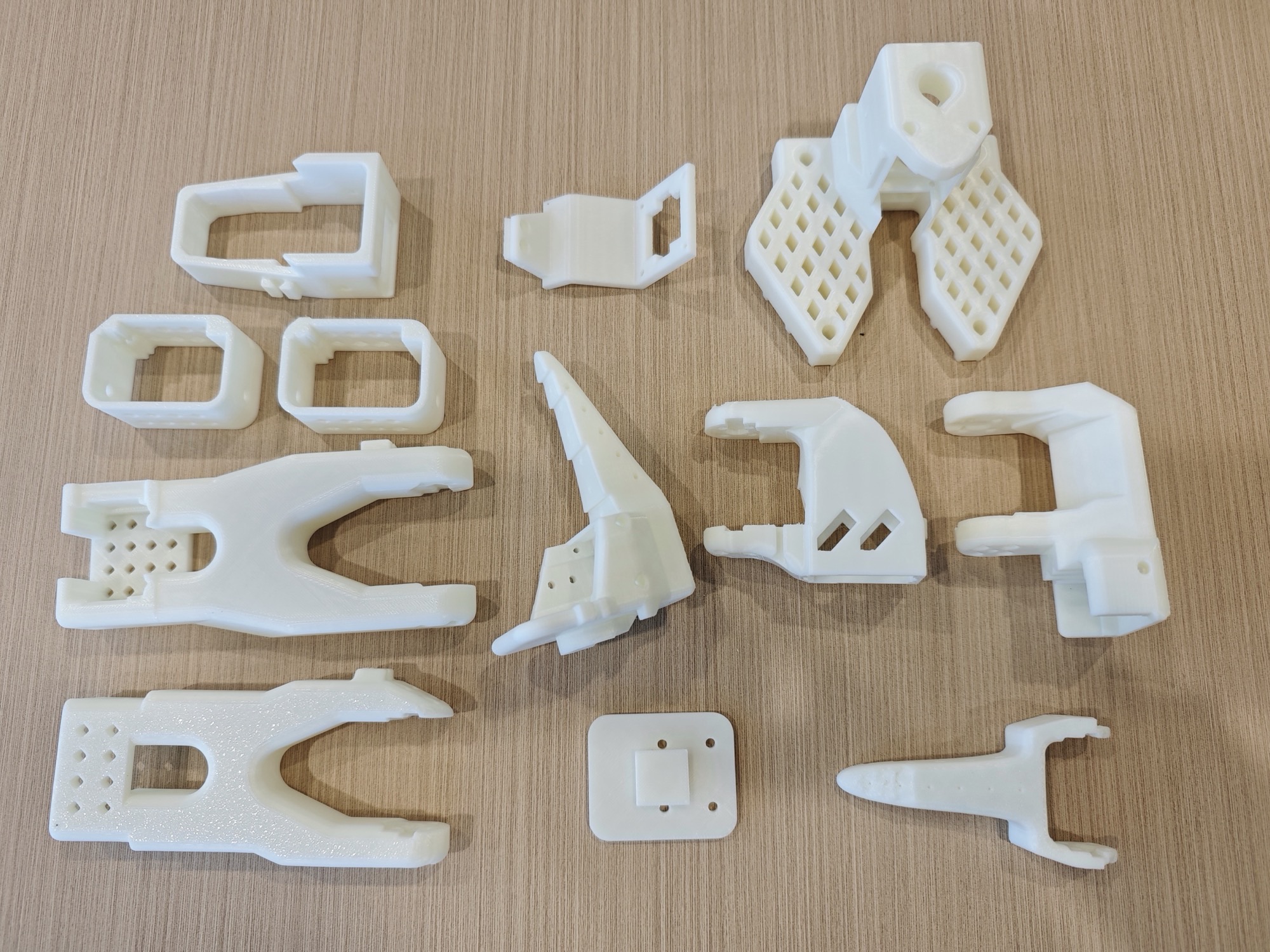
3D-Printed Parts for the Follower Arm
3D-Printed Parts for the Leader Arm
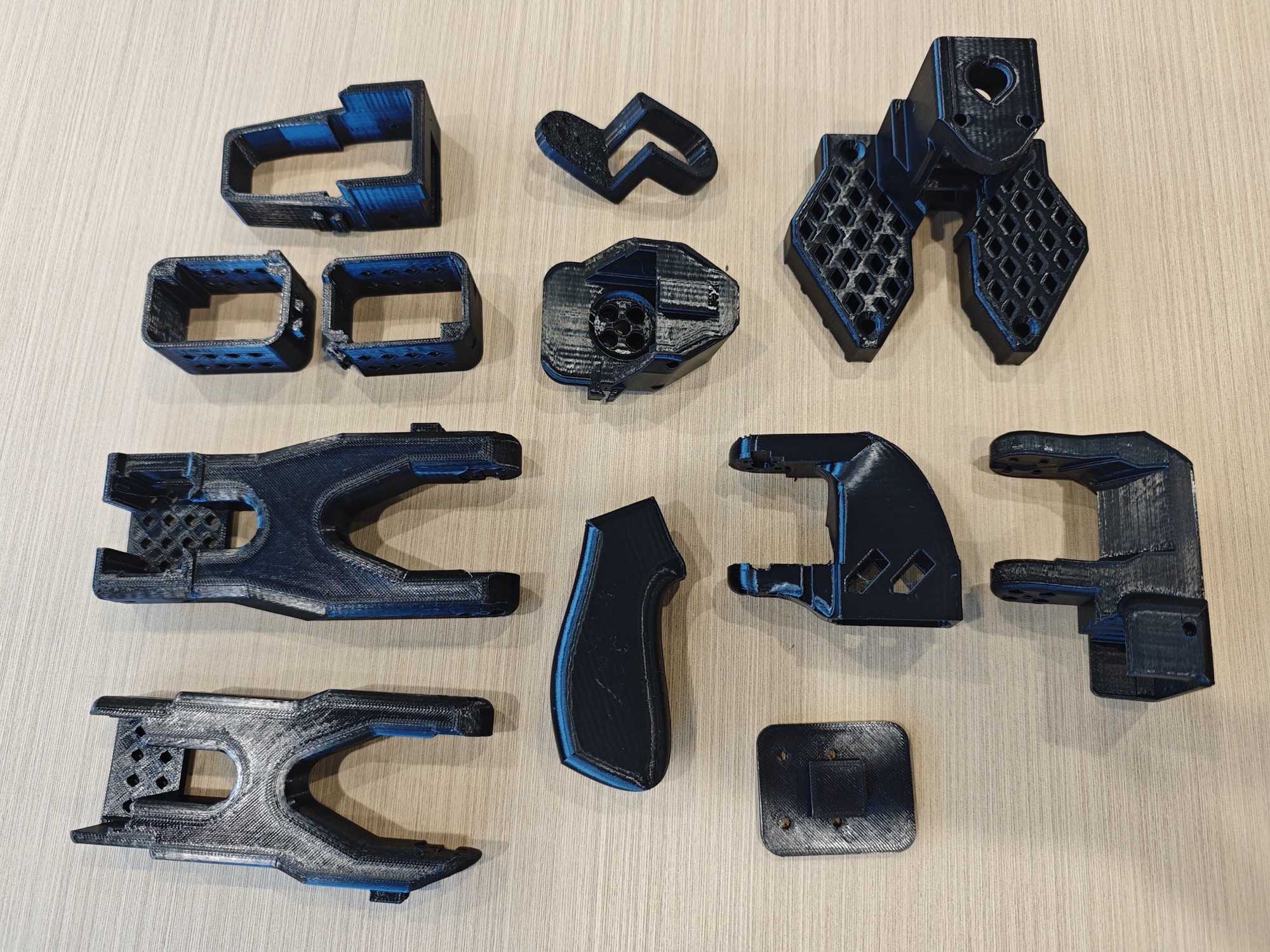
The leader arm and the follower arm are very similar; only the end differs.
The leader arm has a handle and a trigger, while the follower arm has a gripper.
Remove Residual Supports from the 3D-Printed Parts
Check every hole, opening, slot, and grid, especially the five holes resembling the "Five Dots" tile in mahjong.
This step is very important; otherwise, the screws will not go in later.
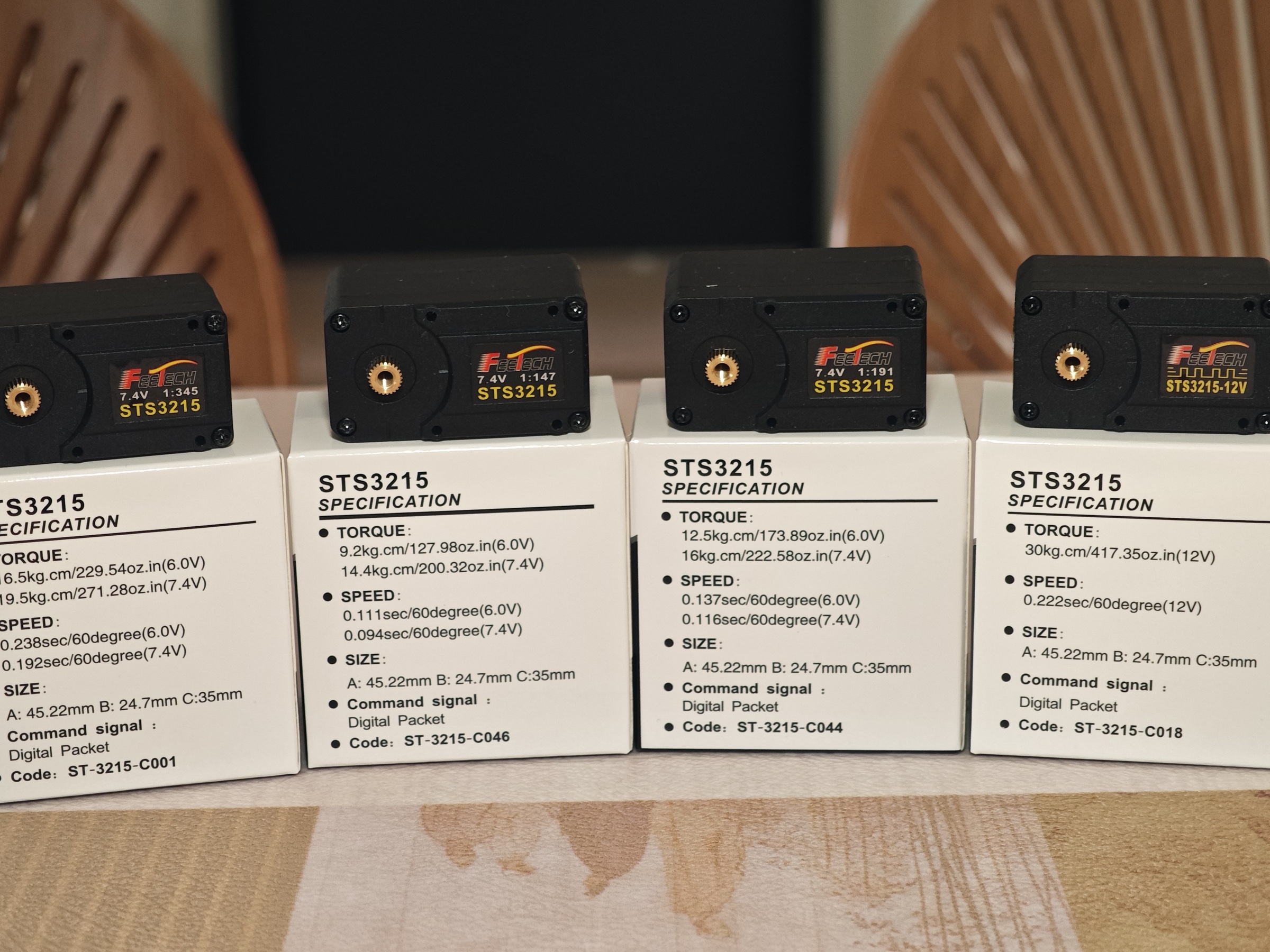
Distinguishing the Four Servo Types
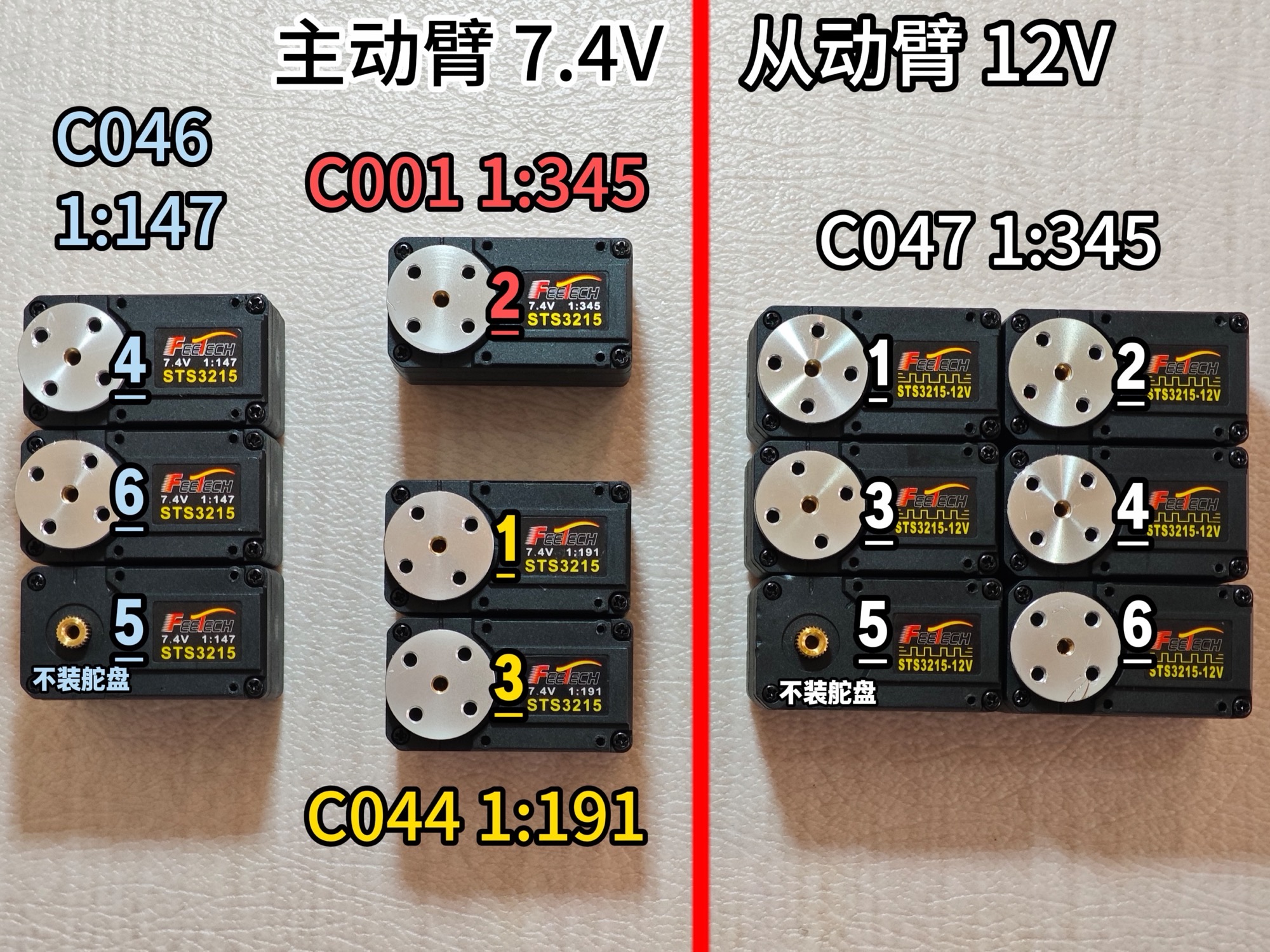
| Large Model | Small Model | Voltage (V) | Gear Ratio | Robotic Arm Joint | Quantity |
|---|---|---|---|---|---|
| STS-3215 | C001 | 7.4 | 1:345 | Leader arm 2 | 1 |
| C044 | 7.4 | 1:191 | Leader arms 1 and 3 | 2 | |
| C046 | 7.4 | 1:147 | Leader arms 4, 5, and 6 | 3 | |
| C047 | 12 | 1:345 | All joints of the follower arm | 6 |
The gear ratio is the ratio of "motor speed : servo output shaft speed"; for example, 1:345 means the motor turns 345 revolutions for the servo output shaft to turn 1 revolution.
A large gear ratio amplifies torque through the gear train, so it can drive a heavier load (such as the follower arm)
At the same time, however, the rotation speed of the output shaft becomes slower (because it is "geared down")
Dragging the joint will require more effort
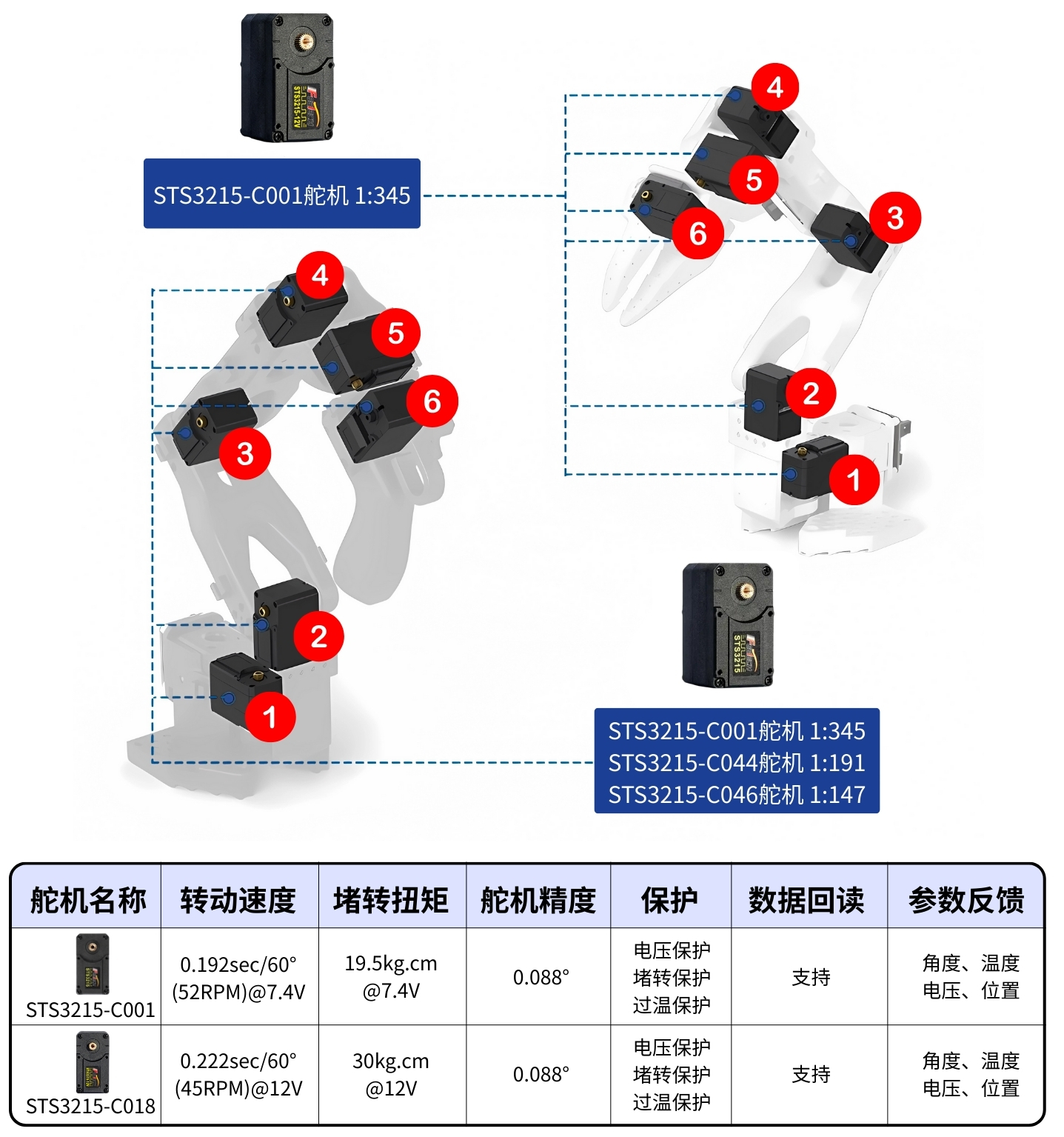
Below are the models and gear ratios of all servos in this project; the underlines are their numbers.
Distinguishing the Two Voltage Power Adapters
5V 6A 30W power adapter: powers the 7.4V servos (leader arm), black
12V 5A 60W power adapter: powers the 12V servos (follower arm), white
Download the Feetech Servo Debugging Tool
Windows Computer
https://gitee.com/ftservo/fddebug
Download FD1.9.8.5(250729).7z, unzip it, and run the exe program inside
Ubuntu and Mac Computers (the archive includes tutorials)
Pro version: the leader arm uses a 5V6A power adapter, and the follower arm uses a 12V5A power adapter
Servo ID setting, servo angle calibration, and assembly should be done in advance; you can refer to the official assembly tutorial
Step 1: Set Servo IDs, Install the Servo Horn (except Servo 5)
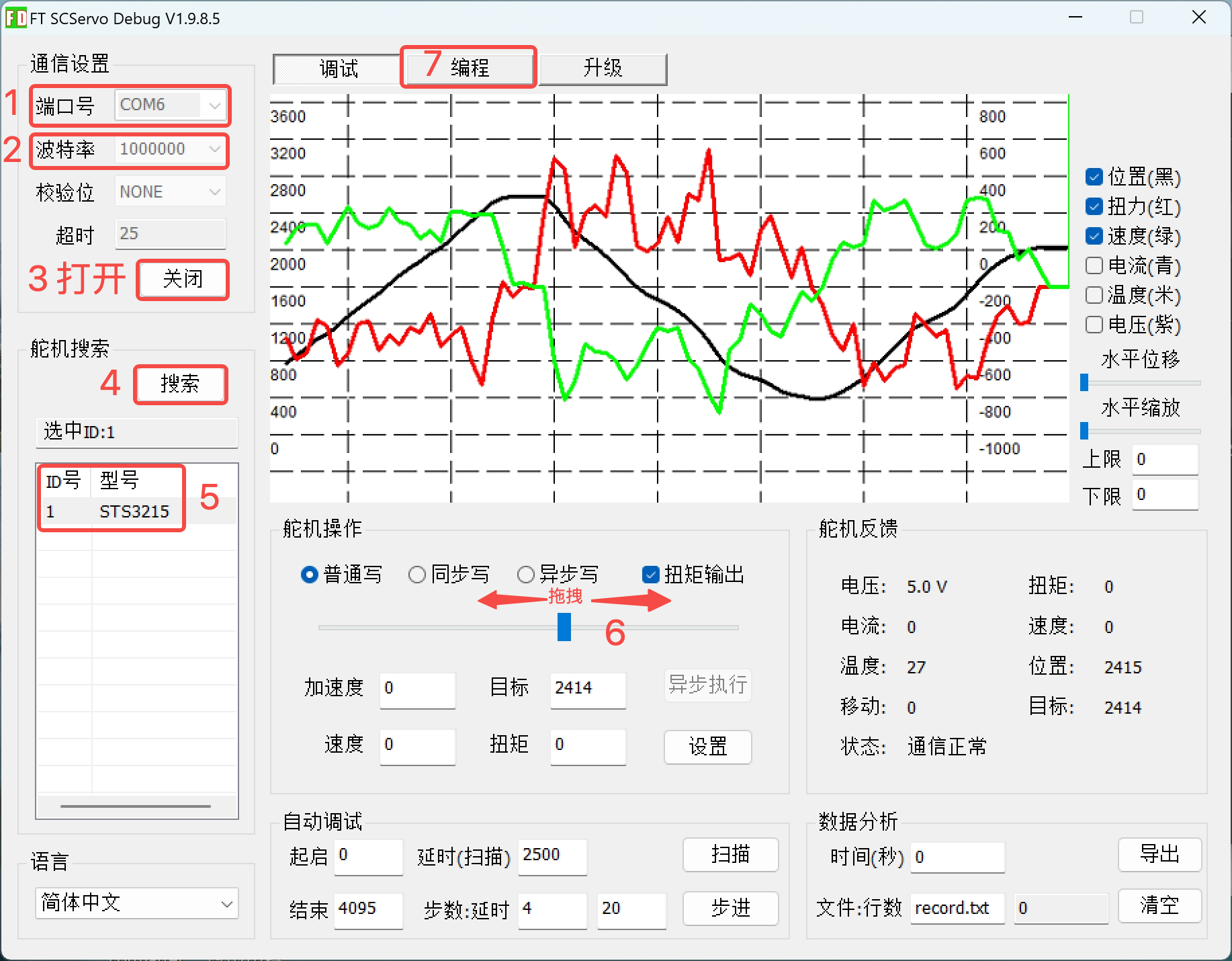
Open the Feetech host debugging tool, select the COM port number, set the baud rate to one million, and click "Open"
Click "Search"; once "STS3215" appears, click "Stop", then click "STS3215"
Select "Debug" at the top; you can drag the slider to rotate the servo, or click "Scan" to make the servo move back and forth. Confirm that the servo operates normally
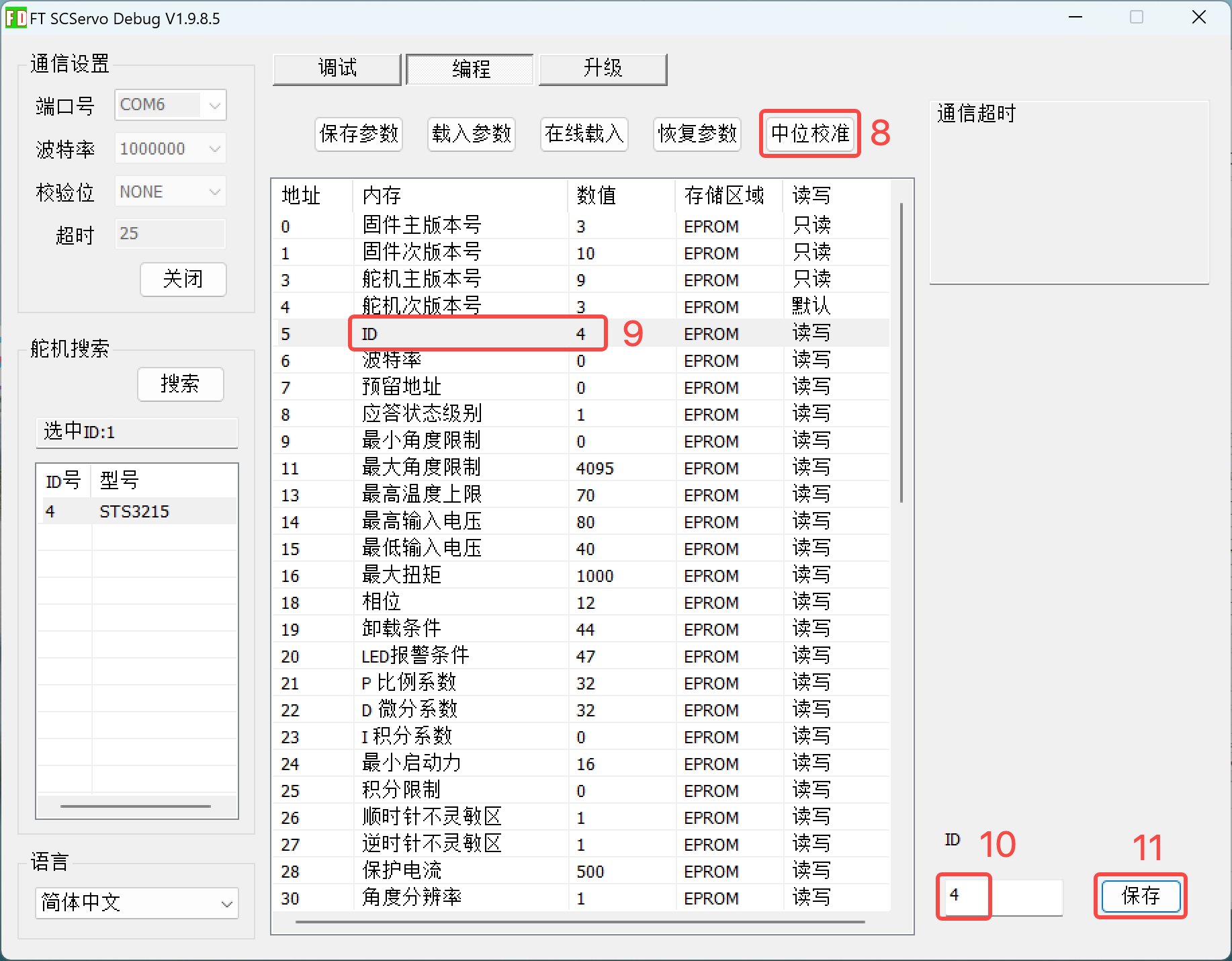
Select "Program" at the top
Click "Center Calibration" to set the current servo rotation shaft position as the center (0-4095)
Click "ID", set the ID number for the corresponding servo in the lower right corner, and click "Save". Note that the number is a pure Arabic numeral, with no letters.
Unplug the cable connecting the servo to the control board
Plug the servo cable into the servo
Servo 1 has two cables plugged in; for the other servos, plug in only one cable for now.
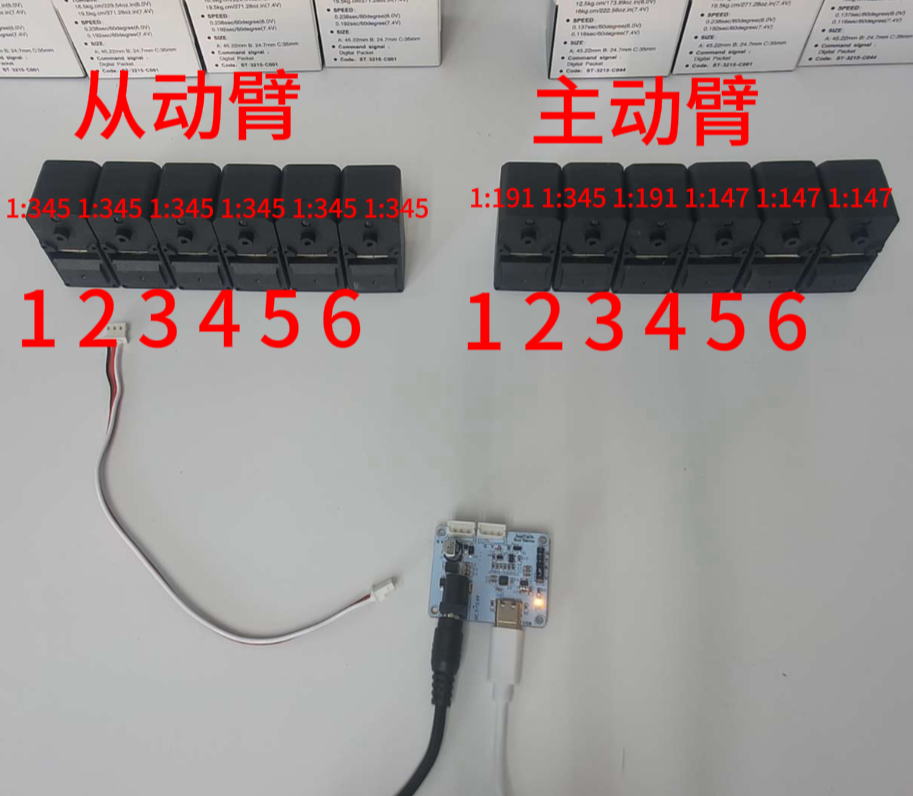
As a reminder, make sure the servo joint IDs and gear ratios strictly correspond to those of the SO-ARM101.
Each motor on the bus has a unique ID. New motors usually come with a default ID of 1. To ensure normal communication between the motors and the controller, we first need to set a unique ID for each motor. In addition, the data transmission speed on the bus is determined by the baud rate. To be able to communicate with each other, the controller and all motors need to be configured with the same baud rate; the baud rate of this robotic arm's servos is 100000.
To do this, we first need to connect the controller to each motor individually for configuration. Since these parameters are written into the non-volatile area of the motor's internal memory (EEPROM), this only needs to be done once.
If you want to reuse motors from another robot, you may also need to perform this step, because the ID and baud rate may not match.
The video below shows the sequence of steps for setting motor IDs.
Windows System
Feetech Servo Host Software.zip
Use the Feetech servo host software to set the servo IDs and calibrate the center; the ID setting goes from 1 to 6!
Robotic Arm Servo ID Setup-Windows System.mp4(机械臂舵机设置ID-Windows系统.mp4, larger than the site's per-file size limit — request it from support@juxitech.com)
Linux/Ubuntu System and Mac Computer
If you need the Feetech servo host software, you can refer to the Feetech servo debugging tool above
Please first complete the environment deployment following the official LeRobot environment installation page
Note: activate the virtual environment and enter the corresponding src/lerobot directory.
conda activate lerobot
cd lerobot/src/lerobot
- Find the USB port corresponding to the robotic arm. To find the correct port for each robotic arm, run the utility script twice::
lerobot-find-portExample output when identifying the Leader robotic arm port (for example, /dev/tty.usbmodem575E0031751 on Mac, or /dev/ttyACM0 on Linux):
Finding all available ports for the MotorBus.
['/dev/ttyACM0', '/dev/ttyACM1']
Remove the usb cable from your MotorsBus and press Enter when done.

[...Disconnect corresponding leader or follower arm and press Enter...]

The port of this MotorsBus is /dev/ttyACM1
Reconnect the USB cable.
Example output when identifying the Follower robotic arm port (for example, /dev/tty.usbmodem575E0032081, or /dev/ttyACM1 on Linux):
Finding all available ports for the MotorBus.
['/dev/ttyACM0', '/dev/ttyACM1']
Remove the usb cable from your MotorsBus and press Enter when done.

[...Disconnect corresponding leader or follower arm and press Enter...]

The port of this MotorsBus is /dev/ttyACM0
Reconnect the USB cable.
Remember to unplug the USB connector, otherwise the interface will not be detected.
- Use a USB cable to connect the computer to the follower arm's servo driver board, and power it on. Then run the following command. Change --robot.port=/dev/ttyACM0 in the command to the port number you found. If the port you found is /dev/ttyACM1, change it to --robot.port=/dev/ttyACM1
lerobot-setup-motors \
    --robot.type=so101_follower \
    --robot.port=/dev/ttyACM0
You will see the following output.
Connect the controller board to the 'gripper' motor only and press enter.Following the instructions, connect the gripper servo. Make sure it is the only servo connected to the servo driver board, and that this servo is not yet connected to any other servo. After you press [Enter], the script will automatically set the ID and baud rate of this servo; the ID setting goes from 6 to 1!
After that, you should see the following message:
'gripper' motor id set to 6Then the next output is:
Connect the controller board to the 'wrist_roll' motor only and press enter.Note Following the instructions, repeat the above operation for each servo.
As with the previous servos, make sure it is the only servo connected to the driver board, and that the servo itself is not connected to any other servo.
Before pressing Enter each time, be sure to check your cable connections. For example, the power cable may come loose while you are handling the board.
When you have completed all the steps, the script ends automatically, and the servos are ready for use. Now you can connect the 3-pin connectors of each servo in sequence, and connect the cable of the first servo (the "shoulder pan" servo with ID 1) to the driver board. The driver board can now be installed on the base of the robotic arm.
Repeat the same steps for the leader arm.
lerobot-setup-motors \
    --teleop.type=so101_leader \
    --teleop.port=/dev/ttyACM0
Robotic Arm Servo ID Setup-Linux System.mp4(机械臂舵机设置ID-Linux系统.mp4, larger than the site's per-file size limit — request it from support@juxitech.com)
Step 2: Assembly
- The assembly steps for the follower arm are basically the same as for the leader arm. The only difference is that after step 12, the end effector (gripper and handle) is installed differently.
SO-ARM101 Robotic Arm Assembly Tutorial.mp4(SO-ARM101机械臂组装教程.mp4, larger than the site's per-file size limit — request it from support@juxitech.com)
Installing the servo driver board: first install the 4 copper standoffs, then secure the driver board with four M2.5*8 screws
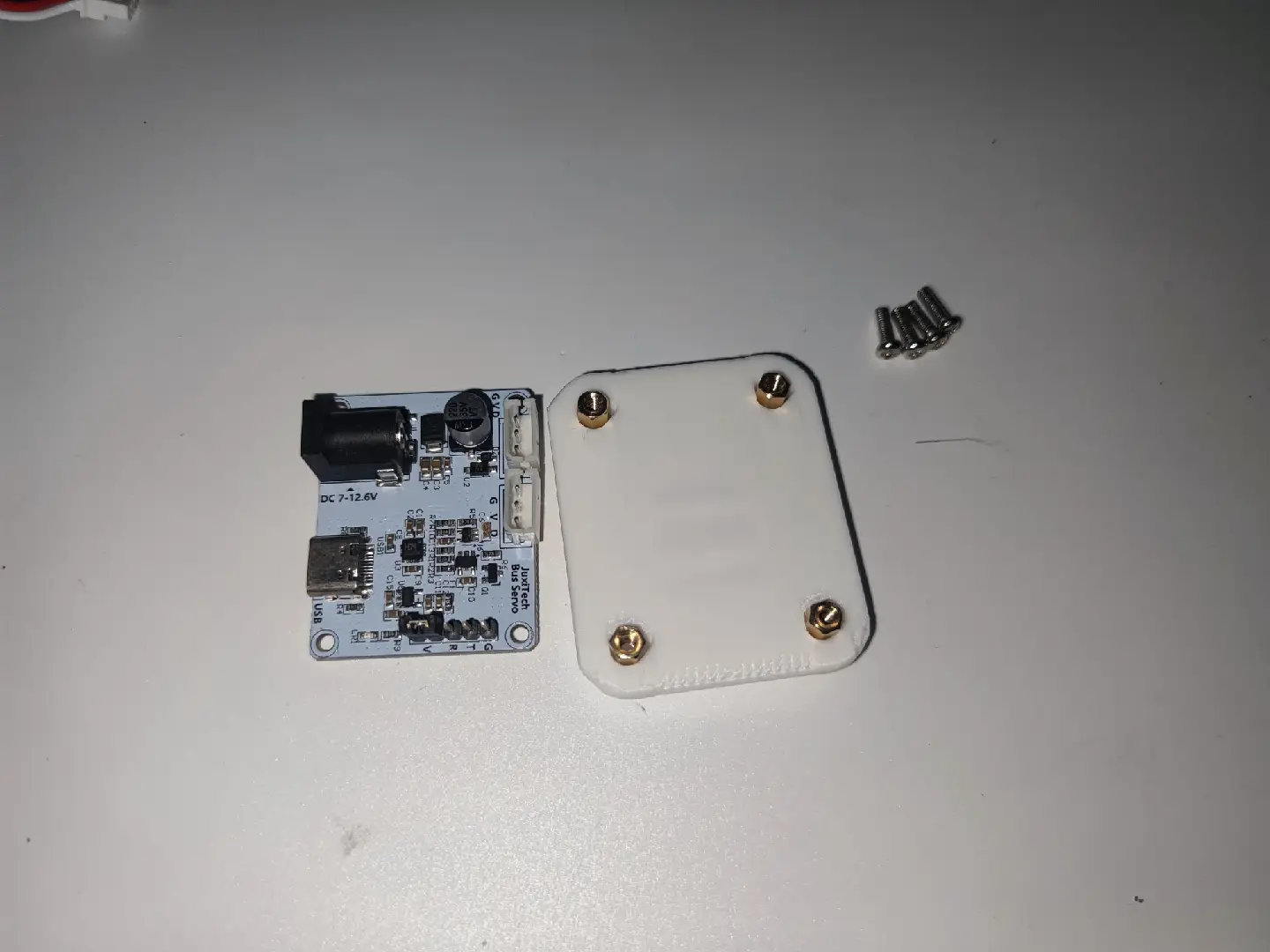
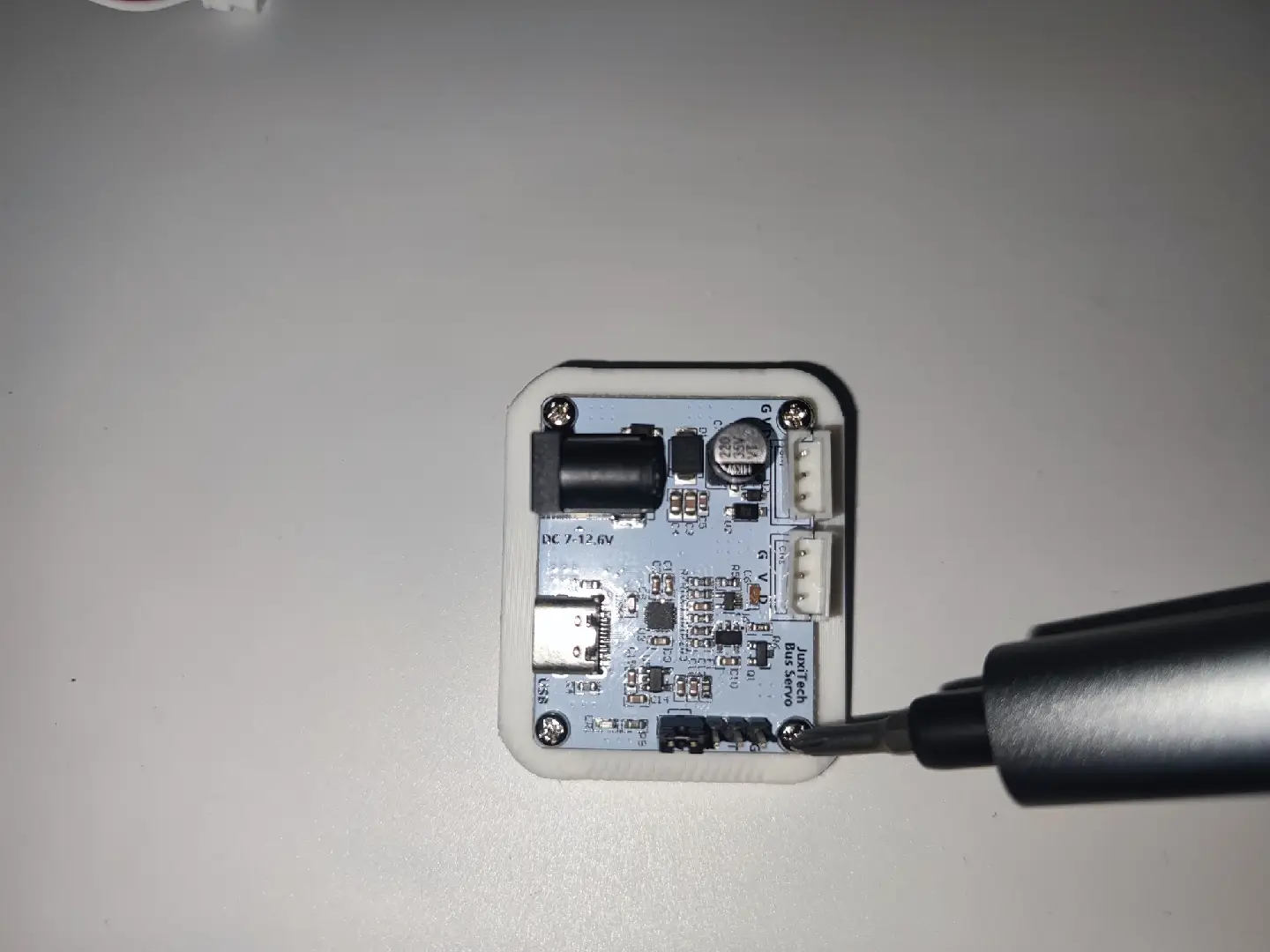
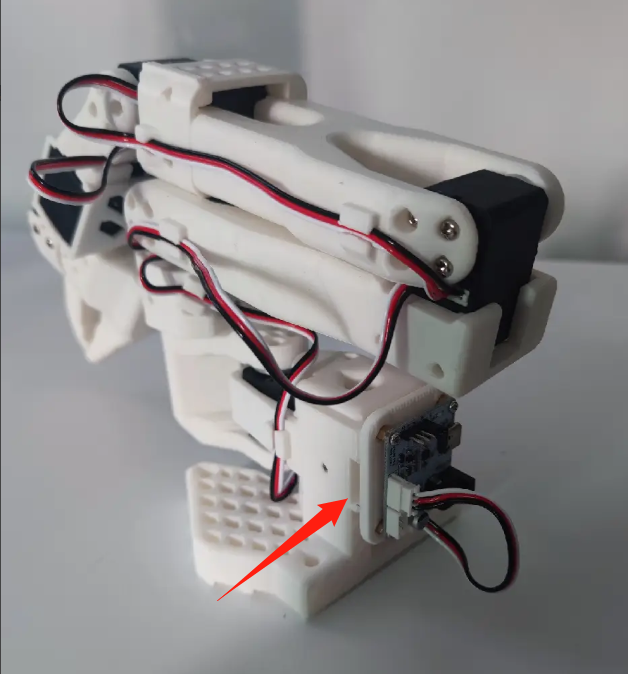
Pro version: the black leader arm uses a 5V6A power adapter, and the white follower arm uses a 12V5A power adapter
Setting Servo IDs and Center Calibration on the Web
https://bambot.org/feetech.js?lang=zh
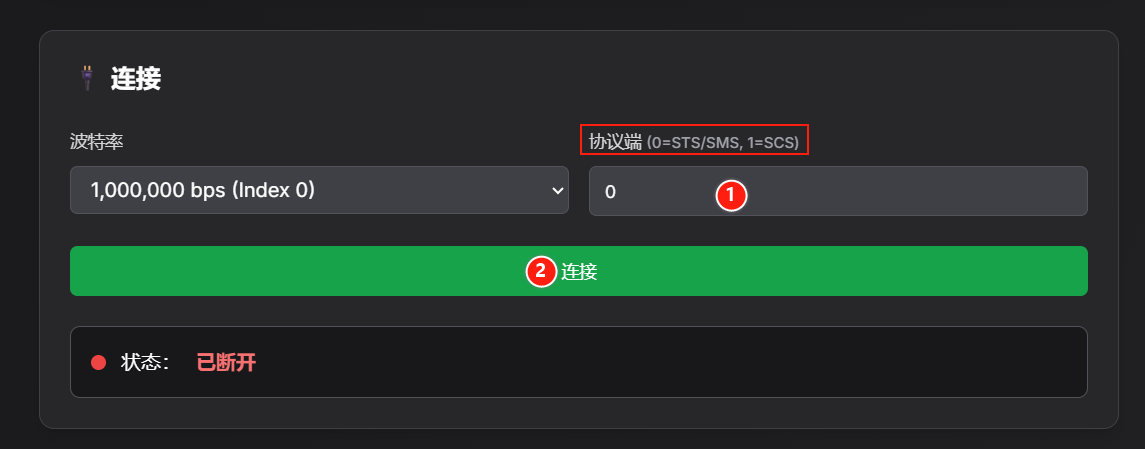
- Enter 0 or 1 according to the servo model, and click "Connect"
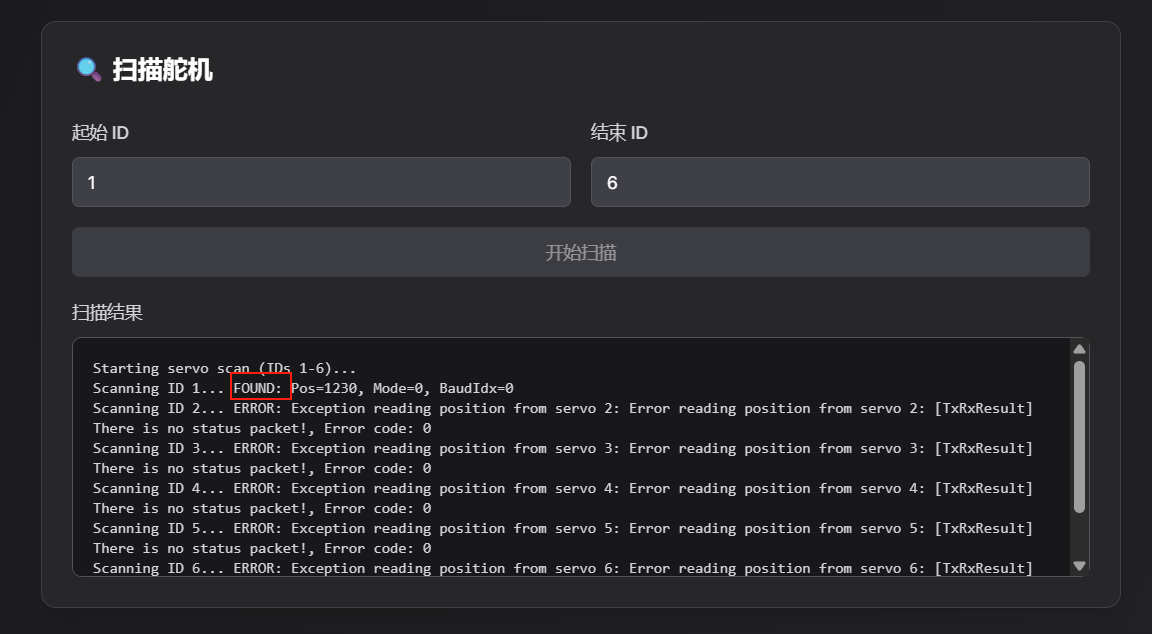
- Scan for servos with IDs 1~6; you can confirm the corresponding ID servo by the FOUND in the scan results. For example, in the image, servo ID 1 has been scanned
- ID Setting and Center Calibration
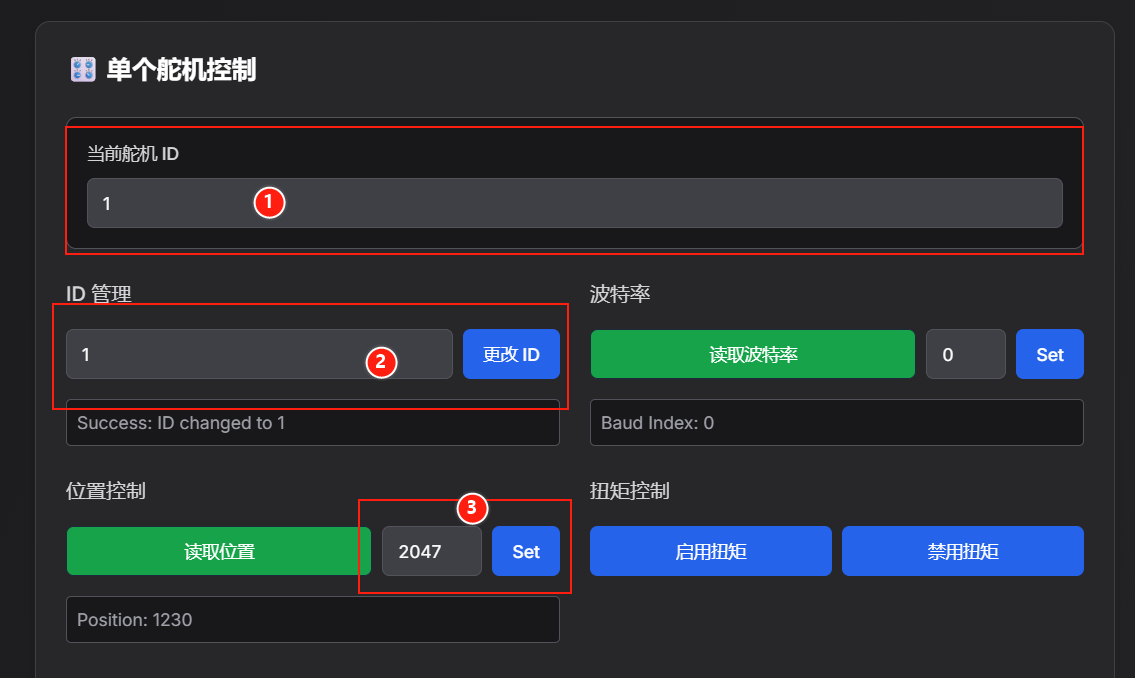
① Enter the scanned servo ID as the current servo ID
② Enter a number in "ID Management" and click "Change ID" to set the ID
③ Center calibration (the center for STS3215 servos is 2047, and for SCS0009 servos is 511)
STS servo: enter 2047 in "Position Control" and click "Set"
SCS servo: enter 511 in "Position Control" and click "Set"