Raspberry Pi 5
1. Connect the device
This tutorial takes the Raspberry Pi 5 motherboard and the official 64-bit version of the mirroring as an example.
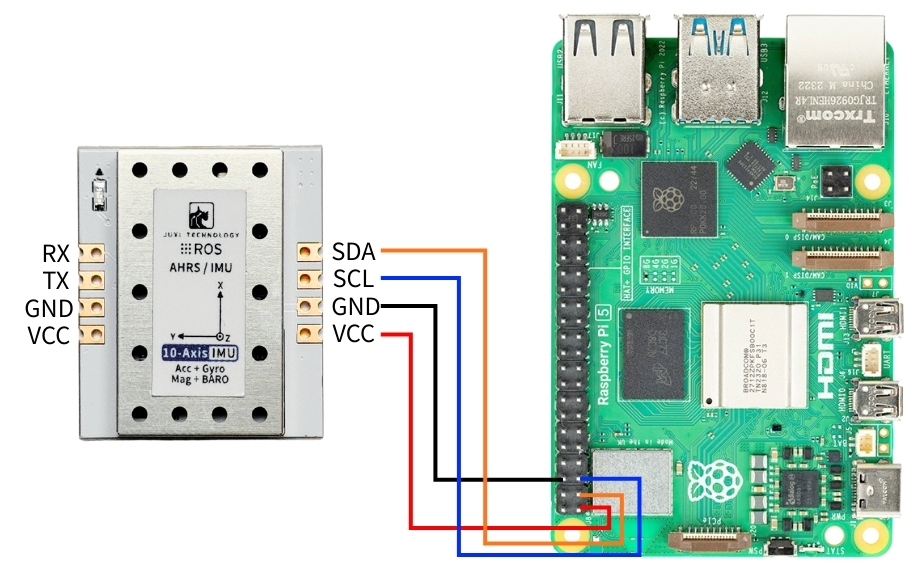
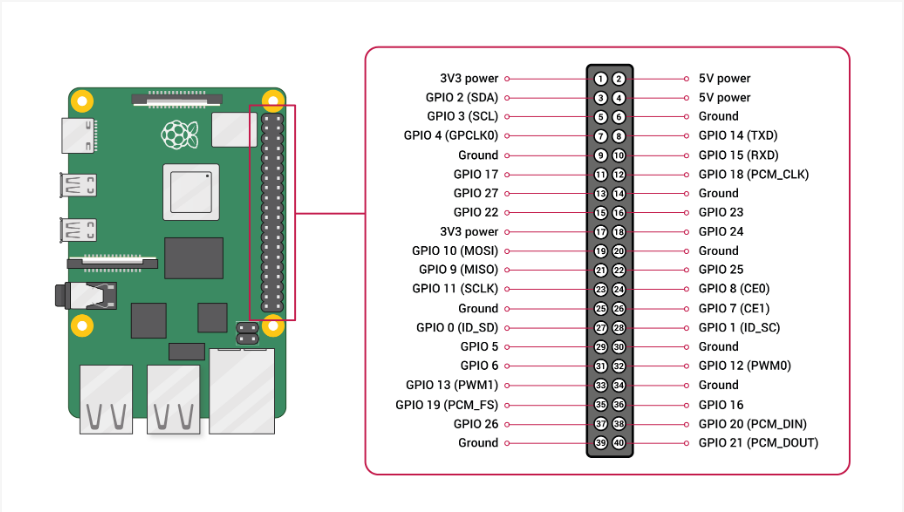
Connect the IMU attitude sensor to the I2C interface of Raspberry Pi 5 as shown in the figure below.
2. Check device status
First, install I2Ctool, then enter the following in the terminal:
sudo apt-get update
sudo apt-get install -y i2c-tools
View I2C Devices
sudo i2cdetect -y -r -a 1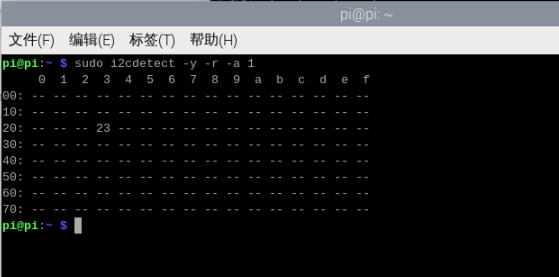
3. Install the driver library
3.1** Install the Python libraries required for the code **
sudo apt update
sudo apt install -y python3-serial
sudo apt install -y python3-smbus2
3.2 Transfer Files
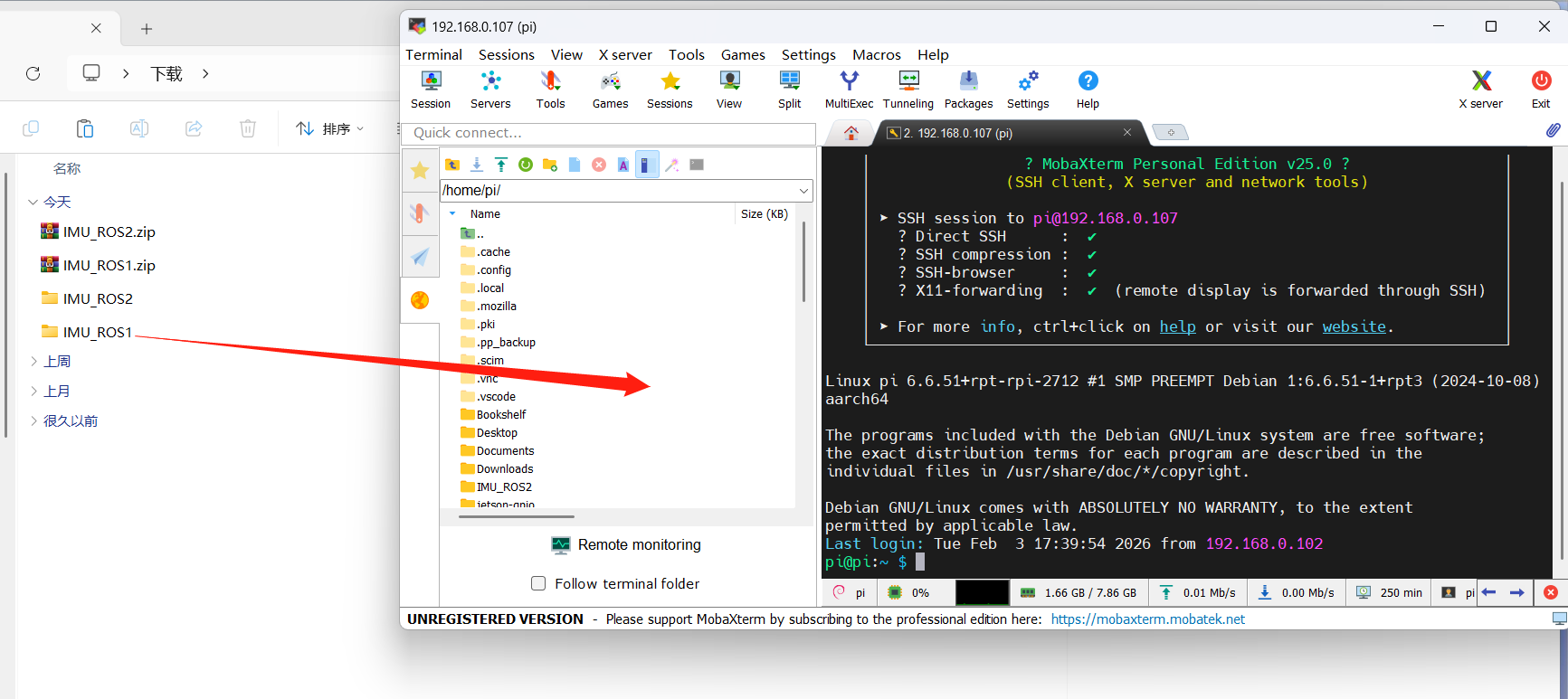
IMU_ROS2.zip Friends who are not yet familiar with using MobaXterm to transfer files, please refer to the following webpage for detailed installation and operation methods of MobaXterm:文件远程传输
Drag the decompressed files onto Raspberry Pi 5 via MobaXterm software.
4. View IMU data
**Enter the ~/IMU_Library directory and run the IMU_Serial_Library.py file **
cd ~/imu_ros2/src/IMU_ROS2/IMU_Library

# Run the IMU data printing file
python3 -m IMU_Library.IMU_I2C_Library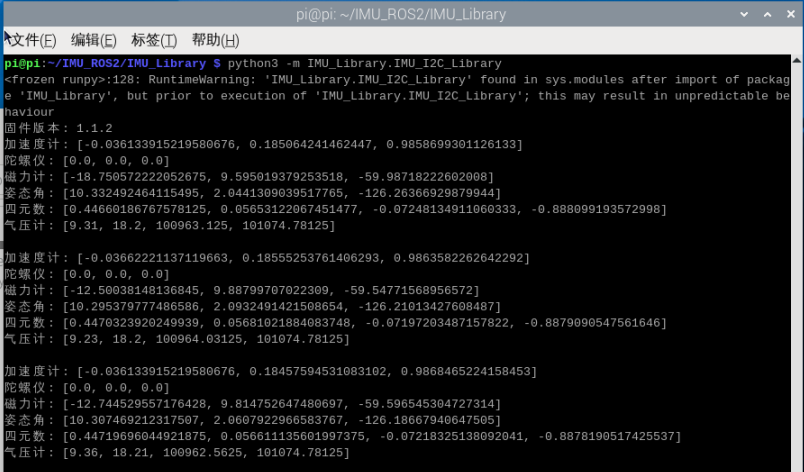
Note: The above is the data reading for a 10-axis IMU. The 6-axis has no Magnetometer and Barometer data, and the 9-axis has no Barometer data.
5. IMU Calibration
**Enter the ~/IMU_Library directory and run the imu_calibration_tool.py file **
cd ~/IMU_Library

# Run the IMU calibration code file -- I2C communication calibration
# Run all calibrations (full, magnetometer, temperature)
python3 -m IMU_Library.imu_calibration_tool --mode i2c --port 1

# Full calibration only
python3 -m IMU_Library.imu_calibration_tool --mode i2c --port 1 --calibrate imu

# Magnetometer only
python3 -m IMU_Library.imu_calibration_tool --mode i2c --port 1 --calibrate mag

# Temperature only
python3 -m IMU_Library.imu_calibration_tool --mode i2c --port 1 --calibrate temp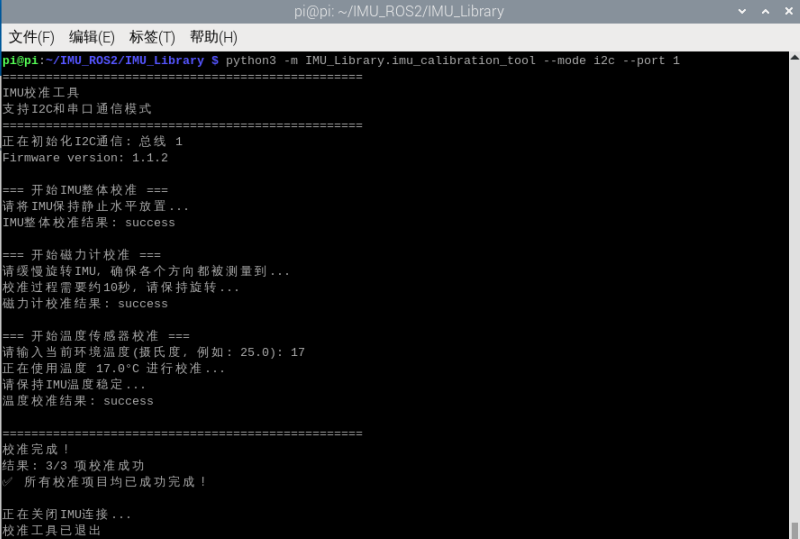
6. Precautions
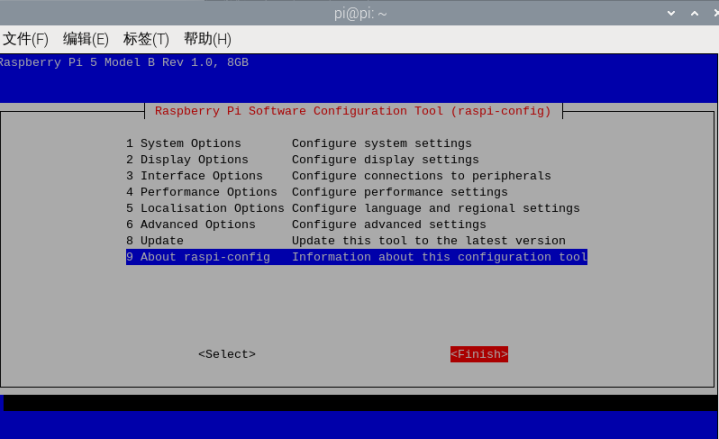
Raspberry Pi 5 needs to enable the i2c pin in advance.
The opening operation is as follows:
Terminal run command
sudo raspi-configSelect using the arrow keys on the keyboard, and press the Enter key on the keyboard to enter after selection
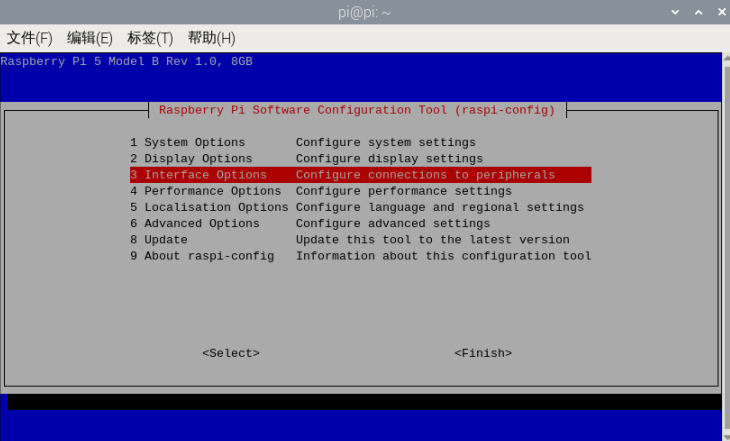
Select I2C, and after selection, press the Enter key on the keyboard to enter.
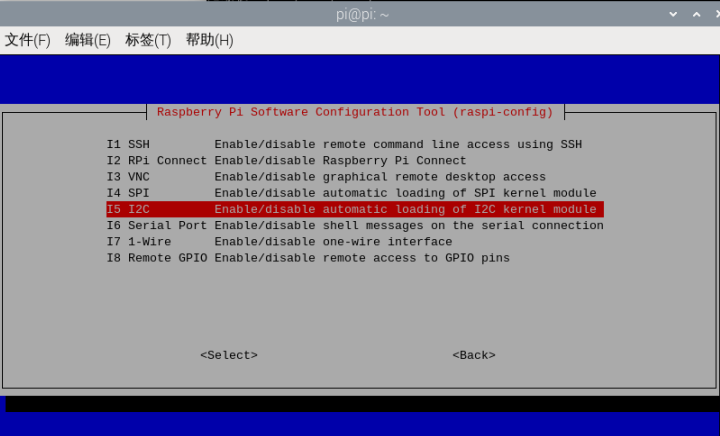
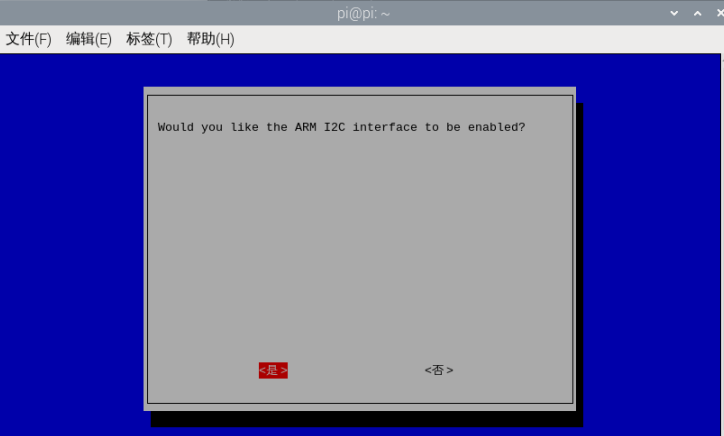
After selecting I2C, press the Enter key on the keyboard, use the arrow keys to select Yes, and then press the Enter key to confirm.
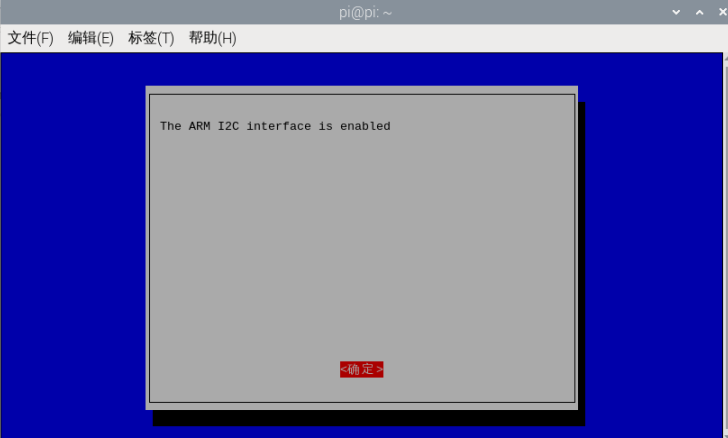
Press Enter to confirm
Press the arrow keys to select Finish, then press Enter to exit the configuration.