Step 1: Environment Setup (Windows)
The black leader arm uses a 5V6A power adapter
The white follower arm uses a 12V5A power adapter
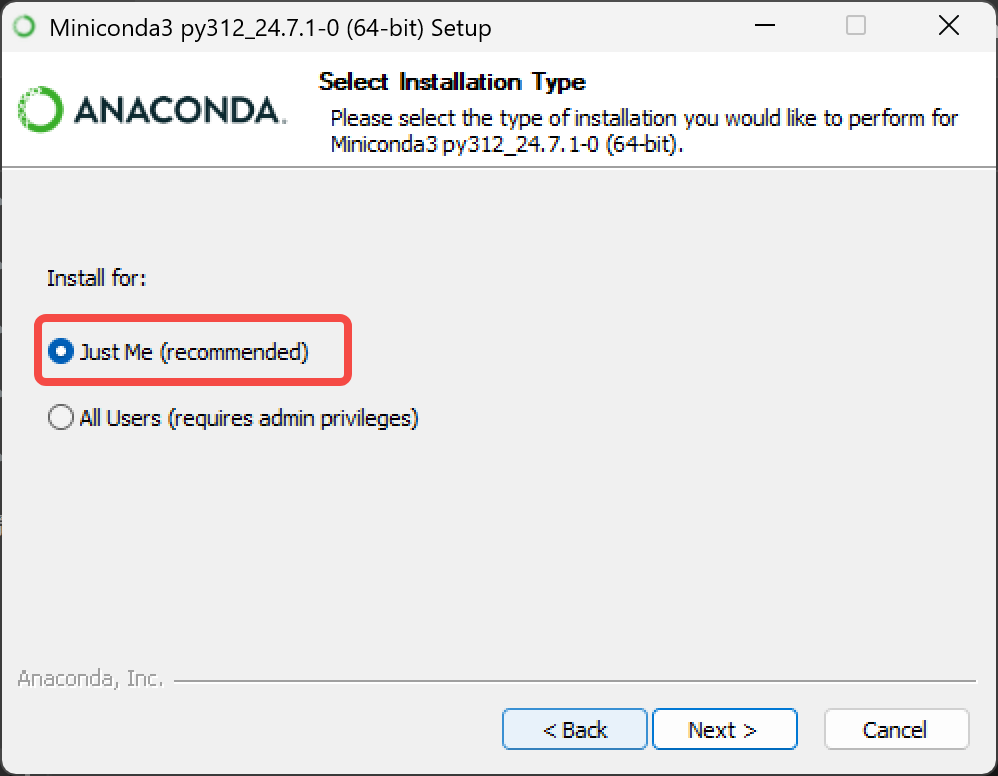
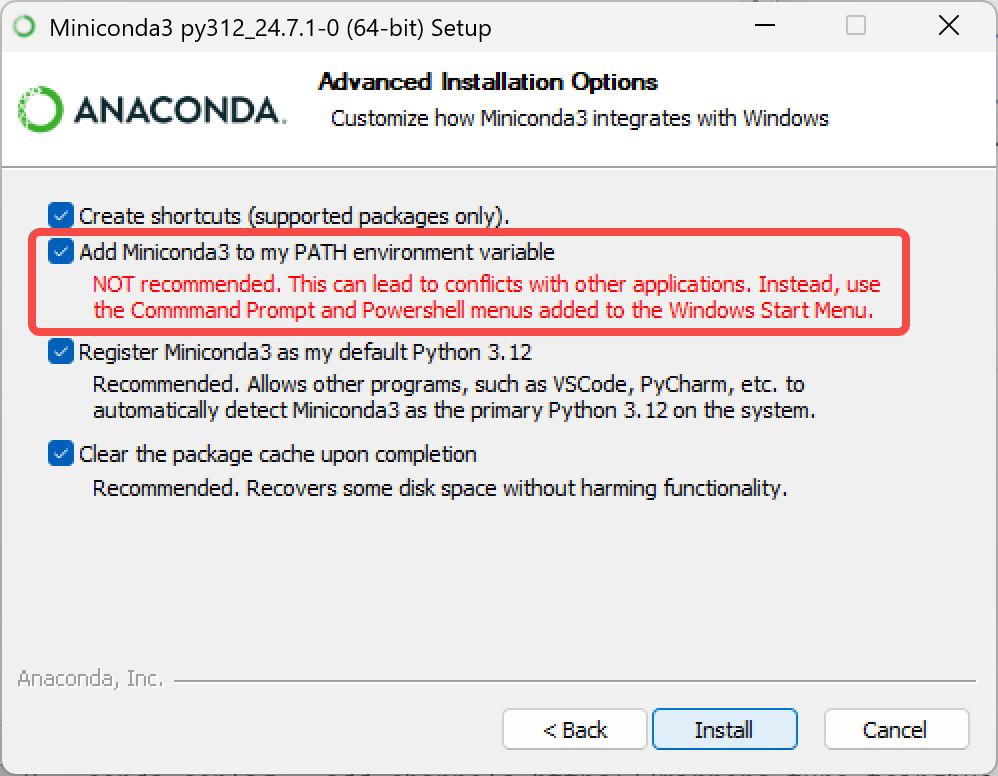
Install Miniconda
anaconda.com/download/success
Or click this link to download the installer directly
https://repo.anaconda.com/miniconda/Miniconda3-latest-Windows-x86_64.exe
Change the conda mirror
Shell
# First clear the existing mirror configuration (to avoid conflicts)
conda config --remove-key channels

# Replace conda's default channels and common third-party channels with Tsinghua mirrors
# Add the default package channels (main/r/msys2)
conda config --add channels https://mirrors.tuna.tsinghua.edu.cn/anaconda/pkgs/main/
conda config --add channels https://mirrors.tuna.tsinghua.edu.cn/anaconda/pkgs/r/
conda config --add channels https://mirrors.tuna.tsinghua.edu.cn/anaconda/pkgs/msys2/

# Add common third-party channels
conda config --add channels https://mirrors.tuna.tsinghua.edu.cn/anaconda/cloud/conda-forge/
conda config --add channels https://mirrors.tuna.tsinghua.edu.cn/anaconda/cloud/msys2/
conda config --add channels https://mirrors.tuna.tsinghua.edu.cn/anaconda/cloud/bioconda/
conda config --add channels https://mirrors.tuna.tsinghua.edu.cn/anaconda/cloud/menpo/
conda config --add channels https://mirrors.tuna.tsinghua.edu.cn/anaconda/cloud/pytorch/

# Enable display of the download channel, so the specific download address is shown when installing packages
conda config --set show_channel_urls yes

# Clear the index cache to make the new channels take effect
conda clean -i

# View the current configuration (to verify the channels were added successfully)
conda config --show-sources
Create a virtual environment
Shell
conda create -y -n lerobot python=3.12Activate the virtual environment
Shell
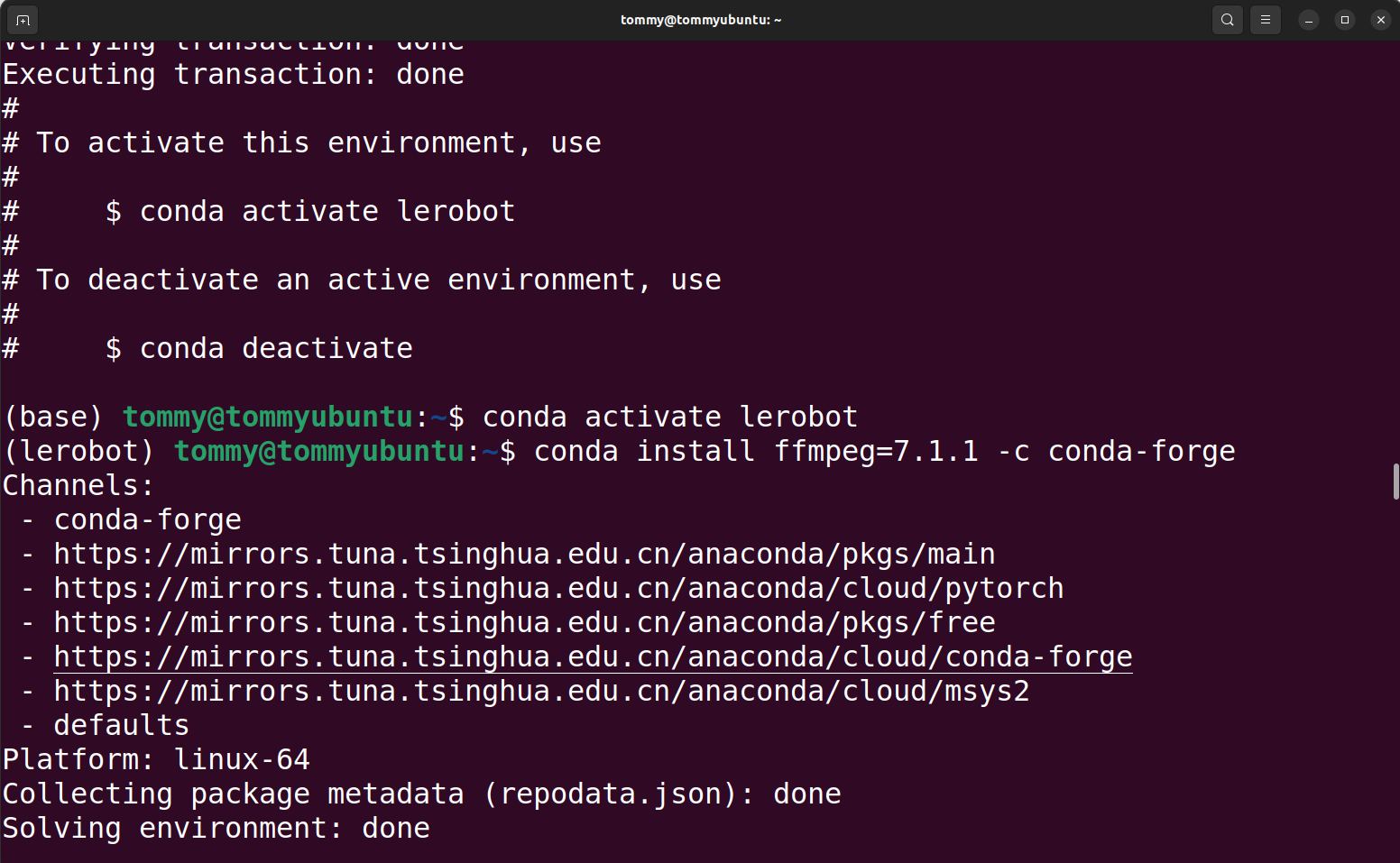
conda activate lerobotInstall ffmpeg
Shell
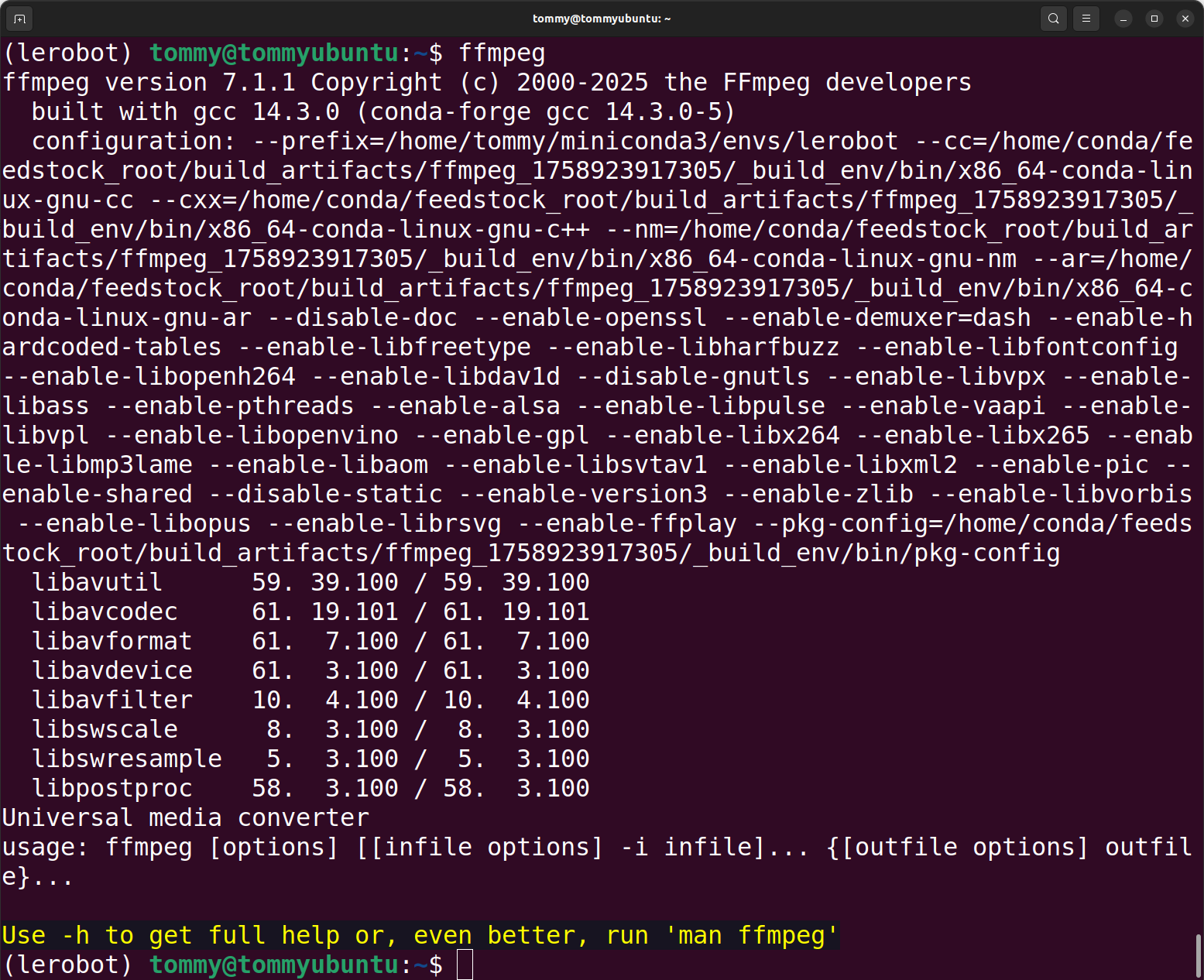
conda install ffmpeg=7.1.1 -c conda-forge -yVerify the installation succeeded
Shell
ffmpeg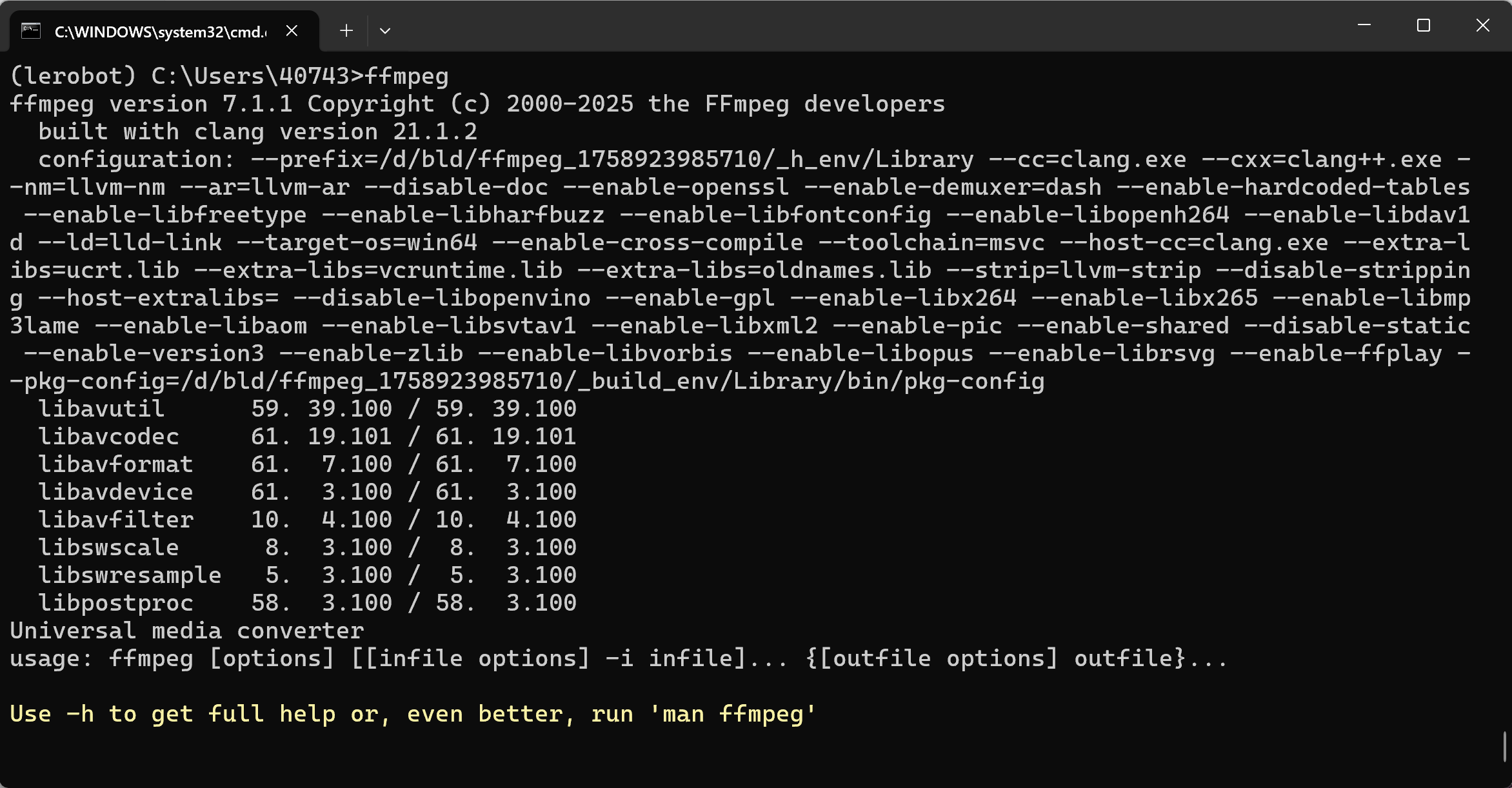
Download LeRobot
- Download the official LeRobot code repository
Shell
git clone https://github.com/huggingface/lerobot.gitInstall the code repository
Shell
cd lerobotPlain
pip install -e ".[feetech]"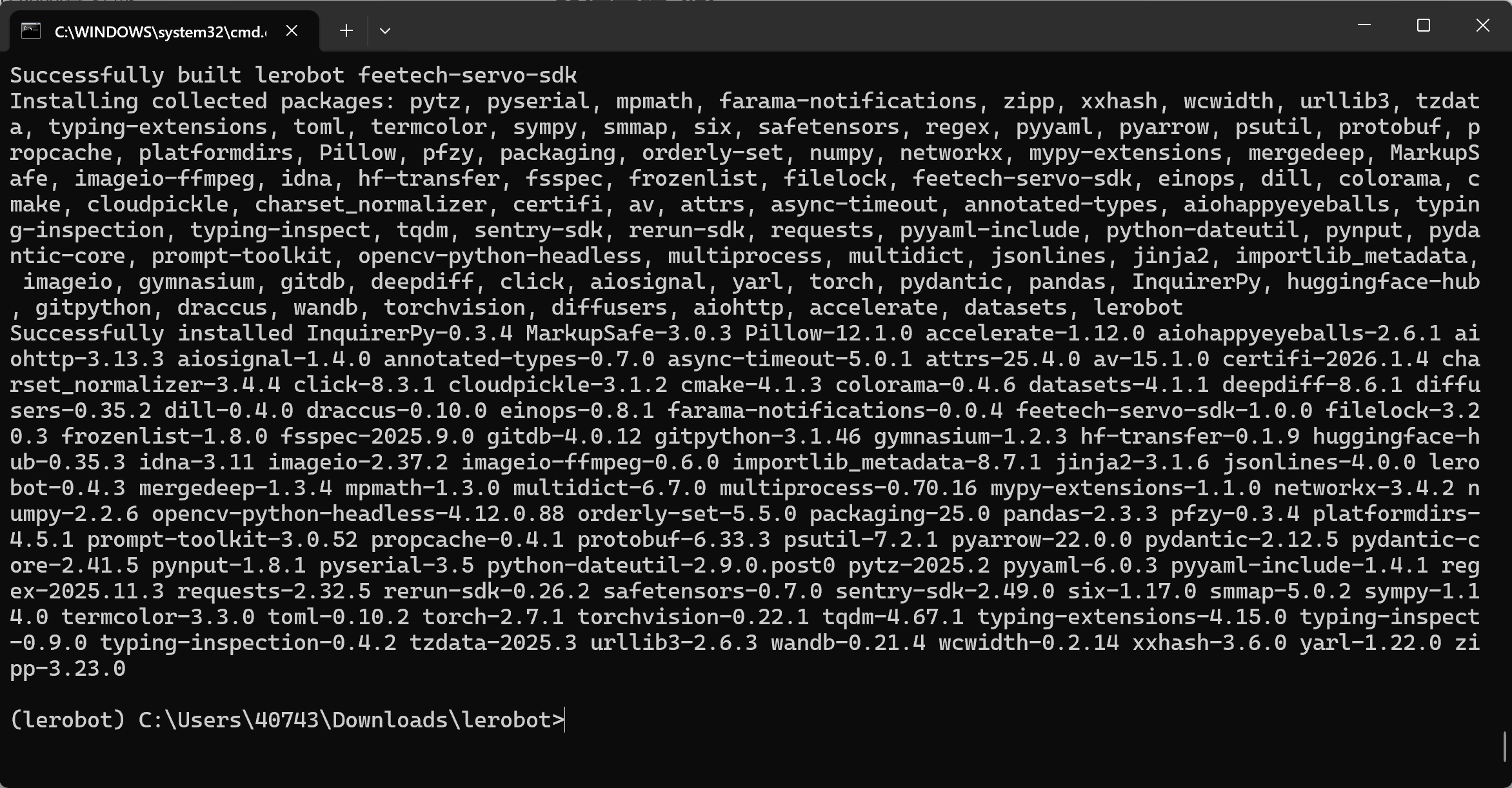
Verify the installation succeeded
Shell
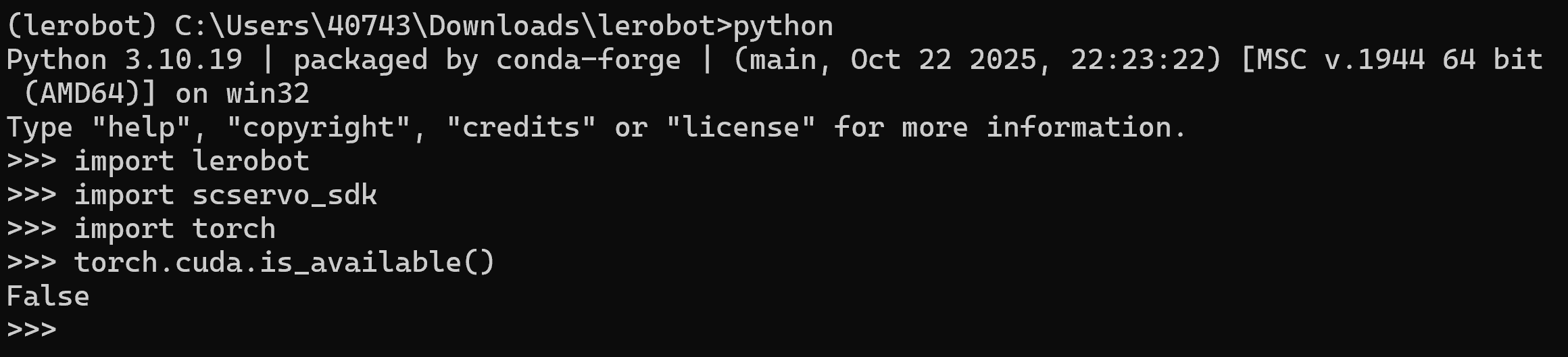
python

import lerobot
import scservo_sdk
import torch
torch.cuda.is_available()