Using JupyterLab
1. Jupyter Lab Installation
1.1. Jupyter Lab
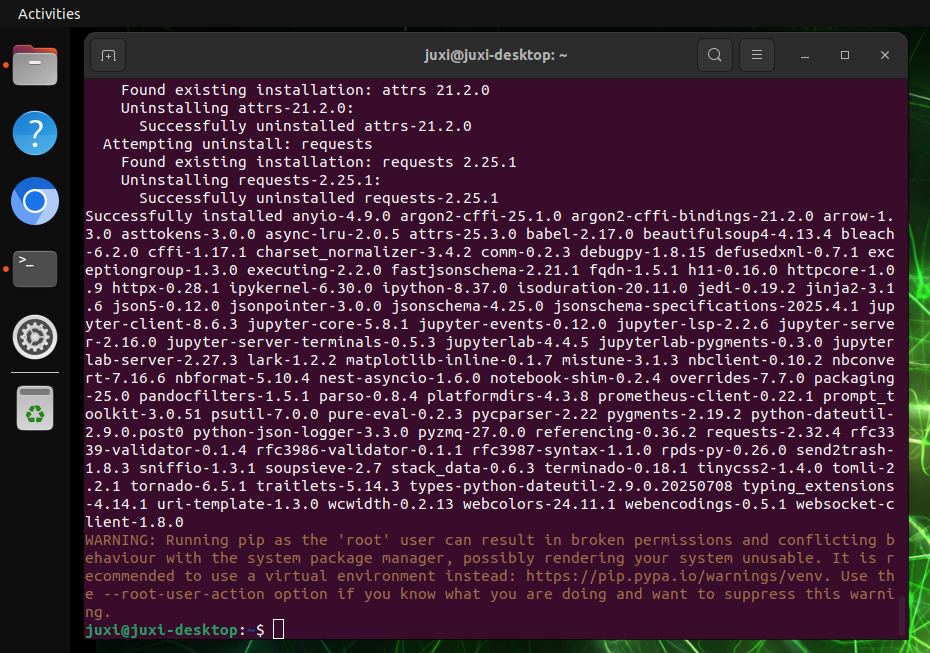
Use the following commands to install Jupyter Lab: if the download speed for installing Jupyter Lab is slow, you can use a specified source to install it
sudo apt update
sudo apt install python3-pip -y
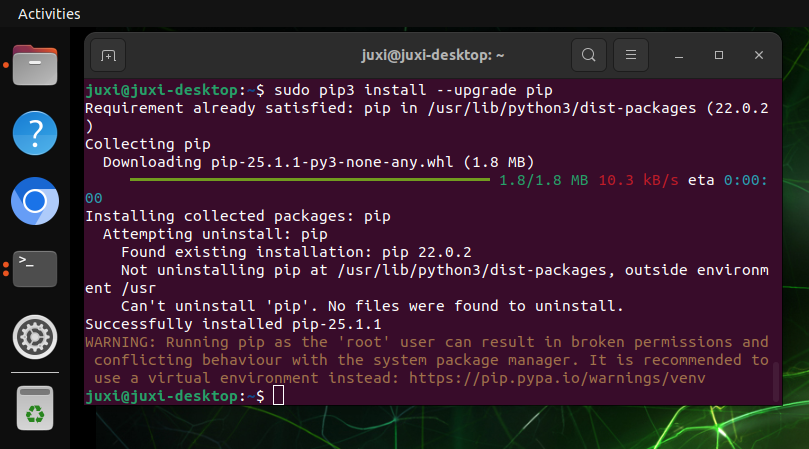
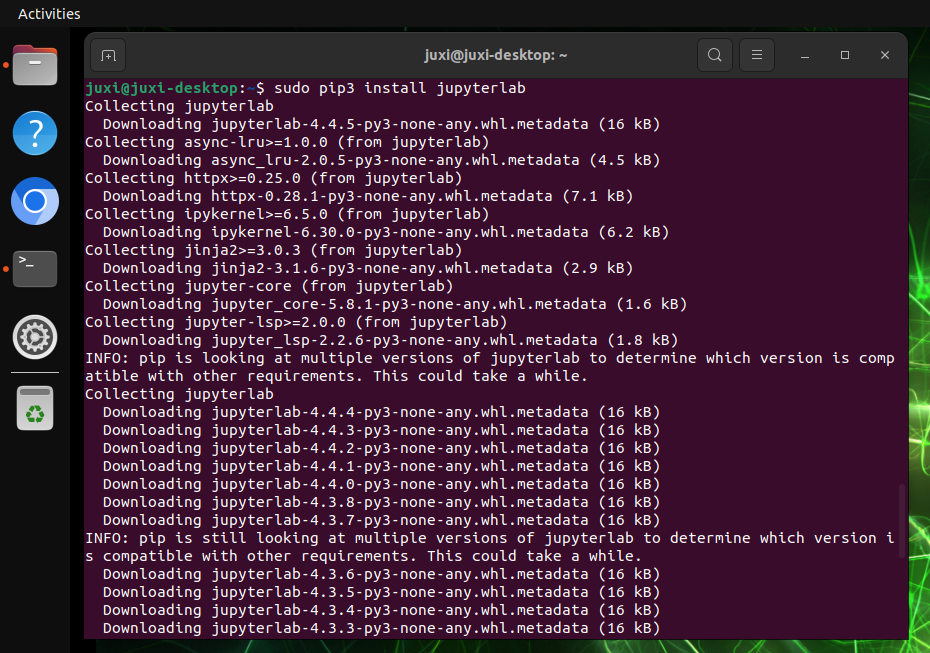
sudo pip3 install --upgrade pipsudo pip3 install jupyterlab
# Tsinghua source: pip3 install jupyterlab -i https://pypi.tuna.tsinghua.edu.cn/simple
# Alibaba Cloud source: sudo pip3 install jupyterlab -i https://mirrors.aliyun.com/pypi/simple/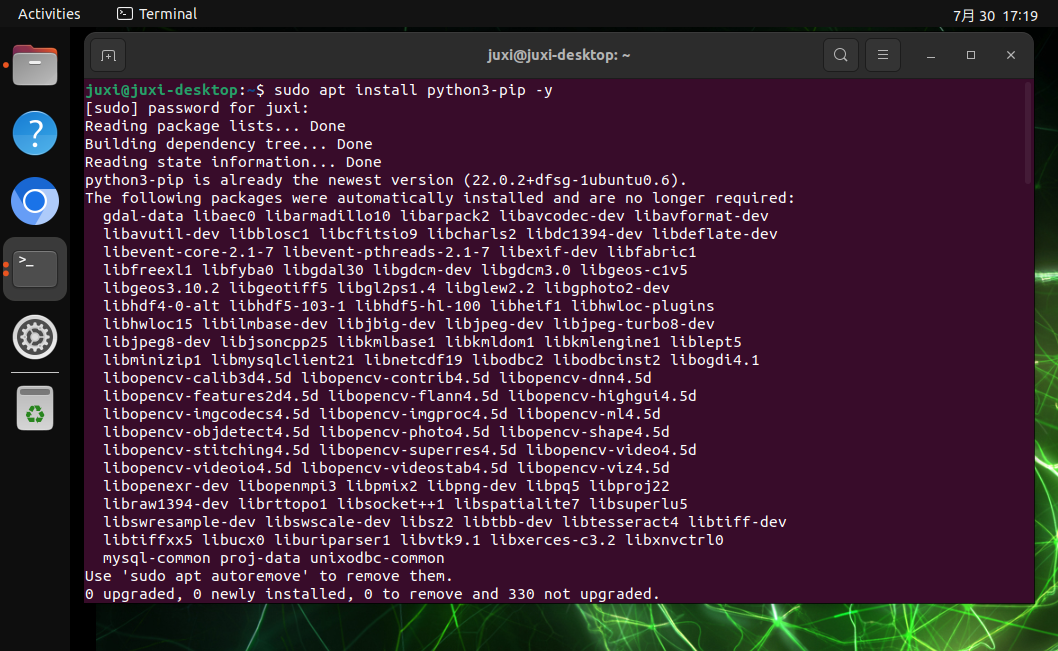
1.2. Node.js
Use the following commands to install the latest Node.js:
sudo apt install curl -y
sudo curl -fsSL https://deb.nodesource.com/setup_22.x | sudo -E bash -
sudo apt install nodejs -y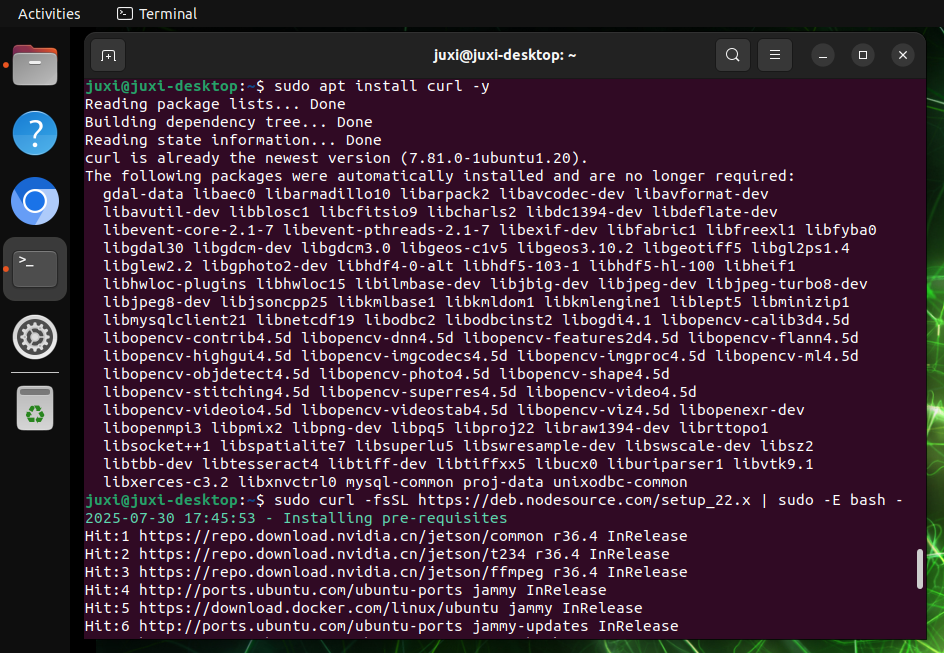
Verify the version:
node -v && npm -v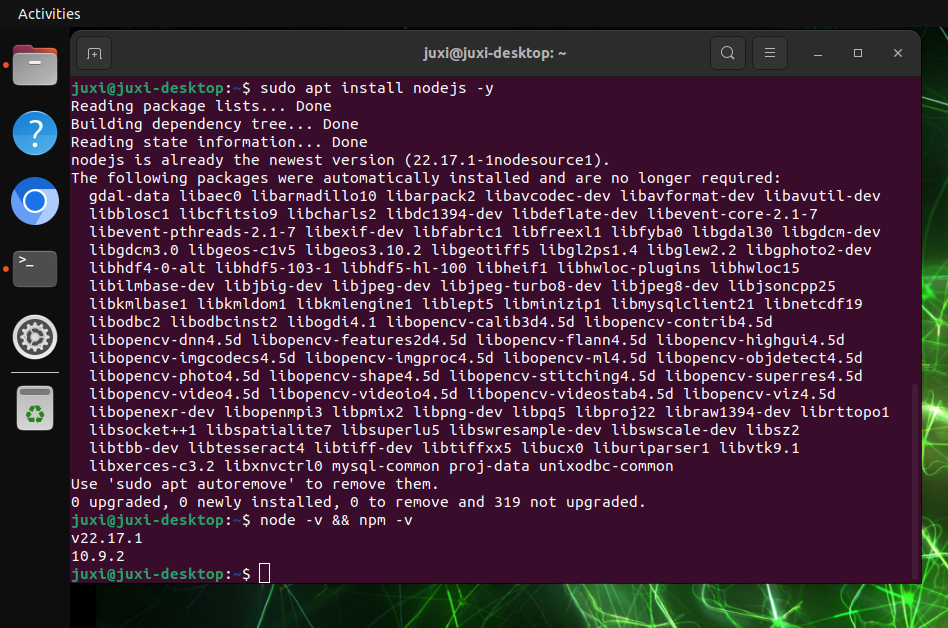
2. Start Jupyter Lab
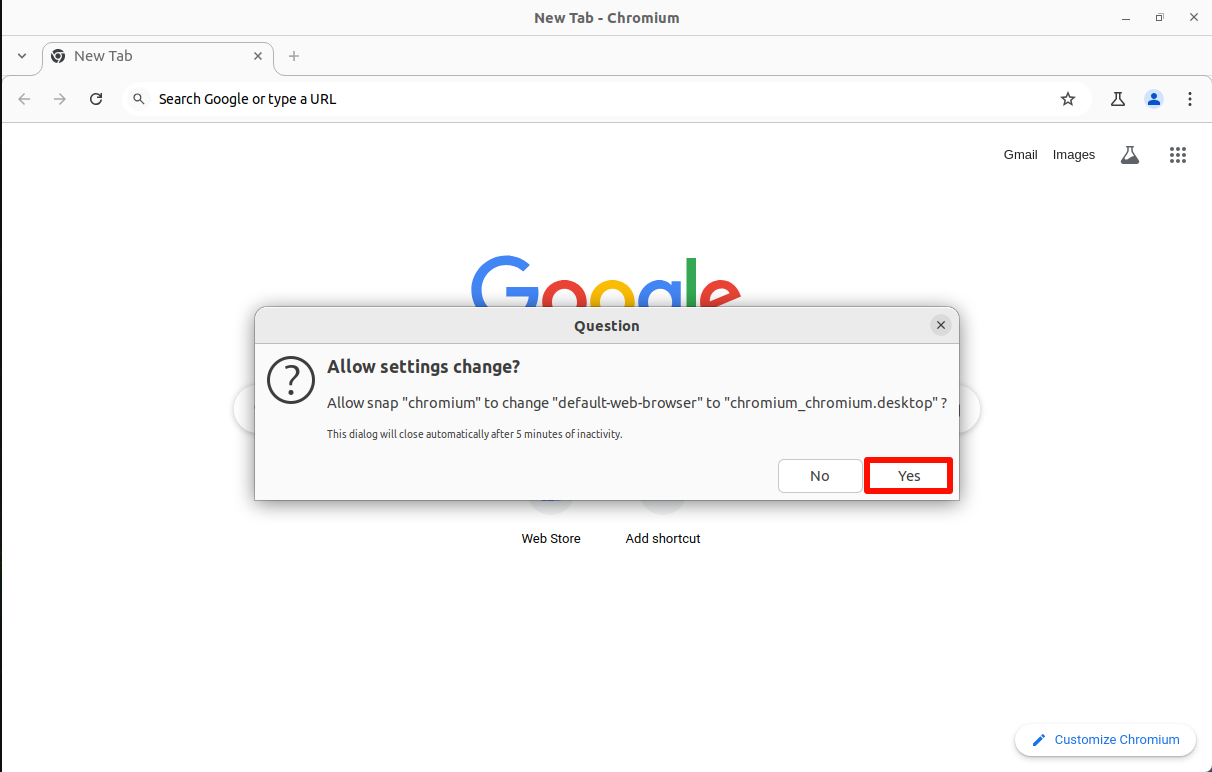
Before starting Jupyter Lab, you need to set the system default browser, otherwise some prompts will appear when you start the terminal.
2.1. Set the Default Browser
Open the system Chromium browser and choose to set it as the default browser:

2.2. Start Jupyter Lab
jupyter lab
# Start without a browser: jupyter lab --no-browser
# Start as administrator: sudo jupyter lab --allow-root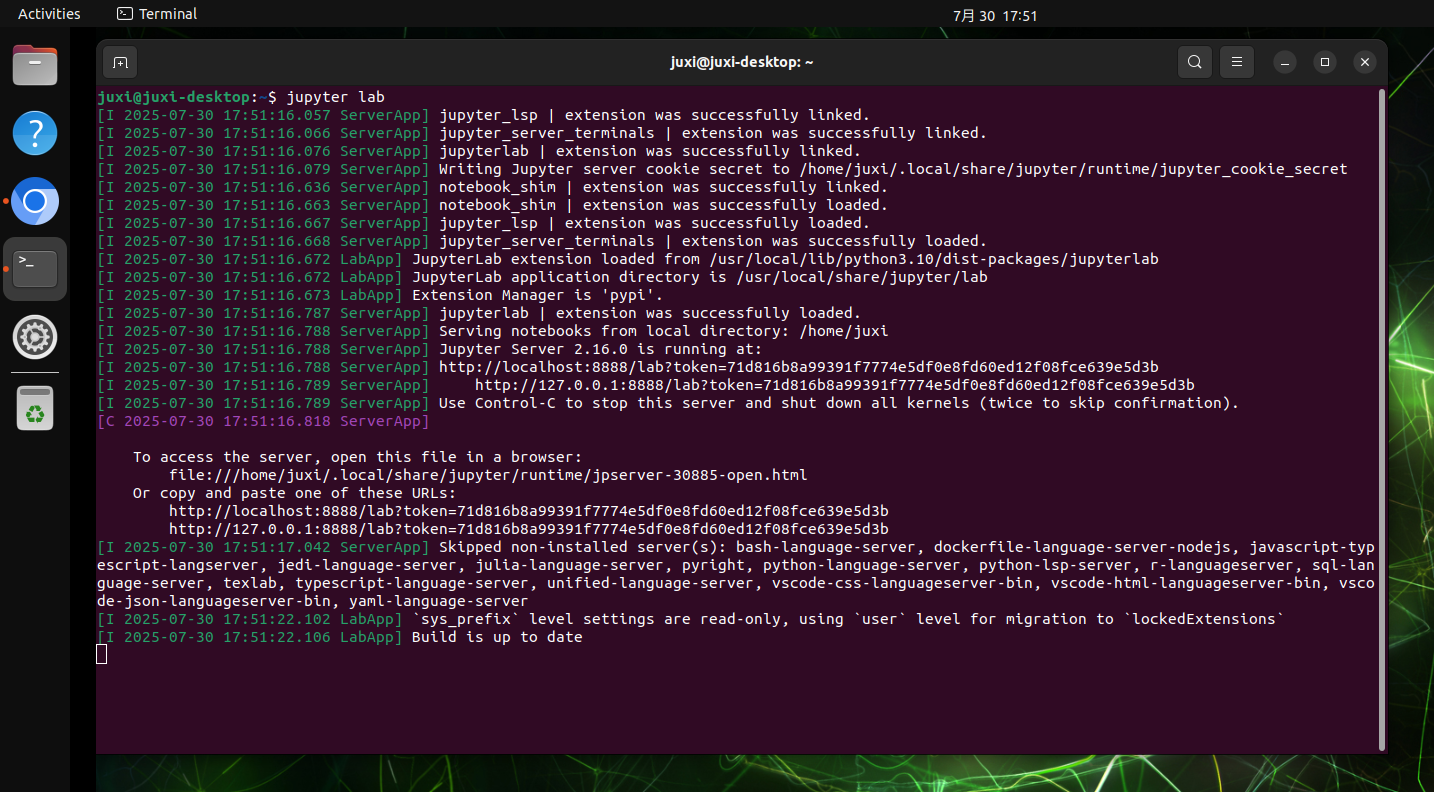
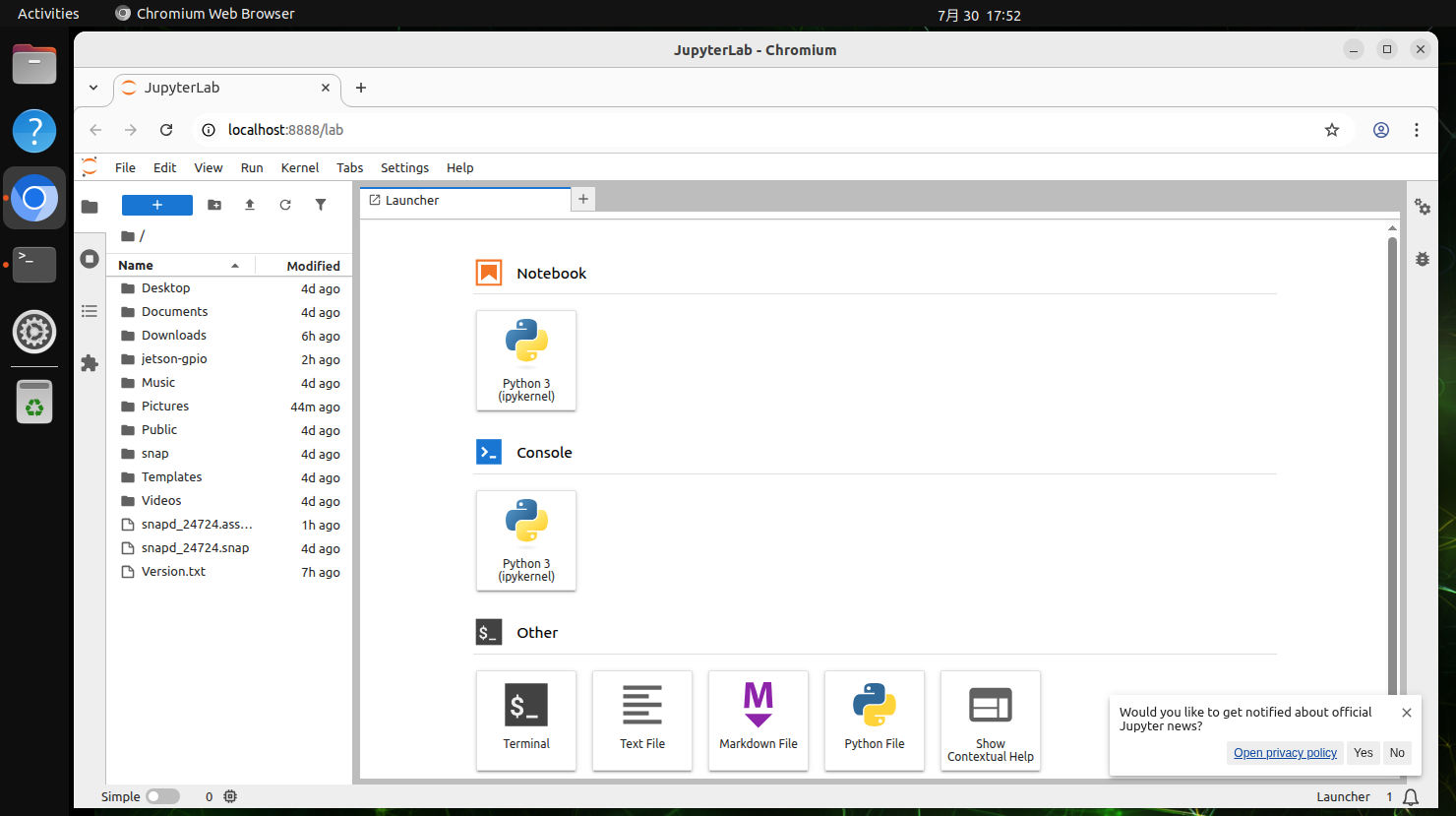
2.3. Host Machine Access
Host machine refers to access from the Jetson board system; access directly via http://localhost:8888/:
http://localhost:8888/
3. Jupyter Lab Configuration
Configure Jupyter Lab for LAN access, access password, start on boot, and other operations.
3.1. LAN Access
Set it up so that devices on the same LAN can access it by entering IP:8888 in a browser!
Note: LANs on campus networks generally cannot be accessed; you can switch to a laptop/mobile hotspot for testing
For example, the board IP is 192.168.0.105; we can access the board's Jupyter Lab by entering 192.168.0.105:8888 in a browser on the same LAN
3.1.1. Create a Configuration File
sudo jupyter lab --generate-configLocation of the automatically generated configuration file: Writing default config to: /root/.jupyter/jupyter_lab_config.py
3.1.2. Modify the Configuration File
sudo gedit /root/.jupyter/jupyter_lab_config.pyContent to modify: after modifying, click save and close the file.
Note whether there is a # before the code, to ensure the configuration takes effect
# Allow requests from any origin to access the Jupyter Lab server
c.ServerApp.allow_origin = '*'
# 0.0.0.0 means binding to all available network interfaces, allowing access from any address
c.ServerApp.ip = '0.0.0.0'
# Allow starting the Jupyter Lab server as the root user
c.ServerApp.allow_root = True
# Modify the default port to avoid conflicts
c.ServerApp.port = 8888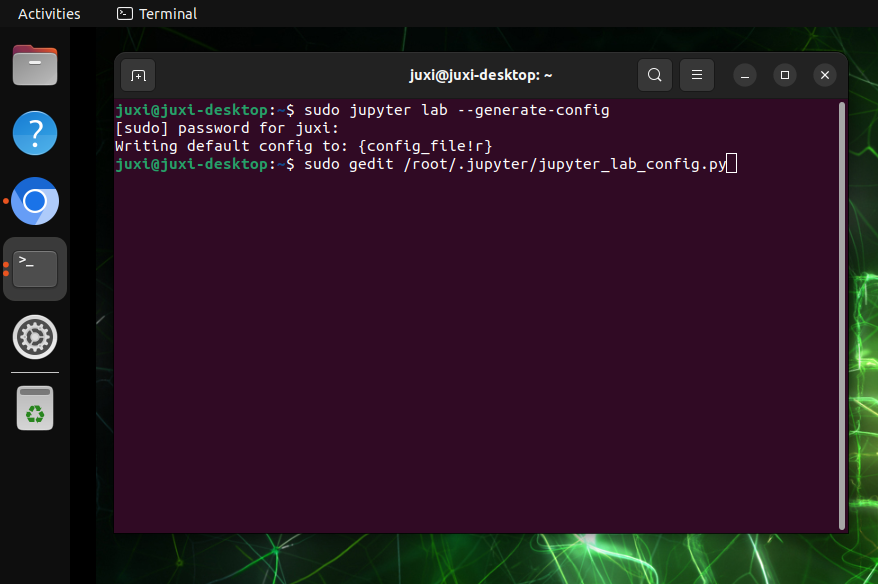
3.2. Configure the Access Password
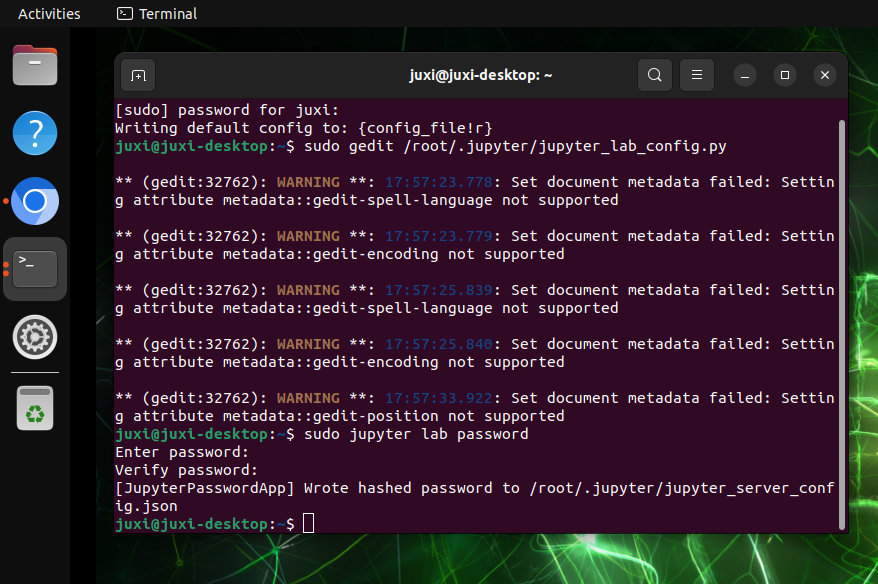
Enter the password-setting command in the terminal; you need to enter it twice, and the input will not be displayed when entering the password!
sudo jupyter lab passwordLocation of the automatically generated configuration file: [JupyterPasswordApp] Wrote hashed password to /root/.jupyter/jupyter_server_config.json
3.3. Start-on-Boot Service
3.3.1. Edit the Service File
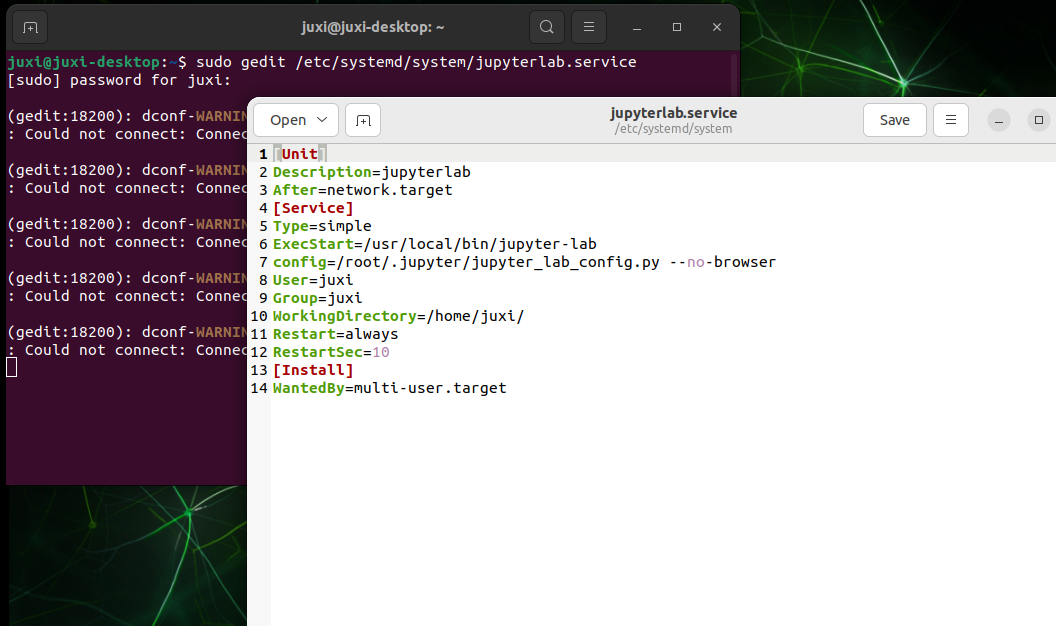
sudo gedit /etc/systemd/system/jupyterlab.serviceContent to add: after adding, click save and close the file
[Unit]
Description=jupyterlab
After=network.target
[Service]
Type=simple
ExecStart=/usr/local/bin/jupyter-lab
config=/root/.jupyter/jupyter_lab_config.py --no-browser
User=root
Group=root
WorkingDirectory=/home/jetson/
Restart=always
RestartSec=10
[Install]
WantedBy=multi-user.target
root: the system username
ExecStart: the command to start Jupyter lab; modify it to the JupyterLab installation path
config: modify it to the JupyterLab configuration file path
WorkingDirectory: the working directory opened when starting Jupyter-lab; you can change it yourself (it is recommended to change it to the user directory)
View the Jupyter-lab installation path: which jupyter-lab
Configuration file path: refer to the path where the configuration file was generated above
3.3.2. Set Up the Start-on-Boot Service
Start-on-Boot Service
sudo systemctl enable jupyterlab
# Disable start on boot: systemctl disable jupyterlab
Start the Service
sudo systemctl start jupyterlab
# Stop the service: sudo systemctl stop jupyterlab
Check the Service Status
systemctl status jupyterlab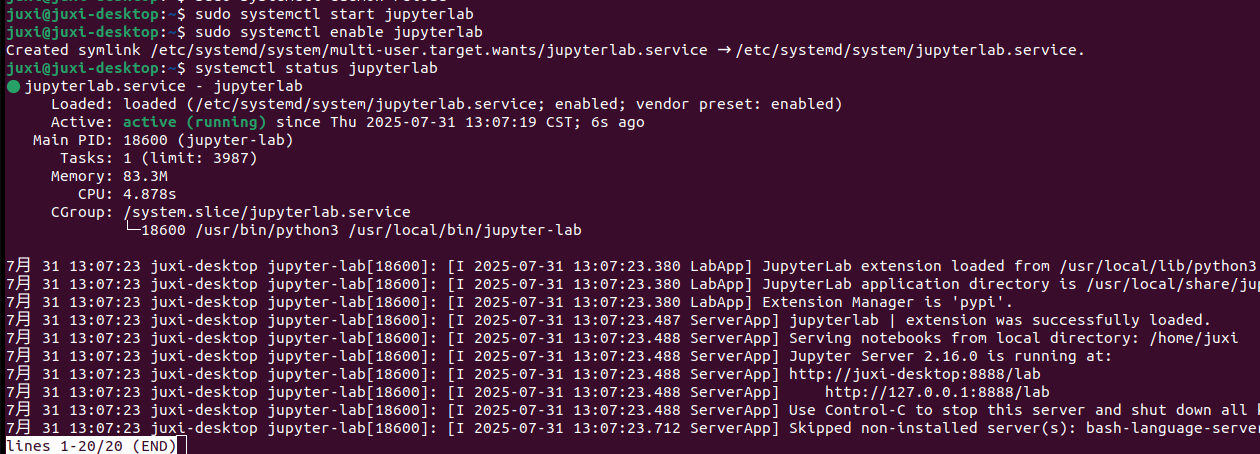
Verify Start-on-Boot
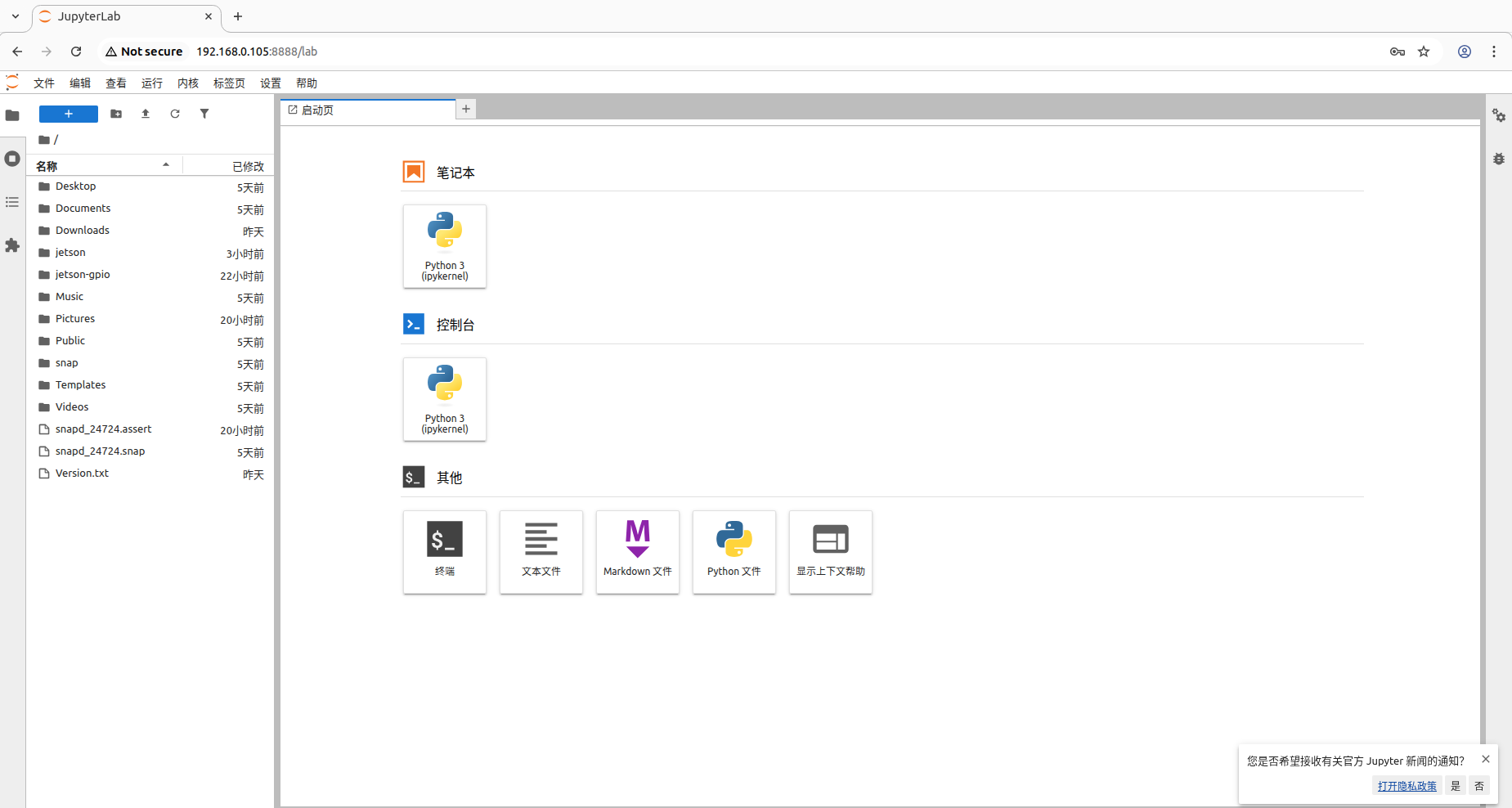
After restarting the system, use a device on the same LAN to access board IP:8888 based on the system IP.
The first access requires entering a password; the password is the information set in the previous steps;
At the time of the screenshot, the board's IP was 192.168.0.105, so devices on the same LAN can access 192.168.0.105:8888
4. Jupyter Lab Usage
4.1. Kernel
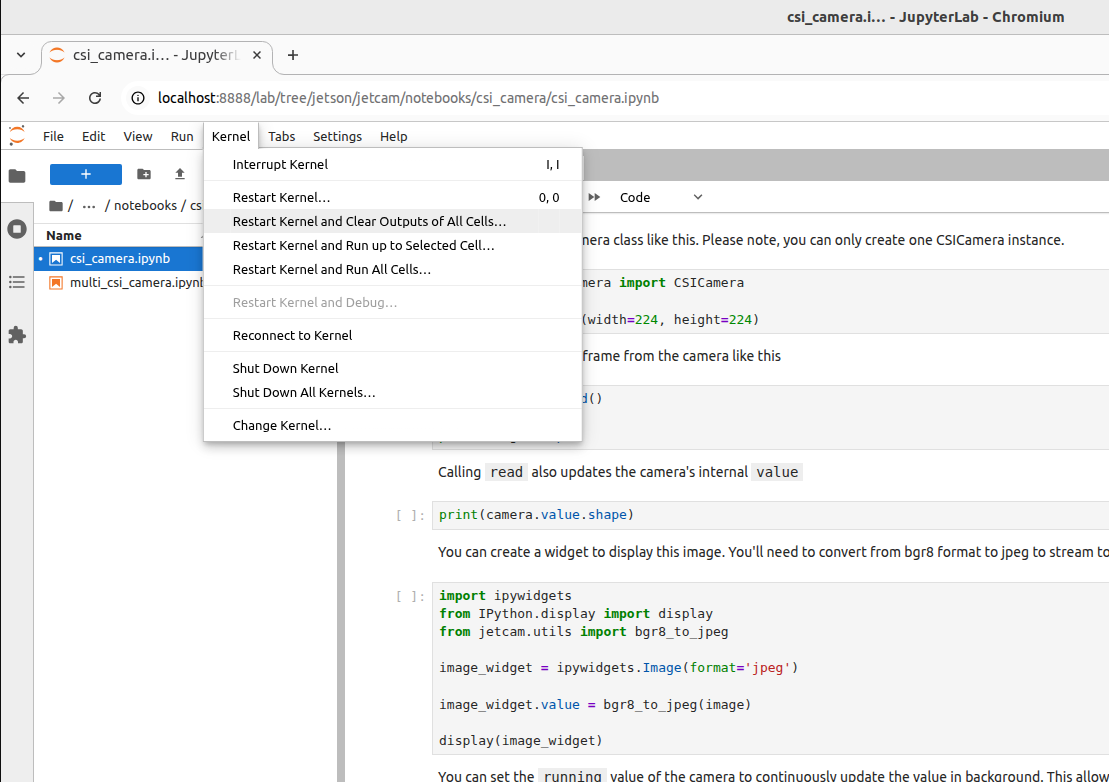
It is recommended to restart the kernel and clear the output of all cells each time you run a program or when the program behaves abnormally:
4.2. Run a Program
Open the program file you need to run through Jupyter Lab; when running a program, run the cells in order from top to bottom:
4.2.1. Running
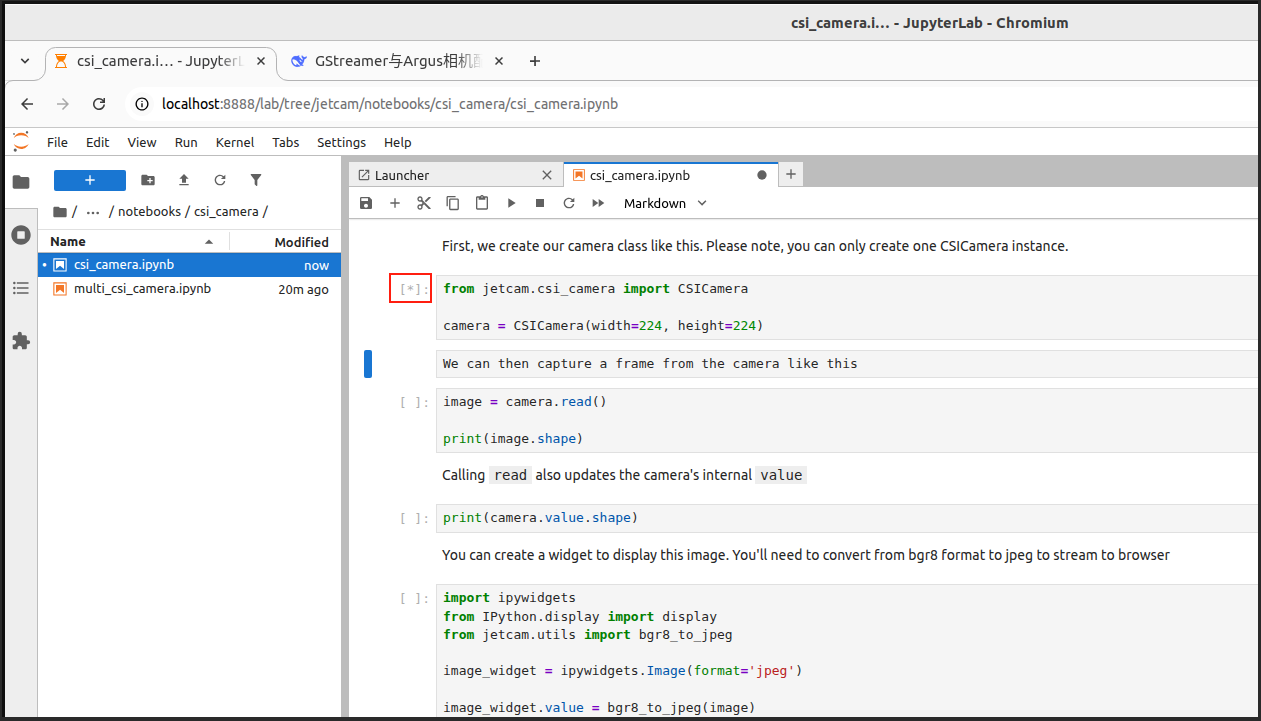
A [*] shown at the top left of a cell means it is running:
4.2.2. Run Complete
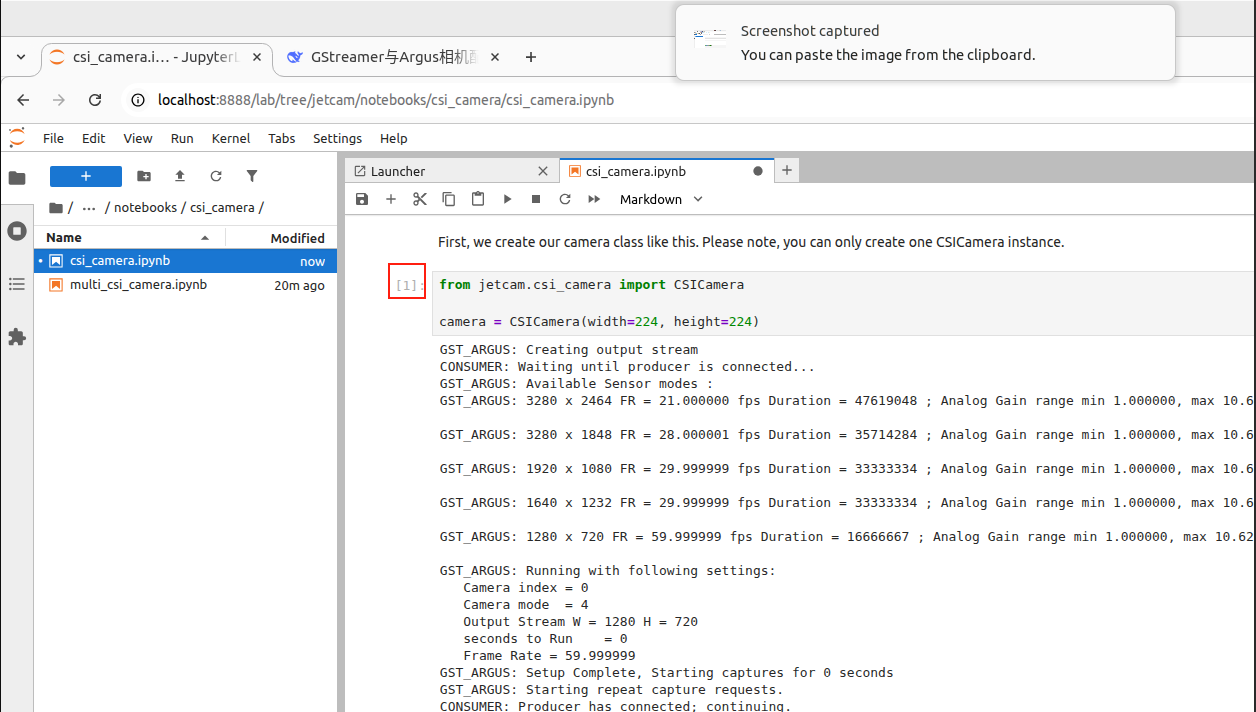
A [number] shown at the top left of a cell represents the order/count of execution: for example, [1] → the program ran that cell's code on the first run