RDKシリーズ
1. デバイスの接続
本チュートリアルはRDK X5マザーボードを例にしています。
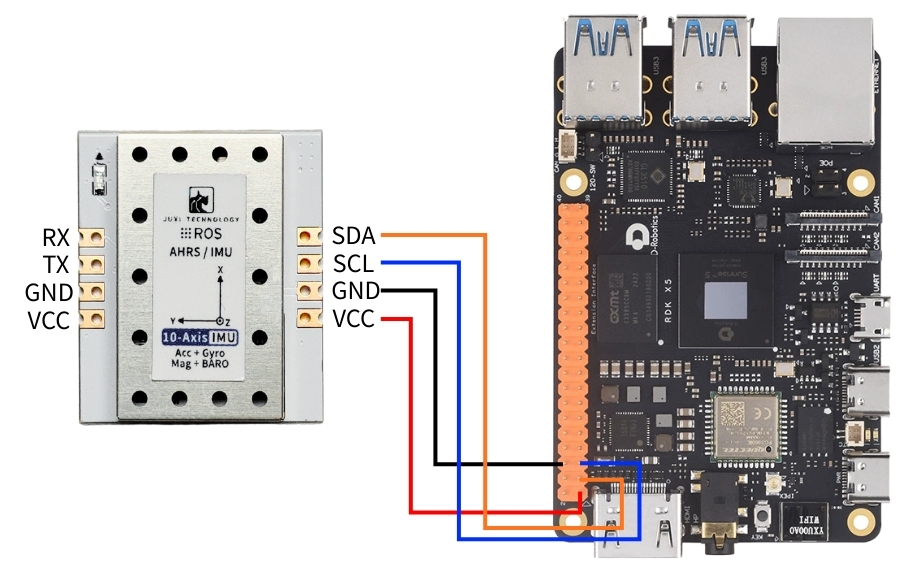
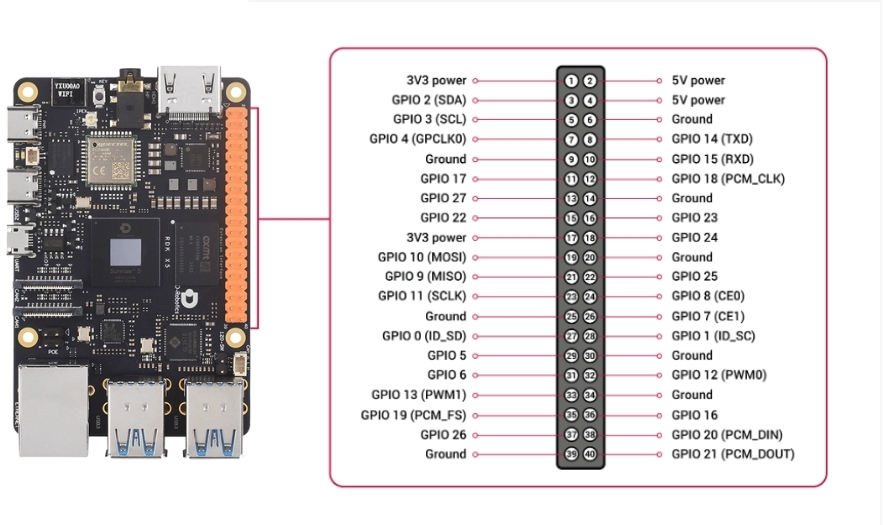
IMU姿勢センサーを下図のようにRDK X5のI2Cインターフェースに接続します。
2. デバイス状態の確認
まず I2Ctool をインストールします。ターミナルで入力:
PowerShell
sudo apt-get update
sudo apt-get install -y i2c-tools
I2Cデバイスの確認
PowerShell
sudo i2cdetect -y -r -a 0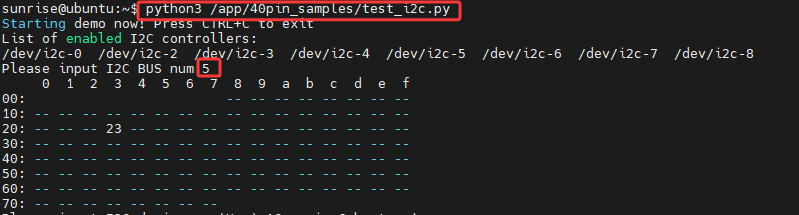
3. ドライバライブラリのインストール
3.1 コードに必要なpythonライブラリのインストール
PowerShell
sudo apt update
sudo apt install -y python3-serial
sudo apt install -y python3-smbus2
3.2 ファイルの転送
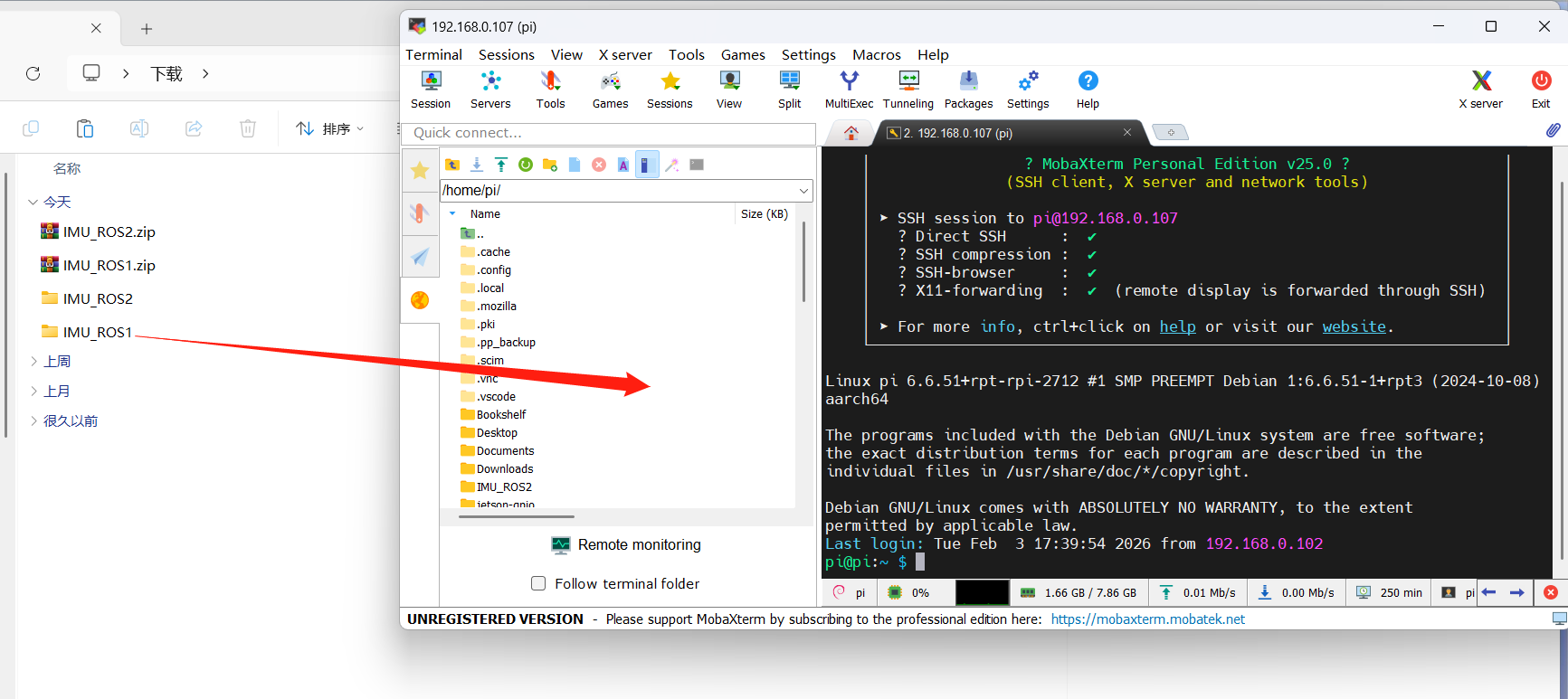
IMU_ROS2.zip MobaXterm を使ったファイル転送にまだ慣れていない方は、以下のページで MobaXterm の詳しいインストール方法と操作方法をご確認ください: 文件远程传输
MobaXtermソフトで解凍したファイルを RDK X5 にドラッグします。
4. imuデータの確認
~/IMU_Library ディレクトリに入り、IMU_Serial_Library.py ファイルを実行
PowerShell
cd ~/imu_ros2/src/IMU_ROS2/IMU_Library

# IMU シリアルデータ出力ファイルを実行
python3 -m IMU_Library.IMU_I2C_Library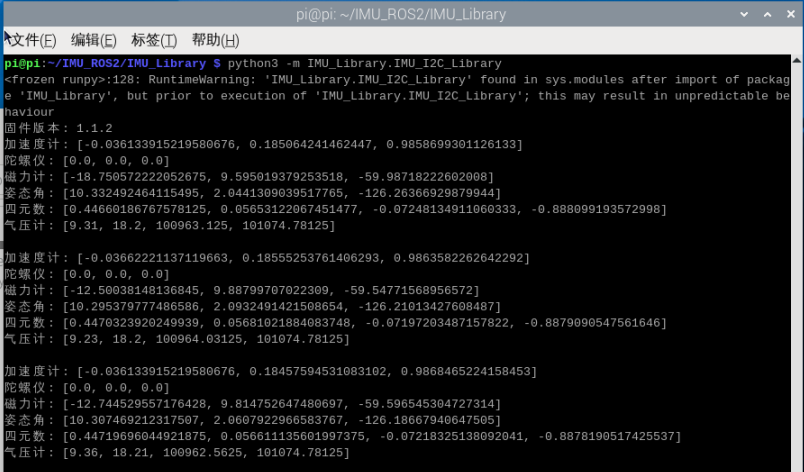
注意:上記は10軸IMUのデータ読み取りです。6軸は磁力計(Magnetometer)と気圧計(Barometer)データがなく、9軸は気圧計(Barometer)データがありません。
5. IMUキャリブレーション
~/IMU_Library ディレクトリに入り、imu_calibration_tool.py ファイルを実行
PowerShell
cd ~/IMU_Library

# IMU 校正コードファイルを実行 --I2C 通信校正
# すべての校正を実行(全体、磁力計、温度)
python3 -m IMU_Library.imu_calibration_tool --mode i2c --port 0

# 全体校正のみ
python3 -m IMU_Library.imu_calibration_tool --mode i2c --port 0 --calibrate imu

# 磁力計校正のみ
python3 -m IMU_Library.imu_calibration_tool --mode i2c --port 0 --calibrate mag

# 温度校正のみ
python3 -m IMU_Library.imu_calibration_tool --mode i2c --port 0 --calibrate temp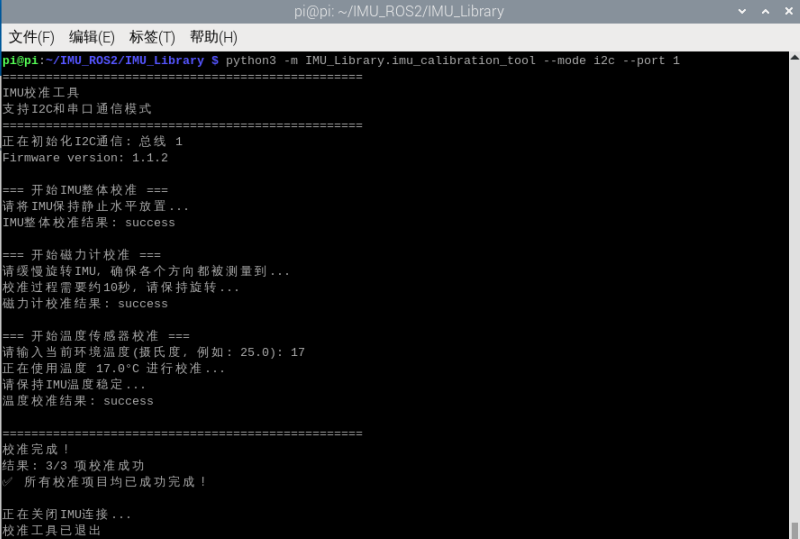
6. 注意事項
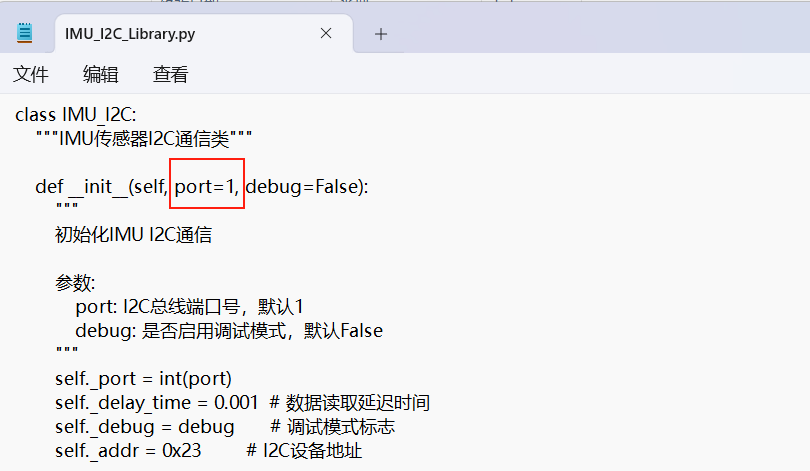
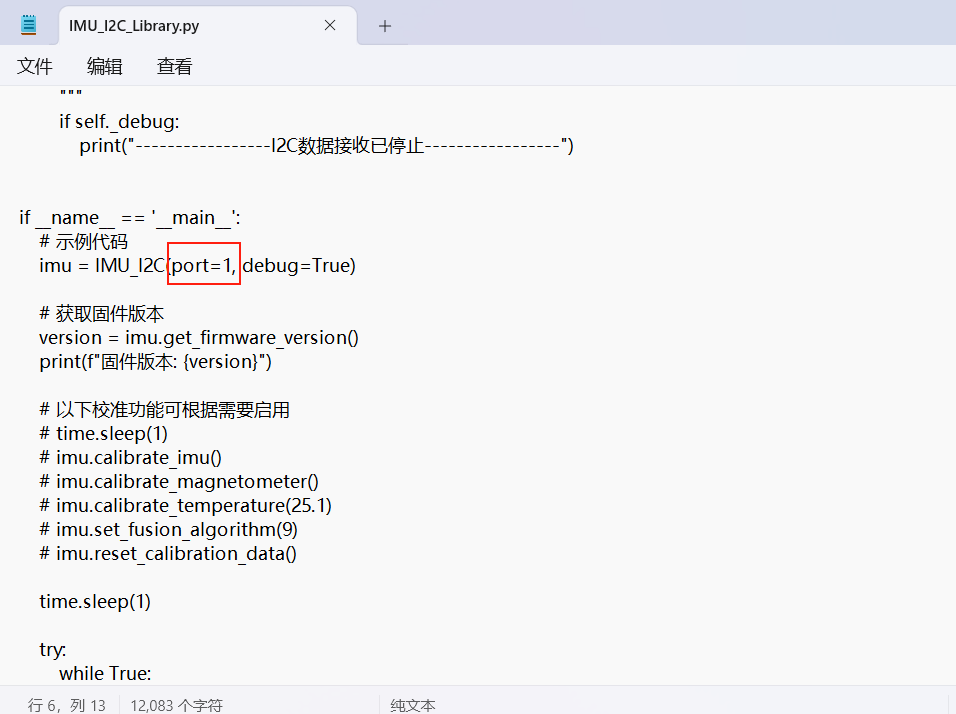
RDK X5を使用する場合、実際に合わせてI2Cバスの番号を変更する必要があります。変更箇所は下図の通りです。通常は0号バスです