RDK 시리즈
1. 장치 연결
본 튜토리얼은 RDK X5 마더보드의 이미지를 예로 듭니다.
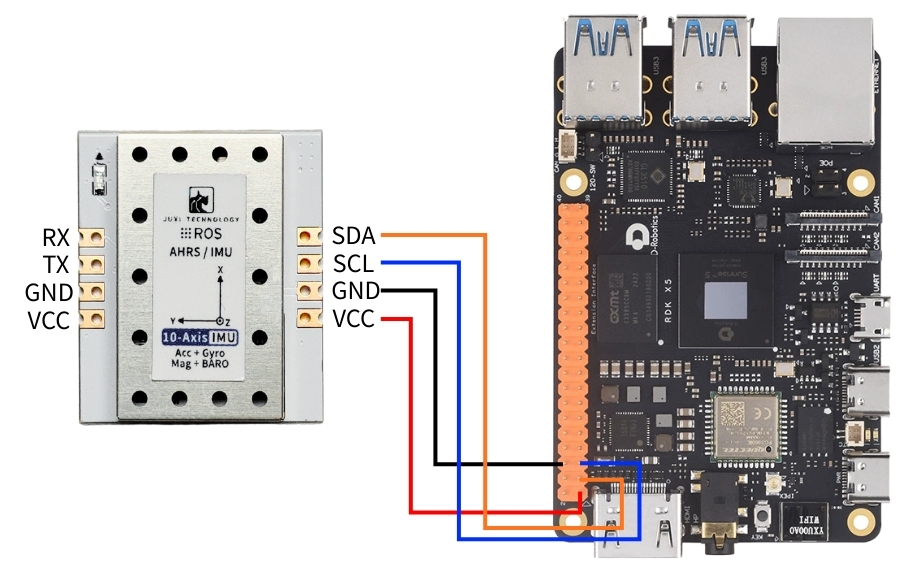
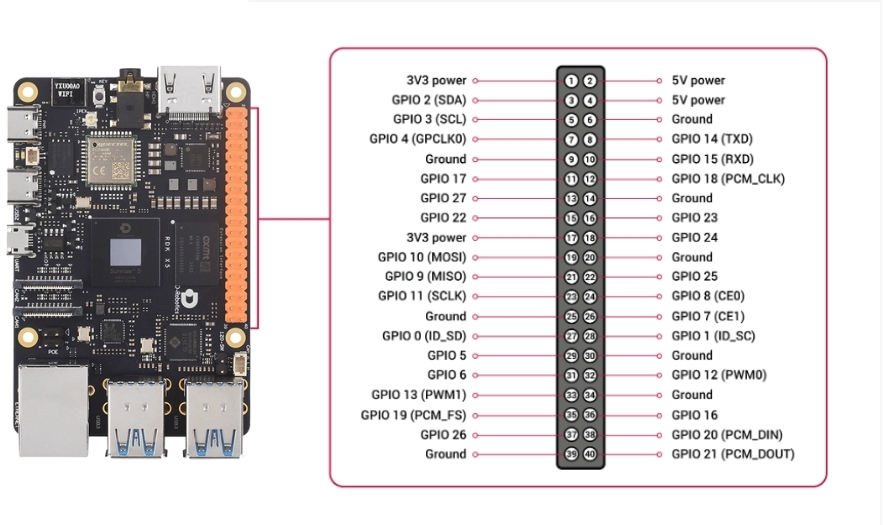
IMU 자세 센서를 아래 그림처럼 RDK X5의 I2C 인터페이스에 연결합니다.
2. 장치 상태 확인
먼저 I2Ctool을 설치합니다. 터미널에 입력:
PowerShell
sudo apt-get update
sudo apt-get install -y i2c-tools
I2C 장치 확인
PowerShell
sudo i2cdetect -y -r -a 0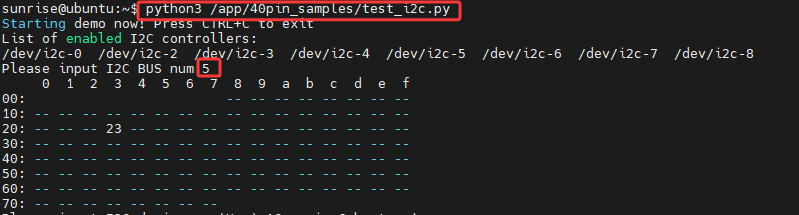
3. 드라이버 라이브러리 설치
3.1 코드에 필요한 python 라이브러리 설치
PowerShell
sudo apt update
sudo apt install -y python3-serial
sudo apt install -y python3-smbus2
3.2 파일 전송
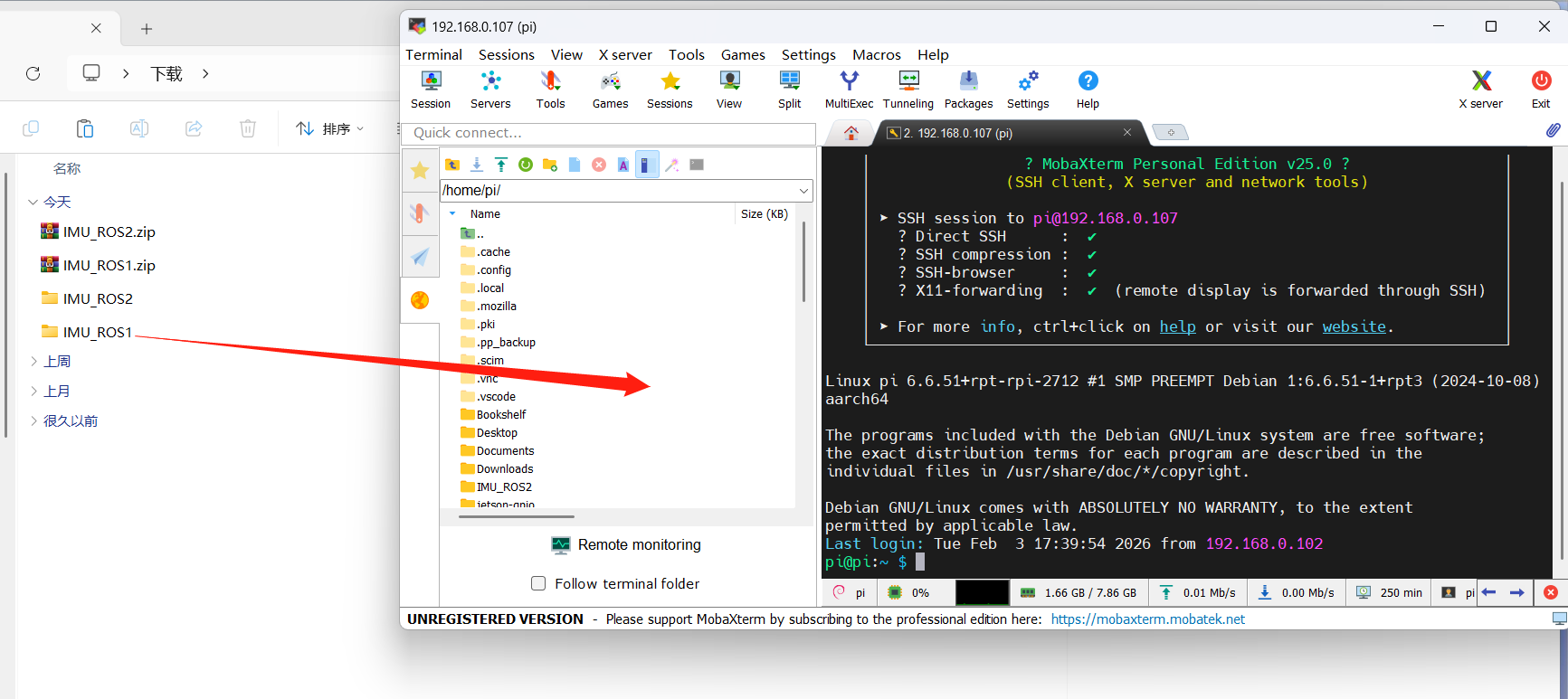
IMU_ROS2.zip MobaXterm을 사용한 파일 전송이 아직 익숙하지 않은 분은 아래 페이지에서 MobaXterm의 자세한 설치 및 사용 방법을 확인하세요: 文件远程传输
MobaXterm 소프트웨어로 압축 해제한 파일을 RDK X5에 드래그합니다.
4. imu 데이터 확인
~/IMU_Library 디렉터리로 이동하여 IMU_Serial_Library.py 파일 실행
PowerShell
cd ~/imu_ros2/src/IMU_ROS2/IMU_Library

# IMU 데이터 출력 파일 실행
python3 -m IMU_Library.IMU_I2C_Library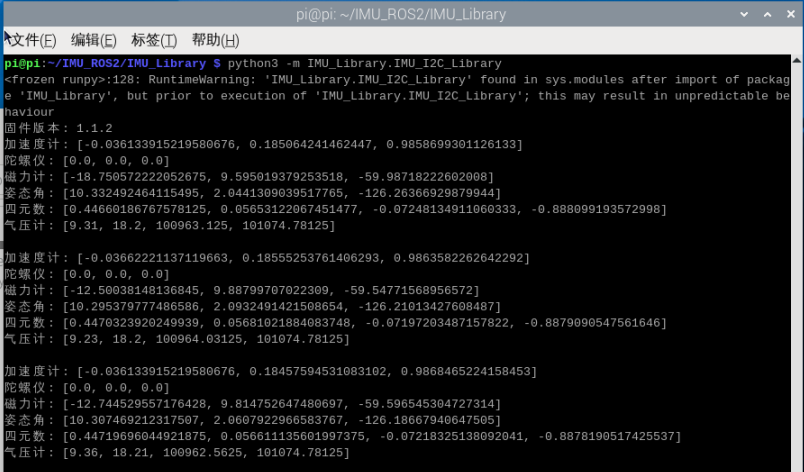
주의: 위는 10축 IMU 데이터 읽기입니다. 6축은 자기력계(Magnetometer)와 기압계(Barometer) 데이터가 없고, 9축은 기압계(Barometer) 데이터가 없습니다.
5. IMU 캘리브레이션
~/IMU_Library 디렉터리로 이동하여 imu_calibration_tool.py 파일 실행
PowerShell
cd ~/IMU_Library

# IMU 보정 코드 파일 실행 --I2C 통신 보정
# 모든 보정 실행(전체, 자력계, 온도)
python3 -m IMU_Library.imu_calibration_tool --mode i2c --port 0

# 전체 보정만
python3 -m IMU_Library.imu_calibration_tool --mode i2c --port 0 --calibrate imu

# 자력계 보정만
python3 -m IMU_Library.imu_calibration_tool --mode i2c --port 0 --calibrate mag

# 온도 보정만
python3 -m IMU_Library.imu_calibration_tool --mode i2c --port 0 --calibrate temp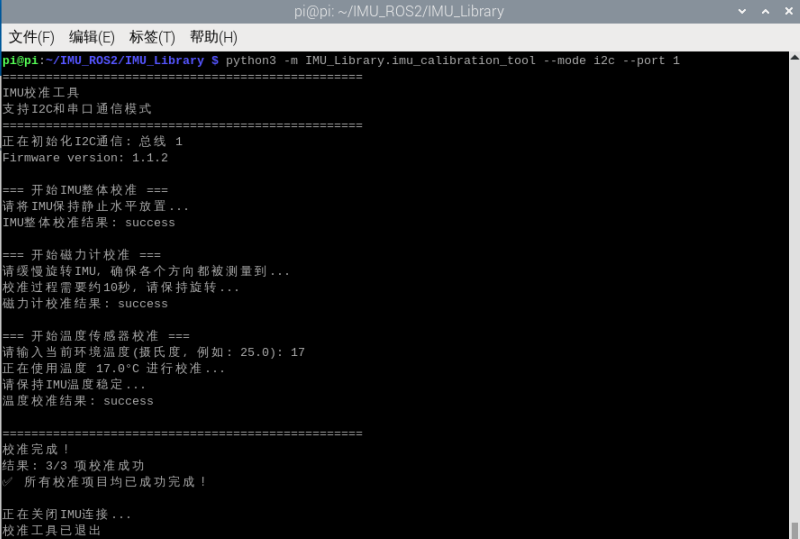
6. 주의사항
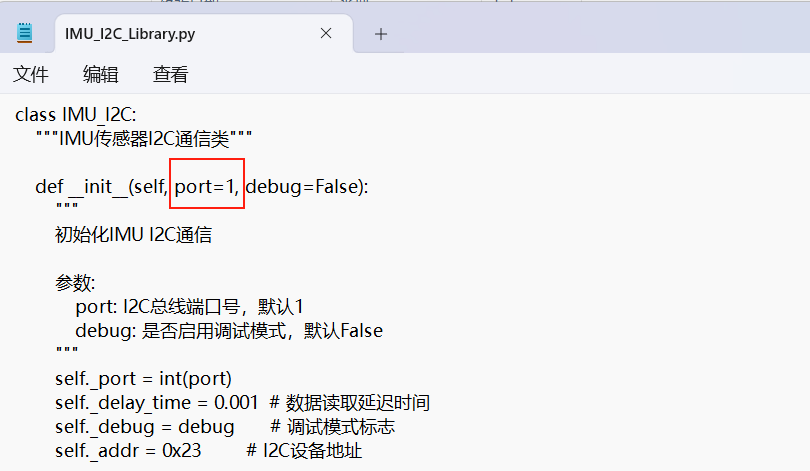
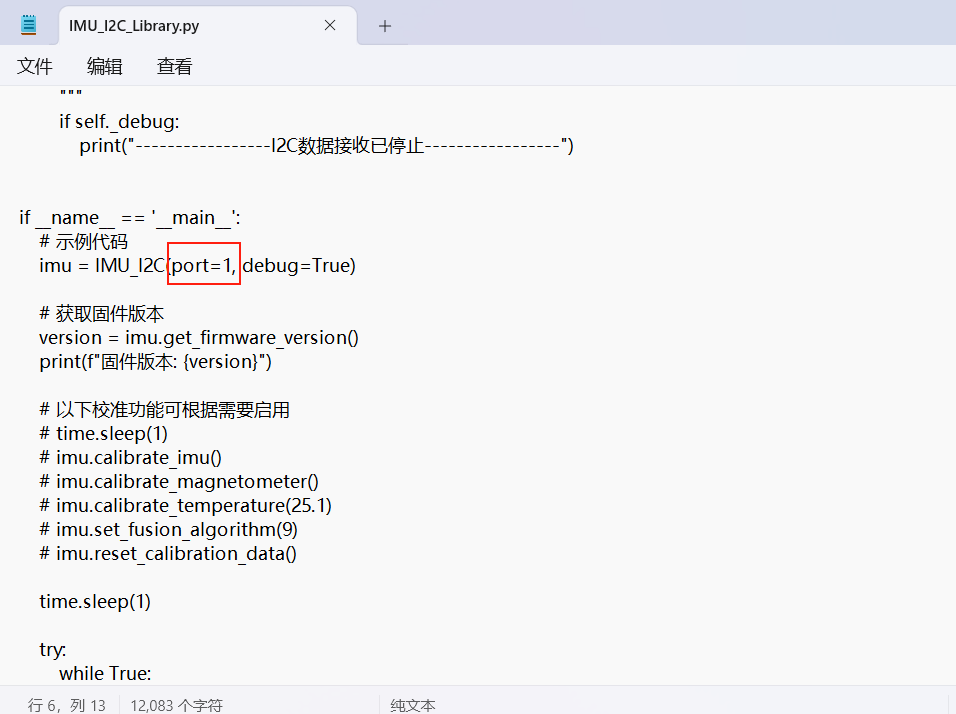
RDK X5 사용 시 실제에 맞게 I2C 버스 번호를 수정해야 합니다. 수정 위치는 아래 그림과 같습니다. 보통 0번 버스입니다