

Écran OLED 0,91 pouce
Série Jetson
1. Brochage GPIO
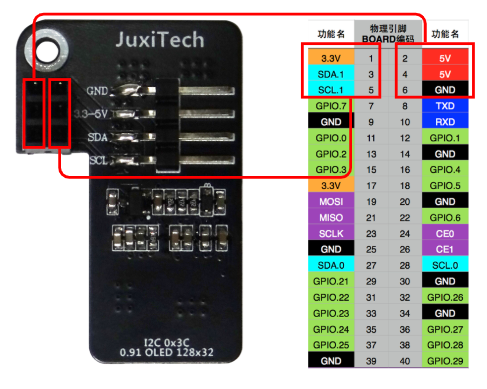
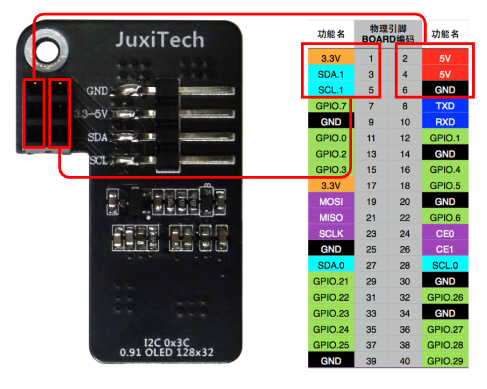
Testez la communication I2C avec l'écran OLED 0,91 pouce. Connectez-le comme suit :
Attention : ne faites pas de mauvais branchements ni de court-circuits – une erreur peut endommager le matériel de la carte mère !
2. Test I2C
2.1. Installer les dépendances
sudo apt install -y python3-pip
sudo pip3 install smbus
sudo pip3 install Adafruit_SSD1306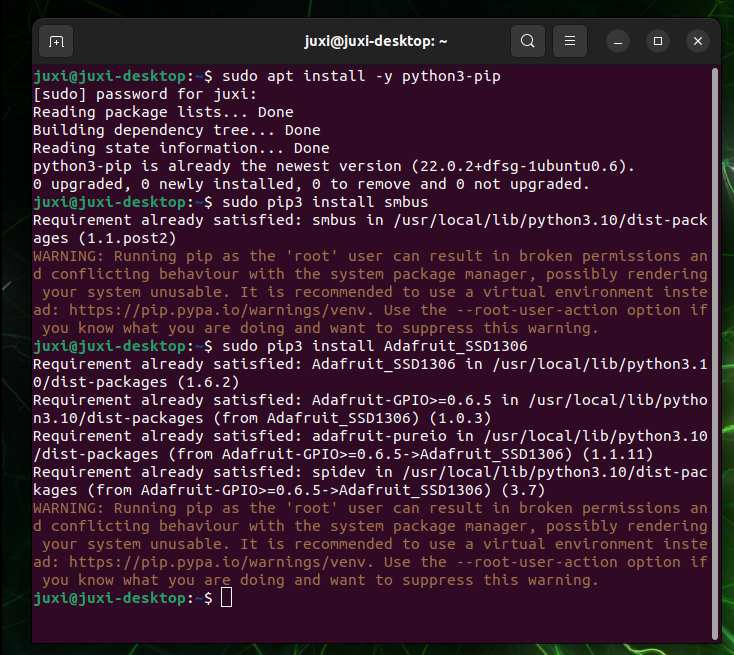
2.2. Périphériques I2C
Lors du développement normal, il faut identifier le bus et l'adresse du périphérique I2C.
(1) Afficher les bus I2C
La commande suivante dans le terminal liste tous les bus du périphérique :
i2cdetect -l(2) Afficher les périphériques I2C
La commande suivante dans le terminal liste les périphériques I2C du bus spécifié : l'adresse I2C de l'OLED est 0x3c
i2cdetect -y -r *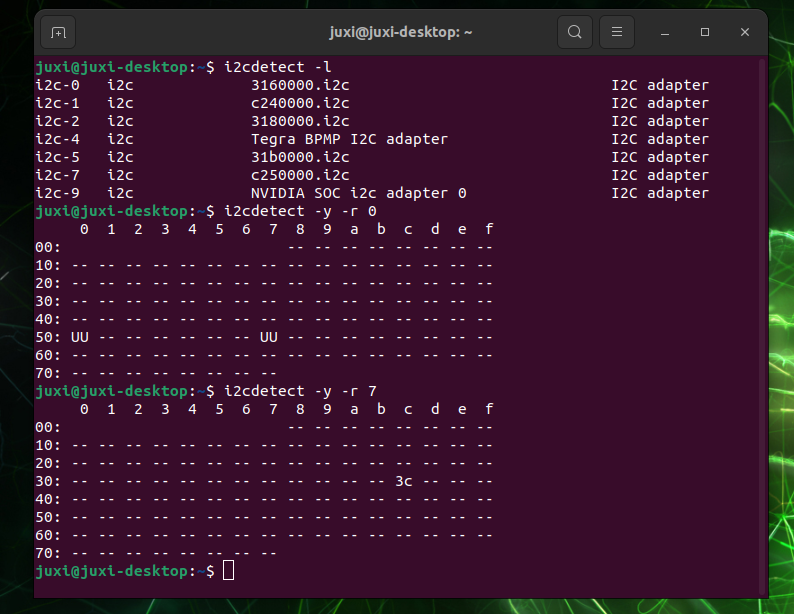
3. Vérifier l'adresse IP et le port
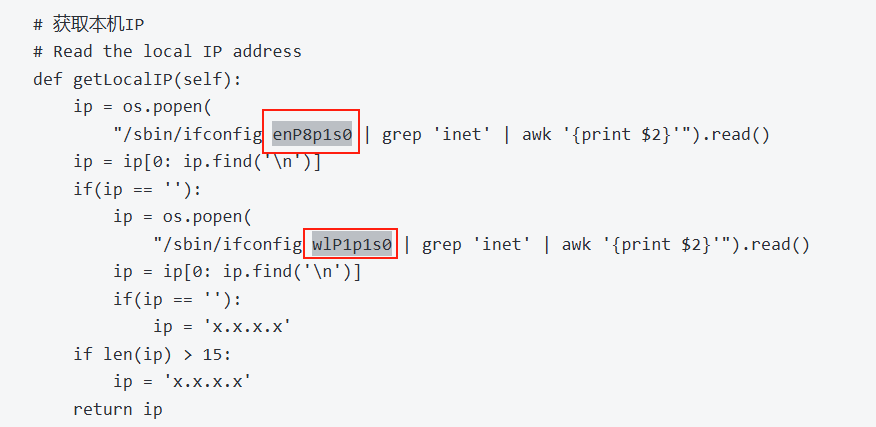
Utiliser ifconfig pour vérifier l'adresse IP et le port
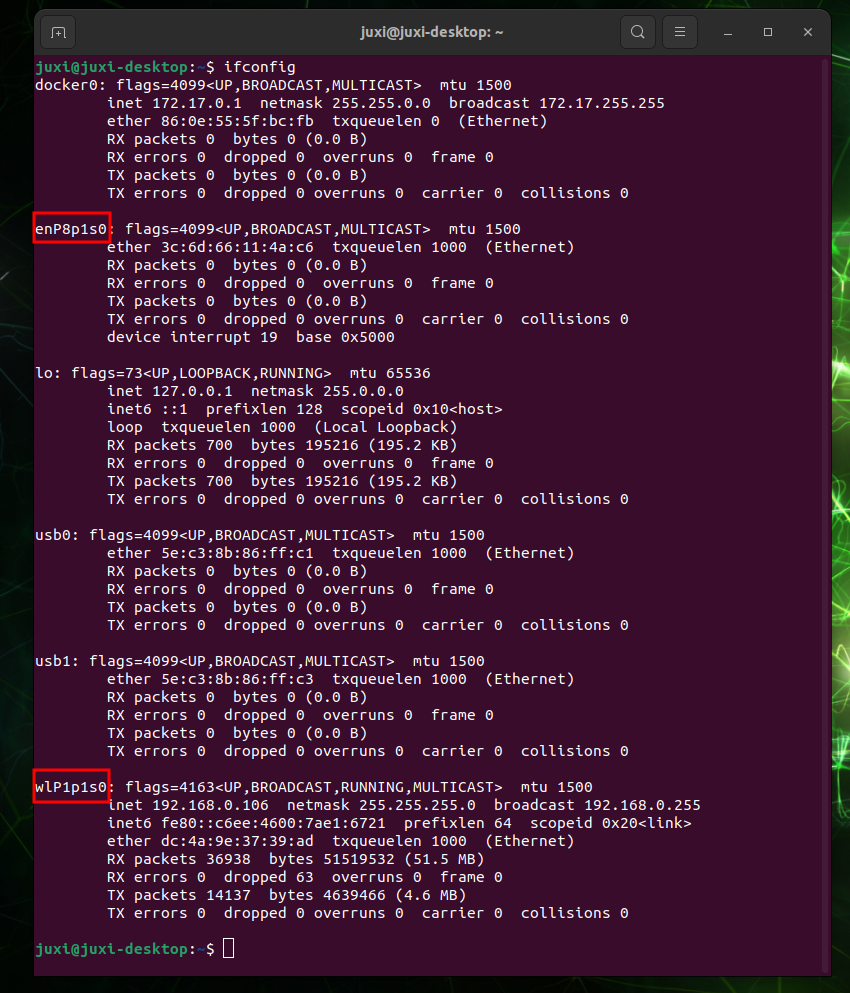
Modifier le code en fonction du port réel
4. Résultat de l'expérience
Créer le fichier Oled_i2c.py
# (If gedit is not installed) sudo apt install gedit
sudo gedit Oled_i2c.py
Copier le code suivant, le coller dans le fichier, enregistrer et fermer
#!/usr/bin/env python3
# coding=utf-8
import time
import os
import sys

i2c_num = 7
if len(sys.argv) > 1:
    if str(sys.argv[1]).isdigit():
        i2c_num = int(sys.argv[1])

print("i2c_num=", i2c_num)

passwd = "juxi"
cmd_i2c = "sudo i2cdetect -y -r " + str(i2c_num)
os.system('echo %s | sudo -S %s' % (passwd, cmd_i2c))


import Adafruit_SSD1306 as SSD

from PIL import Image
from PIL import ImageDraw
from PIL import ImageFont

import subprocess


class Juxi_OLED:
    def __init__(self, i2c_bus=1, debug=False):
        self.__debug = debug
        self.__i2c_bus = i2c_bus
        self.__top = -2
        self.__x = 0

        self.__total_last = 0
        self.__idle_last = 0
        self.__str_CPU = "CPU:0%"


    def __del__(self):
        if self.__debug:
            print("---OLED-DEL---")

    # Initialiser l'OLED, retourne True en cas de succès, False en cas d'échec
    # Initialize OLED, return True on success, False on failure
    def begin(self):
        try:
            self.__oled = SSD.SSD1306_128_32(
                rst=None, i2c_bus=self.__i2c_bus, gpio=1)
            self.__oled.begin()
            self.__oled.clear()
            self.__oled.display()
            self.__width = self.__oled.width
            self.__height = self.__oled.height
            self.__image = Image.new('1', (self.__width, self.__height))
            self.__draw = ImageDraw.Draw(self.__image)
            self.__font = ImageFont.truetype("DejaVuSansMono.ttf",8)    # ImageFont.load_default()
            if self.__debug:
                print("---OLED begin ok!---")
            return True
        except:
            if self.__debug:
                print("---OLED no found!---")
            return False

    # Effacer l'affichage. refresh=True rafraîchit immédiatement, refresh=False ne rafraîchit pas.
    # Clear the display.  Refresh =True Refresh immediately, refresh=False refresh not
    def clear(self, refresh=False):
        self.__draw.rectangle(
            (0, 0, self.__width, self.__height), outline=0, fill=0)
        if refresh:
            self.refresh()

    # Ajouter des caractères. start_x start_y indique le point de départ. text est le caractère à ajouter.
    # refresh=True rafraîchit immédiatement, refresh=False ne rafraîchit pas.
    # Add characters.  Start_x Start_y indicates the starting point.  Text is the character to be added
    # Refresh =True Refresh immediately, refresh=False refresh not
    def add_text(self, start_x, start_y, text, refresh=False):
        if start_x > 128 or start_x < 0 or start_y < 0 or start_y > 32:
            if self.__debug:
                print("oled text: x, y input error!")
            return
        x = int(start_x + self.__x)
        y = int(start_y + self.__top)
        self.__draw.text((x, y), str(text), font=self.__font, fill=255)
        if refresh:
            self.refresh()

    # Écrire une ligne de caractères text. refresh=True rafraîchit immédiatement, refresh=False ne rafraîchit pas.
    # line=[1, 4]
    # Write a line of character text.  Refresh =True Refresh immediately, refresh=False refresh not.
    def add_line(self, text, line=1, refresh=False):
        if line < 1 or line > 4:
            if self.__debug:
                print("oled line input error!")
            return
        y = int(8 * (line - 1))
        self.add_text(0, y, text, refresh)

    # Rafraîchir l'OLED pour afficher le contenu
    # Refresh the OLED to display the content
    def refresh(self):
        self.__oled.image(self.__image)
        self.__oled.display()

    # Lire le taux d'occupation du CPU
    # Read the CPU usage rate
    def getCPULoadRate(self, index):
        count = 10
        if index == 0:
            f1 = os.popen("cat /proc/stat", 'r')
            stat1 = f1.readline()
            data_1 = []
            for i in range(count):
                data_1.append(int(stat1.split(' ')[i+2]))
            self.__total_last = data_1[0]+data_1[1]+data_1[2]+data_1[3] + \
                data_1[4]+data_1[5]+data_1[6]+data_1[7]+data_1[8]+data_1[9]
            self.__idle_last = data_1[3]
        elif index == 4:
            f2 = os.popen("cat /proc/stat", 'r')
            stat2 = f2.readline()
            data_2 = []
            for i in range(count):
                data_2.append(int(stat2.split(' ')[i+2]))
            total_now = data_2[0]+data_2[1]+data_2[2]+data_2[3] + \
                data_2[4]+data_2[5]+data_2[6]+data_2[7]+data_2[8]+data_2[9]
            idle_now = data_2[3]
            total = int(total_now - self.__total_last)
            idle = int(idle_now - self.__idle_last)
            usage = int(total - idle)
            usageRate = int(float(usage / total) * 100)
            self.__str_CPU = "CPU:" + str(usageRate) + "%"
            self.__total_last = 0
            self.__idle_last = 0
        return self.__str_CPU

    # Lire l'heure du système
    # Read system time
    def getSystemTime(self):
        cmd = "date +%H:%M:%S"
        date_time = subprocess.check_output(cmd, shell=True)
        str_Time = str(date_time).lstrip("b'")
        str_Time = str_Time.rstrip("\\n'")
        return str_Time

    # Lire le taux d'occupation de la mémoire et la mémoire totale
    # Read the memory usage and total memory
    def getUsagedRAM(self):
        cmd = "free | awk 'NR==2{printf \"RAM:%2d%% -> %.1fGB \", 100*($2-$7)/$2, ($2/1048576.0)}'"
        FreeRam = subprocess.check_output(cmd, shell=True)
        str_FreeRam = str(FreeRam).lstrip("b'")
        str_FreeRam = str_FreeRam.rstrip("'")
        return str_FreeRam

    # Lire la mémoire libre / la mémoire totale
    # Read free memory/total memory
    def getFreeRAM(self):
        cmd = "free -h | awk 'NR==2{printf \"RAM: %.1f/%.1fGB \", $7,$2}'"
        FreeRam = subprocess.check_output(cmd, shell=True)
        str_FreeRam = str(FreeRam).lstrip("b'")
        str_FreeRam = str_FreeRam.rstrip("'")
        return str_FreeRam

    # Lire le taux d'occupation de la carte TF / l'espace total de la carte TF
    # Read the TF card space usage/TOTAL TF card space
    def getUsagedDisk(self):
        cmd = "df -h | awk '$NF==\"/\"{printf \"SDC:%s -> %.1fGB\", $5, $2}'"
        Disk = subprocess.check_output(cmd, shell=True)
        str_Disk = str(Disk).lstrip("b'")
        str_Disk = str_Disk.rstrip("'")
        return str_Disk

    # Lire l'espace libre de la carte TF / l'espace total de la carte TF
    # Read the free TF card space/total TF card space
    def getFreeDisk(self):
        cmd = "df -h | awk '$NF==\"/\"{printf \"Disk:%.1f/%.1fGB\", $4,$2}'"
        Disk = subprocess.check_output(cmd, shell=True)
        str_Disk = str(Disk).lstrip("b'")
        str_Disk = str_Disk.rstrip("'")
        return str_Disk

    # Obtenir l'adresse IP locale
    # Read the local IP address
    def getLocalIP(self):
        ip = os.popen(
            "/sbin/ifconfig enP8p1s0 | grep 'inet' | awk '{print $2}'").read()
        ip = ip[0: ip.find('\n')]
        if(ip == ''):
            ip = os.popen(
                "/sbin/ifconfig wlP1p1s0 | grep 'inet' | awk '{print $2}'").read()
            ip = ip[0: ip.find('\n')]
            if(ip == ''):
                ip = 'x.x.x.x'
        if len(ip) > 15:
            ip = 'x.x.x.x'
        return ip

    # Fonction principale de l'OLED, appelée dans la boucle while, permet le hot-plug.
    # Oled mainly runs functions that are called in a while loop and can be hot-pluggable
    def main_program(self):
        state = False
        try:
            cpu_index = 0
            state = self.begin()
            while state:
                self.clear()
                str_CPU = self.getCPULoadRate(cpu_index)
                str_Time = self.getSystemTime()
                if cpu_index == 0:
                    str_FreeRAM = self.getUsagedRAM()
                    str_Disk = self.getUsagedDisk()
                    str_IP = "IPA:" + self.getLocalIP()
                self.add_text(0, 0, str_CPU)
                self.add_text(50, 0, str_Time)
                self.add_line(str_FreeRAM, 2)
                self.add_line(str_Disk, 3)
                self.add_line(str_IP, 4)
                self.refresh()
                cpu_index = cpu_index + 1
                if cpu_index >= 5:
                    cpu_index = 0
                time.sleep(.1)
        except:
            if self.__debug:
                print("!!!---OLED refresh error---!!!")
            pass


if __name__ == "__main__":
    try:

        oled = Juxi_OLED(i2c_num, debug=True)
        while True:
            oled.main_program()
            time.sleep(2)
    except KeyboardInterrupt:
        oled.clear(True)
        del oled
        print(" Program closed! ")
        pass
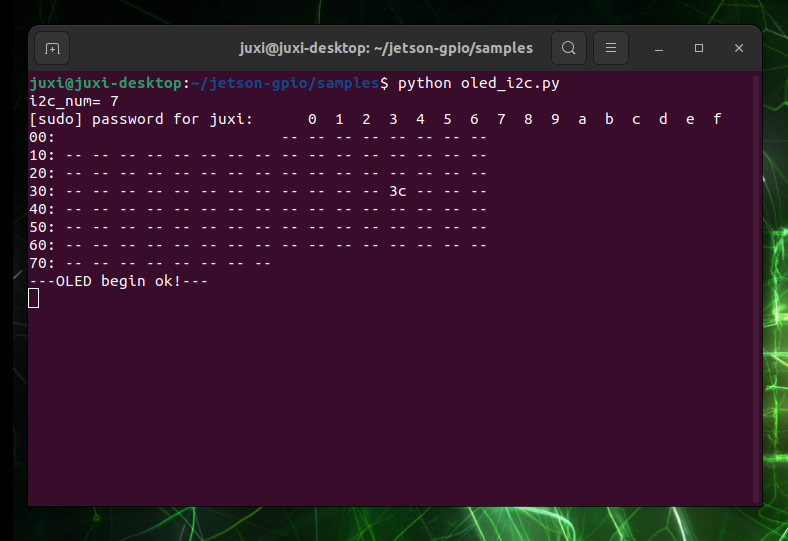
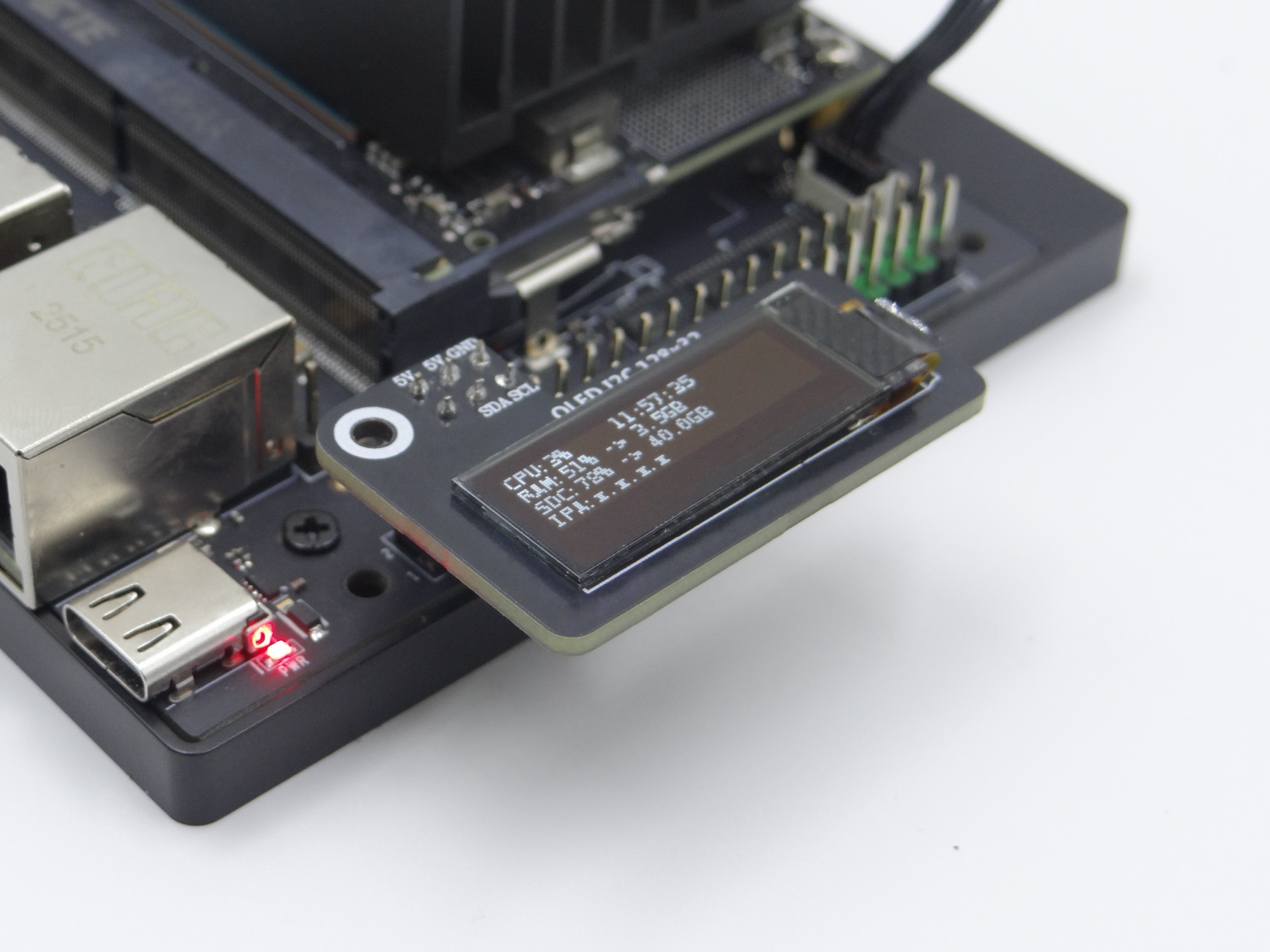
Après le lancement du programme, l'OLED affiche des informations système telles que l'utilisation du CPU, l'heure système et l'utilisation de la mémoire :
Raspberry Pi, Orange Pi
1. Activer l'option I2C
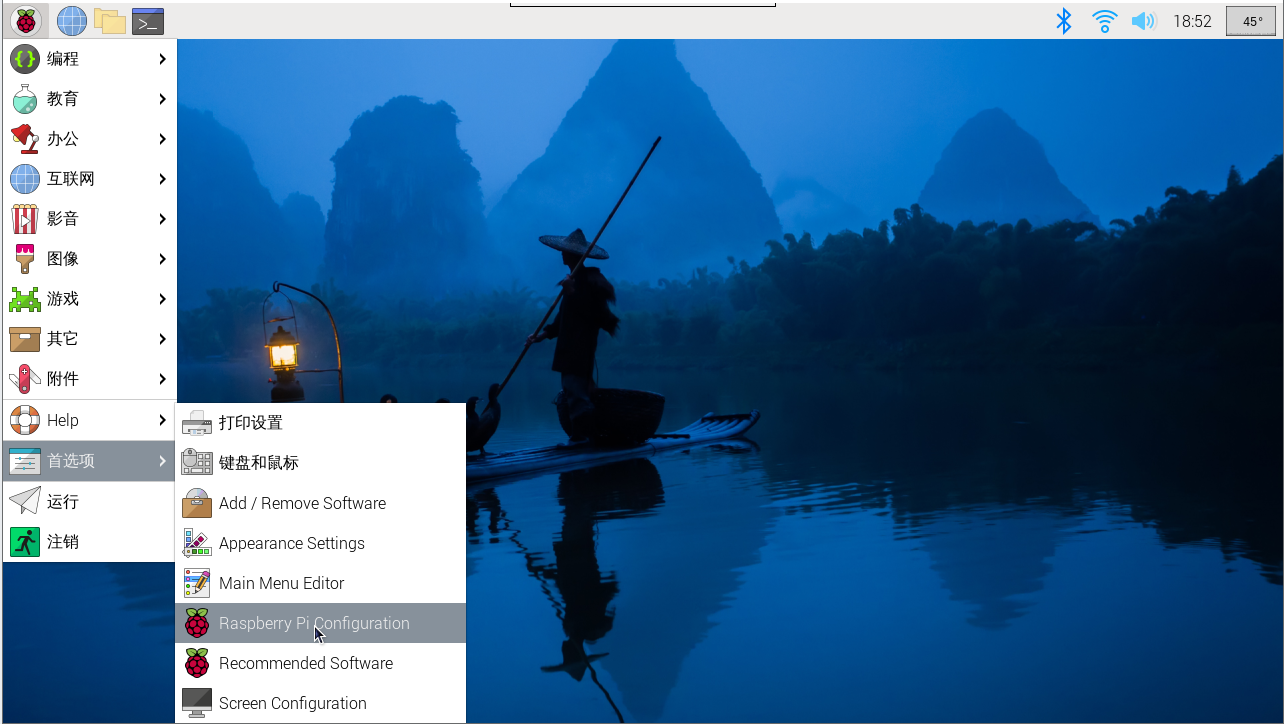
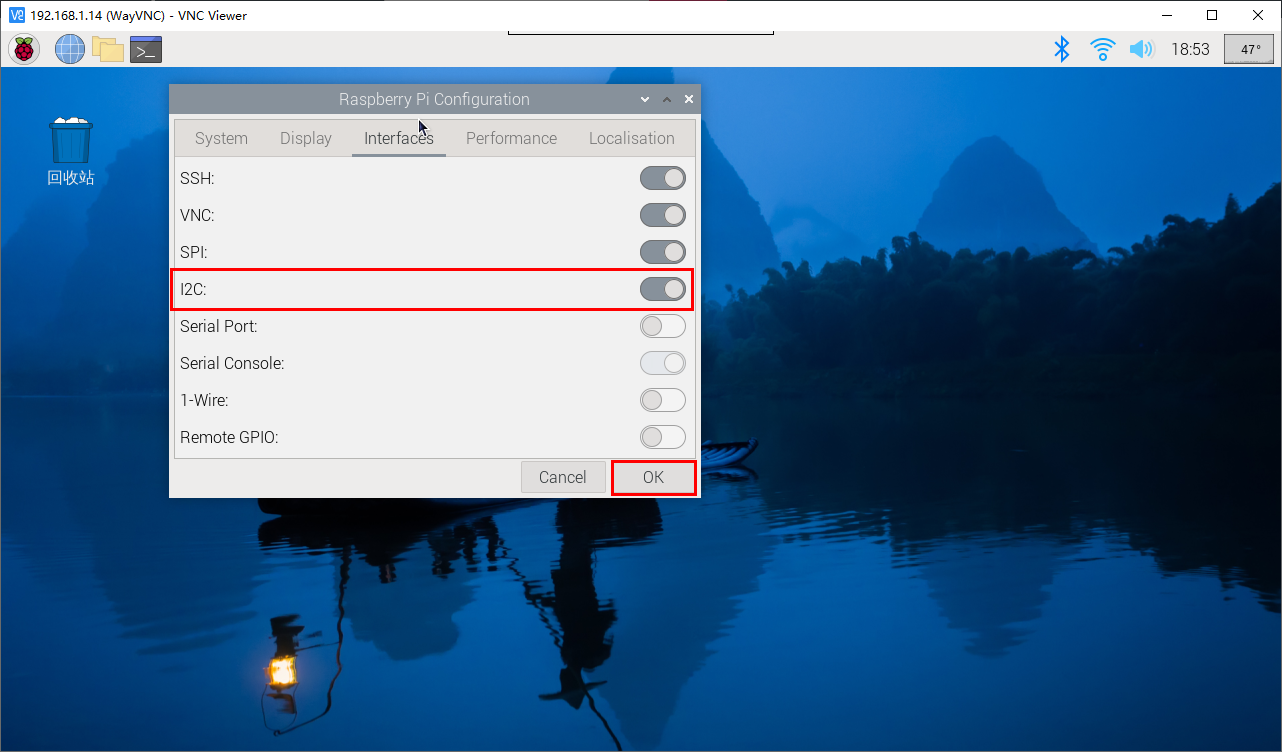
Entrer dans les paramètres système du Raspberry Pi, choisir : Préférences → Raspberry Pi Configuration → Interfaces → trouver l'option I2C et l'activer ; le système redémarre ensuite. (voir figure ci-dessous)
En mode commande, sudo raspi-config permet également de trouver cette option, d'activer l'I2C puis de redémarrer le système.
2. Installer la bibliothèque I2C
sudo apt install -y python3-dev
sudo apt install -y python3-smbus i2c-tools
sudo apt install -y python3-pil
sudo apt install -y python3-pip
sudo apt install -y python3-setuptools
sudo apt install -y python3-rpi.gpio
sudo apt install -y python3-venv
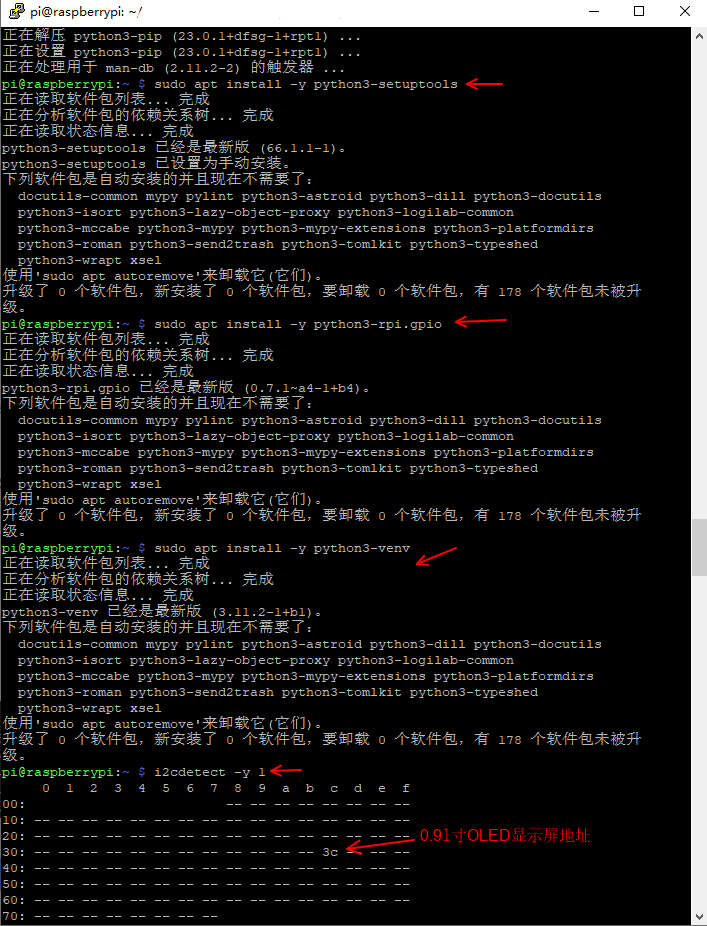
Ici, nous utilisons Python3. Après l'installation de la bibliothèque I2C, vérifier avec i2cdetect si le module d'affichage est reconnu
i2cdetect -y 1L'affichage indique que le périphérique a été détecté à l'adresse « 0x3c » (voir ci-dessous). L'adresse par défaut de ce type d'appareil est hexadécimale.
3. Configurer le fichier de police
Le code utilise la police DejaVuSansMono.ttf :
sudo apt-get install -y fonts-dejavu-coreOu modifier le code pour utiliser une police déjà présente sur le système (par ex. ImageFont.load_default())
4. Configurer les permissions
S'assurer que les permissions des fichiers de périphériques I2C sont correctes :
sudo chmod a+rw /dev/i2c-* # Temporary; for permanent effect, configure udev rules5. Vérifier l'adresse IP et le port
Utiliser ifconfig pour vérifier l'adresse IP et le port réels
# (If net-tools is not installed) sudo apt install net-tools
ifconfig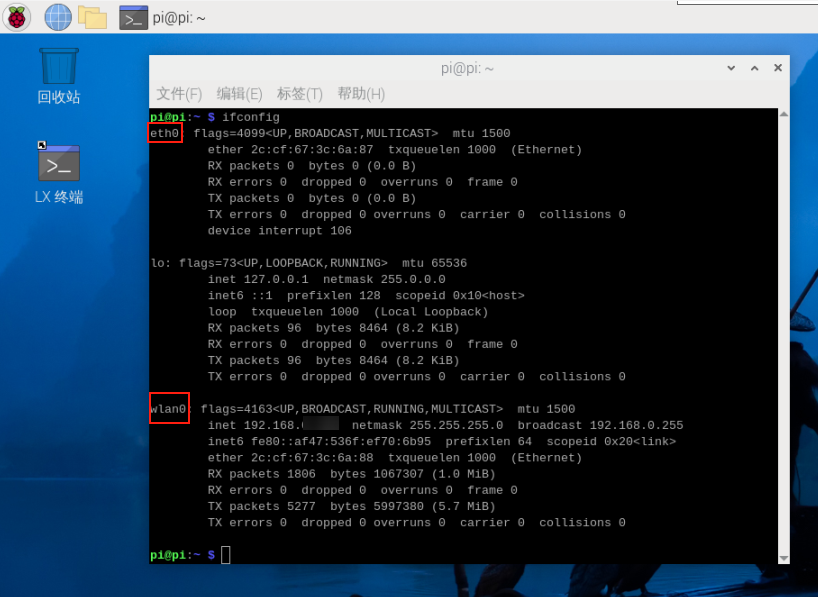
Modifier les deux zones encadrées dans le code en fonction du port réel
6. Créer le fichier Oled_i2c.py
Créer le fichier Oled_i2c.py dans le répertoire Home
# (If gedit is not installed) sudo apt install gedit
sudo gedit Oled_i2c.py
Copier le code suivant, le coller dans le fichier, enregistrer et fermer
#!/usr/bin/env python3
# coding=utf-8
import time
import os
import sys

i2c_num = 7
if len(sys.argv) > 1:
    if str(sys.argv[1]).isdigit():
        i2c_num = int(sys.argv[1])

print("i2c_num=", i2c_num)

passwd = "juxi"
cmd_i2c = "sudo i2cdetect -y -r " + str(i2c_num)
os.system('echo %s | sudo -S %s' % (passwd, cmd_i2c))


import Adafruit_SSD1306 as SSD

from PIL import Image
from PIL import ImageDraw
from PIL import ImageFont

import subprocess


class Juxi_OLED:
    def __init__(self, i2c_bus=1, debug=False):
        self.__debug = debug
        self.__i2c_bus = i2c_bus
        self.__top = -2
        self.__x = 0

        self.__total_last = 0
        self.__idle_last = 0
        self.__str_CPU = "CPU:0%"


    def __del__(self):
        if self.__debug:
            print("---OLED-DEL---")

    # Initialiser l'OLED, retourne True en cas de succès, False en cas d'échec
    # Initialize OLED, return True on success, False on failure
    def begin(self):
        try:
            self.__oled = SSD.SSD1306_128_32(
                rst=None, i2c_bus=self.__i2c_bus, gpio=1)
            self.__oled.begin()
            self.__oled.clear()
            self.__oled.display()
            self.__width = self.__oled.width
            self.__height = self.__oled.height
            self.__image = Image.new('1', (self.__width, self.__height))
            self.__draw = ImageDraw.Draw(self.__image)
            self.__font = ImageFont.truetype("DejaVuSansMono.ttf",8)    # ImageFont.load_default()
            if self.__debug:
                print("---OLED begin ok!---")
            return True
        except:
            if self.__debug:
                print("---OLED no found!---")
            return False

    # Effacer l'affichage. refresh=True rafraîchit immédiatement, refresh=False ne rafraîchit pas.
    # Clear the display.  Refresh =True Refresh immediately, refresh=False refresh not
    def clear(self, refresh=False):
        self.__draw.rectangle(
            (0, 0, self.__width, self.__height), outline=0, fill=0)
        if refresh:
            self.refresh()

    # Ajouter des caractères. start_x start_y indique le point de départ. text est le caractère à ajouter.
    # refresh=True rafraîchit immédiatement, refresh=False ne rafraîchit pas.
    # Add characters.  Start_x Start_y indicates the starting point.  Text is the character to be added
    # Refresh =True Refresh immediately, refresh=False refresh not
    def add_text(self, start_x, start_y, text, refresh=False):
        if start_x > 128 or start_x < 0 or start_y < 0 or start_y > 32:
            if self.__debug:
                print("oled text: x, y input error!")
            return
        x = int(start_x + self.__x)
        y = int(start_y + self.__top)
        self.__draw.text((x, y), str(text), font=self.__font, fill=255)
        if refresh:
            self.refresh()

    # Écrire une ligne de caractères text. refresh=True rafraîchit immédiatement, refresh=False ne rafraîchit pas.
    # line=[1, 4]
    # Write a line of character text.  Refresh =True Refresh immediately, refresh=False refresh not.
    def add_line(self, text, line=1, refresh=False):
        if line < 1 or line > 4:
            if self.__debug:
                print("oled line input error!")
            return
        y = int(8 * (line - 1))
        self.add_text(0, y, text, refresh)

    # Rafraîchir l'OLED pour afficher le contenu
    # Refresh the OLED to display the content
    def refresh(self):
        self.__oled.image(self.__image)
        self.__oled.display()

    # Lire le taux d'occupation du CPU
    # Read the CPU usage rate
    def getCPULoadRate(self, index):
        count = 10
        if index == 0:
            f1 = os.popen("cat /proc/stat", 'r')
            stat1 = f1.readline()
            data_1 = []
            for i in range(count):
                data_1.append(int(stat1.split(' ')[i+2]))
            self.__total_last = data_1[0]+data_1[1]+data_1[2]+data_1[3] + \
                data_1[4]+data_1[5]+data_1[6]+data_1[7]+data_1[8]+data_1[9]
            self.__idle_last = data_1[3]
        elif index == 4:
            f2 = os.popen("cat /proc/stat", 'r')
            stat2 = f2.readline()
            data_2 = []
            for i in range(count):
                data_2.append(int(stat2.split(' ')[i+2]))
            total_now = data_2[0]+data_2[1]+data_2[2]+data_2[3] + \
                data_2[4]+data_2[5]+data_2[6]+data_2[7]+data_2[8]+data_2[9]
            idle_now = data_2[3]
            total = int(total_now - self.__total_last)
            idle = int(idle_now - self.__idle_last)
            usage = int(total - idle)
            usageRate = int(float(usage / total) * 100)
            self.__str_CPU = "CPU:" + str(usageRate) + "%"
            self.__total_last = 0
            self.__idle_last = 0
        return self.__str_CPU

    # Lire l'heure du système
    # Read system time
    def getSystemTime(self):
        cmd = "date +%H:%M:%S"
        date_time = subprocess.check_output(cmd, shell=True)
        str_Time = str(date_time).lstrip("b'")
        str_Time = str_Time.rstrip("\\n'")
        return str_Time

    # Lire le taux d'occupation de la mémoire et la mémoire totale
    # Read the memory usage and total memory
    def getUsagedRAM(self):
        cmd = "free | awk 'NR==2{printf \"RAM:%2d%% -> %.1fGB \", 100*($2-$7)/$2, ($2/1048576.0)}'"
        FreeRam = subprocess.check_output(cmd, shell=True)
        str_FreeRam = str(FreeRam).lstrip("b'")
        str_FreeRam = str_FreeRam.rstrip("'")
        return str_FreeRam

    # Lire la mémoire libre / la mémoire totale
    # Read free memory/total memory
    def getFreeRAM(self):
        cmd = "free -h | awk 'NR==2{printf \"RAM: %.1f/%.1fGB \", $7,$2}'"
        FreeRam = subprocess.check_output(cmd, shell=True)
        str_FreeRam = str(FreeRam).lstrip("b'")
        str_FreeRam = str_FreeRam.rstrip("'")
        return str_FreeRam

    # Lire le taux d'occupation de la carte TF / l'espace total de la carte TF
    # Read the TF card space usage/TOTAL TF card space
    def getUsagedDisk(self):
        cmd = "df -h | awk '$NF==\"/\"{printf \"SDC:%s -> %.1fGB\", $5, $2}'"
        Disk = subprocess.check_output(cmd, shell=True)
        str_Disk = str(Disk).lstrip("b'")
        str_Disk = str_Disk.rstrip("'")
        return str_Disk

    # Lire l'espace libre de la carte TF / l'espace total de la carte TF
    # Read the free TF card space/total TF card space
    def getFreeDisk(self):
        cmd = "df -h | awk '$NF==\"/\"{printf \"Disk:%.1f/%.1fGB\", $4,$2}'"
        Disk = subprocess.check_output(cmd, shell=True)
        str_Disk = str(Disk).lstrip("b'")
        str_Disk = str_Disk.rstrip("'")
        return str_Disk

    # Obtenir l'adresse IP locale
    # Read the local IP address
    def getLocalIP(self):
        ip = os.popen(
            "/sbin/ifconfig enP8p1s0 | grep 'inet' | awk '{print $2}'").read()
        ip = ip[0: ip.find('\n')]
        if(ip == ''):
            ip = os.popen(
                "/sbin/ifconfig wlP1p1s0 | grep 'inet' | awk '{print $2}'").read()
            ip = ip[0: ip.find('\n')]
            if(ip == ''):
                ip = 'x.x.x.x'
        if len(ip) > 15:
            ip = 'x.x.x.x'
        return ip

    # Fonction principale de l'OLED, appelée dans la boucle while, permet le hot-plug.
    # Oled mainly runs functions that are called in a while loop and can be hot-pluggable
    def main_program(self):
        state = False
        try:
            cpu_index = 0
            state = self.begin()
            while state:
                self.clear()
                str_CPU = self.getCPULoadRate(cpu_index)
                str_Time = self.getSystemTime()
                if cpu_index == 0:
                    str_FreeRAM = self.getUsagedRAM()
                    str_Disk = self.getUsagedDisk()
                    str_IP = "IPA:" + self.getLocalIP()
                self.add_text(0, 0, str_CPU)
                self.add_text(50, 0, str_Time)
                self.add_line(str_FreeRAM, 2)
                self.add_line(str_Disk, 3)
                self.add_line(str_IP, 4)
                self.refresh()
                cpu_index = cpu_index + 1
                if cpu_index >= 5:
                    cpu_index = 0
                time.sleep(.1)
        except:
            if self.__debug:
                print("!!!---OLED refresh error---!!!")
            pass


if __name__ == "__main__":
    try:

        oled = Juxi_OLED(i2c_num, debug=True)
        while True:
            oled.main_program()
            time.sleep(2)
    except KeyboardInterrupt:
        oled.clear(True)
        del oled
        print(" Program closed! ")
        pass
7. Créer un environnement virtuel
# Install virtualenv tool (if not installed) sudo apt-get install -y python3-venv

# Create a virtual environment
python3 -m venv oled_env

# Activate:source oled_env/bin/activate  # After activation, (oled_env) appears at the command prompt
# Install dependencies in the virtual environment
# Use the Aliyun mirror
pip install Adafruit_SSD1306 -i https://mirrors.aliyun.com/pypi/simple/

# Also install pillow (dependency)
pip install pillow -i https://mirrors.aliyun.com/pypi/simple/

# Run the code (must be inside the virtual environment)

# Go to the corresponding simple folder
cd /home/pi/oled-screen/luma.examples/examples
python3 oled_i2c.py  # default bus 7
# Or specify a bus (e.g. bus 1)
python3 oled_i2c.py 1
# If a permission error occurs, check the sudo configuration or I2C device permissions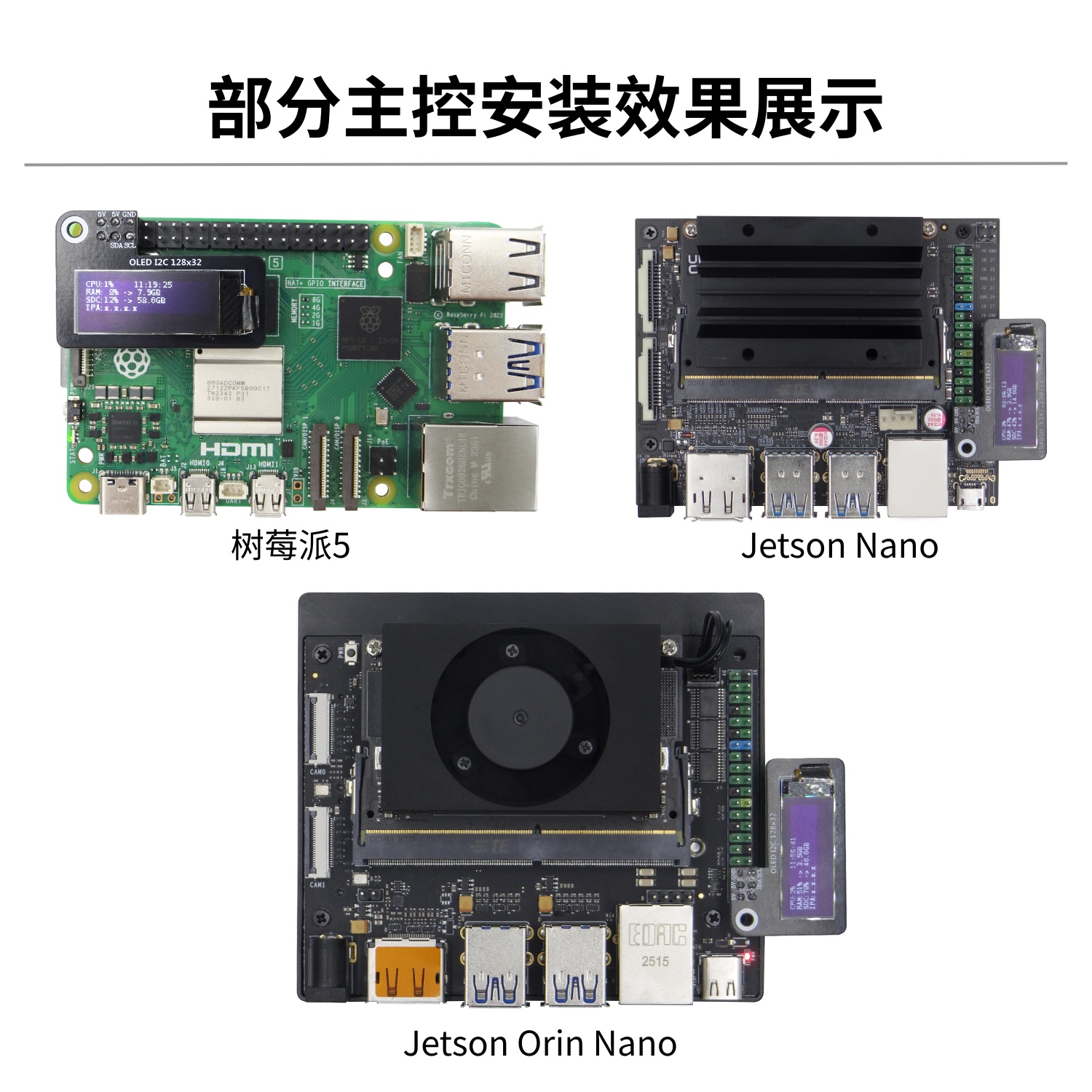
Exemple du dépôt officiel
JUXI fournit un code de pilote open source pour les écrans OLED : GitHub
Exemple de pilote I2C
sudo apt install -y python3-pip
sudo pip3 install smbus Adafruit_SSD1306import Adafruit_SSD1306
from PIL import Image, ImageDraw, ImageFont
# Initialiser l'OLED (128x32)
disp = Adafruit_SSD1306.SSD1306_128_32(rst=None)
disp.begin()
disp.clear()
disp.display()
# Dessiner du texte
image = Image.new('1', (disp.width, disp.height))
draw = ImageDraw.Draw(image)
draw.text((0, 0), 'Hello Juxi!', font=ImageFont.load_default(), fill=255)
disp.image(image)
disp.display()